Wallet Overview
Your wallet is the prepaid balance at the heart of Onflow Ads. You add funds to it, spend that balance on platform services (Boost Metrics orders, paid ad placements, Subscriber Exchange delivery, Premium plans and more), and — if you earn money as a channel owner through Paid Promotions — withdraw those earnings out of it.
All wallet balances are held in US Dollars (USD). You can display your balance in another currency for convenience, but the money itself is always stored, spent, refunded and paid out in USD.
Almost everything in this section happens on one screen:
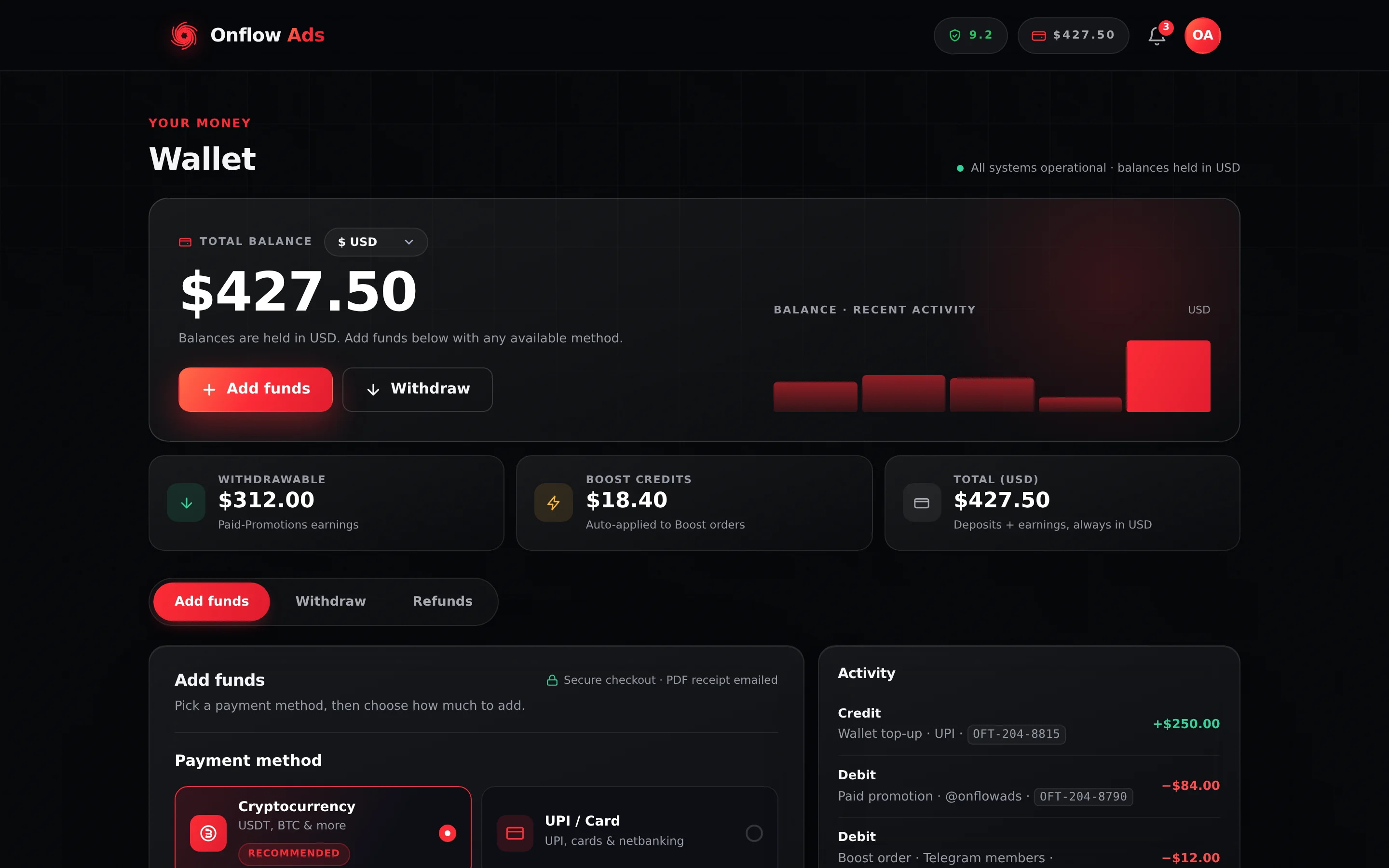
Plus plan · Advertiser. The wallet page. The balance panel sits at the top, the three stat tiles under it break that total down, the tab strip switches between the three money flows, and the right rail keeps Activity and My withdrawals in view whichever tab you are on.
Who it is for
- Everyone with an Onflow Ads account — every purchase on the platform is paid from this one balance.
- Buyers — advertisers and Boost customers who top up and spend.
- Channel owners who earn from Paid Promotions and withdraw those earnings.
Before you start
Both wallet pages are served only to a signed-in account, and one of them sits behind the onboarding gate.
| Requirement | What happens if it is not met |
|---|---|
| Signed in | You are redirected to https://onflowads.com/signin. |
| Email verified | You are redirected to https://onflowads.com/verify, where you enter the code sent to your address. |
| Onboarding complete — a linked Telegram bot, and a real email address rather than the synthetic one a Telegram-only sign-in starts with | Everything under /telegram/ redirects to the link screen at https://onflowads.com/telegram/link first. |
The gate covers /telegram/ and everything under it, which includes the dashboard wallet. It does not cover /account. If the link screen keeps intercepting you and you need your balance right now, open https://onflowads.com/account and select the Wallet tab — it is the same wallet, the same balance and the same controls. Linking the bot is still worth doing: it is how money notifications reach you on Telegram.
Where to find your wallet
| Page | Address | What it is |
|---|---|---|
| Wallet | https://onflowads.com/telegram/dashboard/wallet | The full wallet command centre — balance, tabs, activity, withdrawals. |
| Account → Wallet tab | https://onflowads.com/account | The same wallet, inside your account settings. Reached with ?tab=wallet or the #wallet anchor. |
Both read and write the same balance, so it does not matter which one you use. Every payment return address the server mints points at /account?tab=wallet, and so does every money notification, which is why you will often land there after paying.
You can also link straight to a tab:
| Address | Opens |
|---|---|
https://onflowads.com/telegram/dashboard/wallet | The Add funds tab (the default) |
https://onflowads.com/telegram/dashboard/wallet?tab=withdraw | The Withdraw tab |
https://onflowads.com/telegram/dashboard/wallet?tab=refunds | The Refunds tab |
The anchors #withdraw and #refunds do the same thing.
Onflow Ads has a single wallet per account. Whether you arrive from the website dashboard, from your account settings, or from a checkout that asked you to top up first, you are always looking at the same balance and the same transaction history. The Telegram bot has no wallet of its own either — its Open Wallet button opens these same pages.
The three balance figures
The big number at the top of the wallet page is your Total balance, printed in whichever display currency you have chosen. Below it are three stat tiles, always in USD, that split that total into what it is actually made of:
| Tile | Hint shown under it | What it means |
|---|---|---|
| Withdrawable | "Paid-Promotions earnings" | The only part of your balance that can be cashed out to an external destination. |
| Boost Credits | "Auto-applied to Boost orders" | A separate promotional pocket, spent before your cash on Boost orders. Never cashable. |
| Total (USD) | "Deposits + earnings, always in USD" | Everything in the wallet together. |
Money you add yourself (top-ups), service refunds credited back to your wallet, and promotional credit are all spendable on the platform but not withdrawable. Only money you earn as a channel owner through Paid Promotions raises the Withdrawable figure. That is why your Withdrawable amount is usually lower than your Total balance — often zero if you have never sold a placement.
Full explanation, with examples: Your Balance and Transaction History.
Total (USD) is the raw balance. It does not subtract money that is frozen or held — an open top-up refund request, a withdrawal in the queue, an auction bid, a good-faith deposit. That money is still yours and still counted in the Total, but a checkout will refuse to spend it.
Spendable = Total (USD) − anything currently frozen or held
Every mechanism that does this, and where each one is displayed, is on Frozen and Held Funds.
The wallet tabs
Below the balance the page is organised into three tabs, in a strip labelled Wallet sections:
- Add funds — top up your wallet. See Adding Funds.
- Withdraw — request a payout of your Paid-Promotions earnings. See Withdrawing Your Earnings.
- Refunds — request a refund of a recent, unspent top-up. See Requesting a Top-up Refund.
The two buttons in the balance panel — Add funds and Withdraw — jump straight to the matching tab and do nothing else.
The always-visible right rail
Whichever tab you are on, the right-hand rail keeps showing:
- Activity — your 25 most recent wallet transactions.
- My withdrawals — your 25 most recent payout requests and their statuses.
Both are covered in detail in Your Balance and Transaction History.
The IDs your money carries
Nothing here is anonymous. Every payment, every invoice, every line on your balance and every payout carries its own short reference, so you can point at one exact event instead of describing it. They're part of the platform-wide Onflow Ads IDs scheme.
Five prefixes cover the whole wallet:
| ID | What it names | Where you'll see it |
|---|---|---|
OFD-… | A deposit — one top-up payment you made | On the top-up row under Refunds, and in the receipt email's ID strip as Deposit ID |
OFI-… | The invoice raised for that payment | In the receipt email's subject line and its details table |
OFT-… | A wallet movement — one credit or one debit on your balance | On its row in Activity, and in emails as Transaction ID |
OFW-… | A withdrawal request | On its row in My withdrawals, in the confirmation message, and on the payout email |
OFR-… | A top-up refund request | On the request under the Refunds tab, and in the message you get when you submit one |
How they fit together
They are not five names for one thing — they name different events, in order. One $100 top-up produces:
- the payment you made →
OFD-… - the invoice raised for it →
OFI-… - the credit landing in your balance →
OFT-…
and, only if you later ask for that top-up back:
- the refund request →
OFR-… - the reversal, once approved → a second
OFT-…, because a reversal is its own movement rather than an edit to the first one.
Spending works the same way from the other direction: booking a placement or a Boost order creates a debit OFT-…, and a refund of it creates a credit OFT-… — the original debit is never rewritten.
Which to quote for which question
| What you want to ask | Quote |
|---|---|
| "I paid and nothing was credited." | The OFD- deposit |
| "I need this for my accounts" / "please re-send my receipt" | The OFI- invoice number |
| "What is this line on my balance?" | That row's OFT- |
| "My payout hasn't arrived." | The OFW- withdrawal reference |
| "Where has my refund got to?" | The OFR- request |
Onflow Ads keeps two ledgers: your wallet cash and your boost credit. Each stamps its own reference — wallet lines are OFT-…, boost-credit lines are OFBT-… — so the prefix alone tells you which pocket moved. Boost-credit lines are itemised in your boost-credit statement, wallet lines in Activity.
A wallet ID identifies a movement; it can't move money, open a refund or reveal a balance. Paste one into a support message or a screenshot freely — the same is not true of your invoice PDF, which carries your name and email.
Good to know before you start
- You are never charged more than the total shown. Every top-up shows a live breakdown with a Total to pay line before you continue, and that is exactly what the checkout collects.
- Fees are added on top, never skimmed off. If you ask to add ₹5,000, ₹5,000-worth of USD reaches your wallet; the platform fee is stacked on top of what you pay. The percentage is set by your plan — see Deposit Fees and Your Plan.
- A top-up can earn two different bonuses. One lands in your wallet, one lands in Boost Credits, and they come from separate ladders — see Deposit Bonuses.
- Every credited top-up is receipted. A branded email with a PDF invoice is sent to your account email automatically.
- Topped-up money is spendable, not cashable. Only Paid-Promotions earnings can be withdrawn. A recent, completely unspent top-up can be requested back — see Refunds.
- A refund does not always come back in the form you paid. Which pocket it lands in depends on which product refunded it — see Where a Refund Lands.
- Keep your account email correct and verified, or your invoices and payment notifications will not reach you.
In this section
The pages below run in reading order: read your balances, understand what is frozen, put money in, then take earnings out — followed by refunds and what to do when a payment goes wrong.
Your Balance and Transaction History
How to read your wallet page — what the Total, Withdrawable and Boost Credit figures mean, and what every line in your Activity ledger is telling you.
Frozen and Held Funds
Every mechanism on Onflow Ads that makes money unspendable without taking it away — refund freezes, withdrawal holds, auction bids, good-faith deposits and account freezes.
Adding Funds
What every top-up has in common — the two payment methods, the plan-based fee added on top rather than skimmed off, the breakdown you approve, and everything a settled deposit sets in motion.
Deposit Fees and Your Plan
How top-up pricing works on Onflow Ads — the fee is added on top of the amount you choose, and the percentage you pay depends on the plan you hold.
Deposit Bonuses
The two different bonuses a top-up can earn — the wallet bonus quoted before you pay, and the Boost Credits granted at settlement — with thresholds, rules and what happens on a refund.
Top Up with UPI or Card
The complete UPI, card and netbanking top-up flow on Onflow Ads — limits, fees, the locked INR to USD rate, the Razorpay overlay, and every outcome.
Top Up with Cryptocurrency
The complete cryptocurrency top-up flow on Onflow Ads — limits, fees, the hosted invoice, its 60-minute window, the underpayment rule, and every outcome.
Invoices and Receipts
The receipt email and PDF invoice Onflow Ads sends for every wallet top-up — how to read each line, what is only on the PDF, and what to do if one is missing.
Currencies and Exchange Rates
How the USD wallet, the display-currency switcher and live exchange rates work on Onflow Ads, and exactly where a conversion does and does not happen.
Withdrawing Your Earnings
How to cash out your Onflow Ads Paid-Promotions earnings by Telegram Stars, UPI or USDT — what qualifies, the per-plan fee and monthly allowance, statuses and errors.
Refunds
The two kinds of refund on Onflow Ads — automatic service refunds back to your wallet, and requested top-up refunds paid out externally — with the full rules, fees and clawbacks.
Where a Refund Lands
A refund does not always come back in the form you paid. Which pocket the money returns to depends on the product — and it decides whether you can still withdraw it.
Requesting a Top-up Refund
Step-by-step guide to asking Onflow Ads to refund a recent, unspent wallet top-up — eligibility, the fee quote, the crypto address rule, the freeze, and how to track the request.
Payment Troubleshooting
What to do when a top-up, balance, withdrawal, refund or invoice misbehaves — the exact on-screen message you saw, what it means, and how to fix it.
Wallet and Payments FAQ
Quick answers to the questions people ask most about the Onflow Ads wallet — balances, top-ups, fees, bonuses, invoices, withdrawals and refunds.
Owing Money
When your wallet can go below zero, what a negative balance stops you doing, the 14 days you have to clear it, and how every credit is absorbed against it first.
Documents and downloads
Every file Onflow Ads generates for you — receipts, campaign reports, proof certificates, the guide PDF and CSV exports — what each one contains, how it is branded, and the Onflow IDs it carries.
Next: Your Balance and Transaction History — what each figure on the wallet page actually means.