Ticket statuses and threads
Once you have written to the team — or had a chat with Onflow AI — the conversation lives on. This page is how to find it again, how to read its status, how to add to it, and what the rules are.
If you have not sent anything yet, start with Opening a support ticket or chatting with Onflow AI.
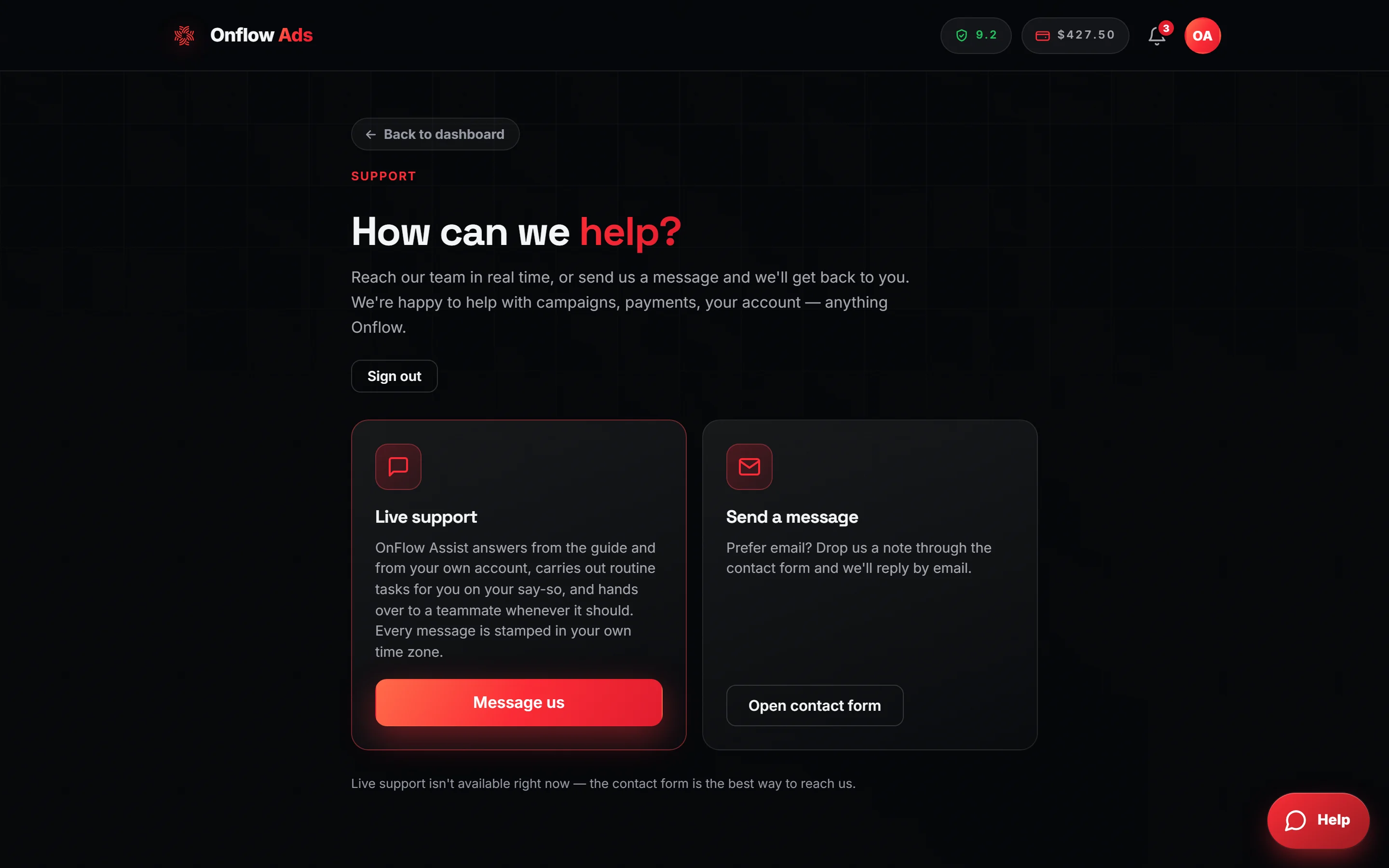
Plus plan · Advertiser. The Support page at
/telegram/dashboard/support. Every conversation you have started appears here with its reference code and current status, whichever way you opened it.
Your reference code
Every conversation carries a human-readable ticket ID of the form OFS-###-#### — one of the Onflow Ads IDs that every object on the platform gets, minted by the database the moment the ticket is created. You will see it:
- on the ticket-ID card in the conversation, the moment your first message creates the ticket;
- on the confirmation screen after sending a message from the form;
- in the reference pill at the top of the conversation view, whose tooltip reads "Quote this reference to our team";
- in the subject line of every email about the conversation.
Quote it whenever you write in about the same issue by another route. It is short enough to read aloud and it identifies exactly one conversation.
Separately from the OFS- reference, every email carries a link holding a long private code beginning of_. Anyone with that link can open the conversation and post to it without signing in. Do not forward those emails to people you do not trust.
The rule generalises: across Onflow Ads, an ID identifies and never authorises. Post an OFS-, an OFB- or your OFA- anywhere. The only two things that behave differently are this thread link and the cross-promotion join code. See Your Onflow Ads IDs.
An older-format reference from a saved email still resolves to the same conversation, so quote whatever you have.
Finding a conversation again
| Route | Works when | How |
|---|---|---|
| Your conversations in the widget | You are in the same browser you wrote from | Open the help widget; your four most recent conversations are listed with their reference and a status chip. |
| The link in your email | Always, on any device | Open the View your conversation button in any acknowledgement, reply, AI-answer or transcript email. The conversation is added to that device's list and opens straight away. |
The widget's list lives in the browser, not in your account. A different device, a private window or clearing site data hides it; the email link always brings it back.
The five status chips
A conversation's chip depends both on who wrote last and on what kind of conversation it is.
| Chip | What it means | How it got there |
|---|---|---|
| Closed | The conversation is closed. | You pressed End chat, the team closed it, or a chat sat idle for 30 minutes. Closed beats every other state. |
| Awaiting reply | The ball is in our court. | You sent the newest message — a new ticket or a follow-up. |
| Answered by AI | Onflow AI posted the newest message. | Either the instant first reply or an answer in the chat. A teammate still reviews the thread. |
| Team replied | A human replied, on a live-chat conversation. | Open it and read the reply inline — it is also in your inbox. |
| Replied · check email | A human replied, on a ticket opened from the message form. | The reply body is not shown on the page. It is in your email. |
Two rules explain nearly every change you will see:
- Your message always wins. A follow-up after a reply flips the chip back to Awaiting reply.
- Closed overrides everything, regardless of who wrote last.
Reading a conversation
Tap a row under Your conversations, or open an email link. Top to bottom:
-
← Back to help, which returns to the help home screen.
-
The topic pill (the subject, if one was set) and the reference pill carrying your
OFS-code. -
A banner naming the current state:
Situation Banner A human replied on a live chat "👤 Our team replied below." A human replied on a form ticket "✉️ Our team has replied — check your email inbox." Onflow AI answered The Onflow Ads symbol, then "Onflow AI answered instantly below — a teammate follows up by email if anything's missing." Waiting, desk online "Awaiting reply — it will arrive in your email inbox." Waiting, desk offline "We're offline right now — we'll email you as soon as we're back online." Closed "This conversation is closed. Need more help? Start a new message from the help home." -
The message history, grouped by day under Today / Yesterday / a date. It always shows your own messages (stamped "You · time") and any Onflow AI answers. On a live-chat conversation it also shows the team's messages inline, marked with a 👤 avatar, the agent's name and · team. On a form ticket the team's reply bodies are deliberately absent — those are email-first.
-
Either the follow-up composer docked at the bottom, or — on an open live-chat conversation — a full-width Continue in chat button.
-
A footer line: "Replies arrive by email · Ref OFS-###-####".
Opening a conversation marks it read and clears the unread badge on the Help pill. The view refreshes itself every few seconds, and never re-renders while you are typing a draft.
An open live-chat conversation replaces the composer with Continue in chat, which jumps back into the AI chat. That is deliberate: posting into the email-first ticket path would bypass the chat's state machine, its own history and its meter. Older chat rows without a stored conversation keep the ordinary composer.
Sending a follow-up
- Open the conversation.
- Type into the composer docked at the bottom — placeholder "Write a follow-up…". Enter sends; Shift+Enter starts a new line.
- Press the send arrow (its accessible name is Send follow-up). It is disabled while sending.
- The conversation reloads with your message added and the chip back at Awaiting reply.
On a ticket that Onflow AI answered, an eligible member's follow-up can get another AI answer in the thread, unless a human has taken over — see the instant first reply.
| What you see | What it means |
|---|---|
| "Please type a message." | The box was empty, or the text was over 4,000 characters. |
| "This conversation has reached its message limit. Please start a new one." | The thread hit 200 messages. |
| "Conversation not found." | The stored code no longer matches a conversation. The widget removes the row and returns you to the help home. |
| "Too many attempts. Please wait a minute and try again." | Follow-ups are limited to 40 per 10 minutes on one conversation. |
| "Couldn't send — please try again." / "Network error — please try again." | The request did not complete. Press send again. |
Everything you have already said is in that thread, and an escalated chat carries its whole transcript. A brand-new ticket makes the team reassemble the story.
Closed conversations
Three things close a conversation:
- You, by pressing End chat in a live chat.
- The team, by closing it from the desk.
- The idle sweeper, which closes any live-chat conversation with no message for 30 minutes.
When a conversation is closed, the chip reads Closed, the banner says so, the follow-up composer is hidden, and the history stays readable with the reference still shown. Closing a chat also clears the human-takeover flag, so your next conversation starts with the AI again — and emails you a transcript.
Every close path sends it: subject "Your Onflow Ads support conversation [OFS-…]", each turn listed as You, Onflow AI or the agent's name followed by (team). It is sent once per conversation and skipped when no email address was ever captured. See Onflow AI — the live support chat.
Because the composer is hidden, the practical answer to "can I reopen this?" is: start a new message from the help home and quote the closed conversation's reference. The team can see your history either way. (Under the surface a message landing on a closed ticket does reopen it — that is what makes a reply to an old email thread work — but the widget gives you no way to send one.)
The message limit
A conversation holds 200 messages in total, counting yours, the team's and any AI answers. It exists to stop runaway threads. At the cap, a follow-up returns:
This conversation has reached its message limit. Please start a new one.
Start a new conversation from the help home. Nothing is lost and the team can still read the old thread. The conversation view itself renders the newest 400 messages.
How long conversations are kept
| What | How long |
|---|---|
| The ticket and its messages | Kept. Deleting a conversation is not something the widget can do. |
| An AI conversation that was never escalated | Its transcript record is deleted 14 days after its last message, once the ticket is closed. The ticket and its messages survive. |
| An AI conversation you reported | Kept while the report is open, so the team can read what you reported. Once the report is closed it returns to the 14-day rule above. |
| The anonymous handle that meters a signed-out visitor's AI allowance | Dropped 180 days after last use. |
| Your list in the widget | The most recent eight, in that browser only. |
When support access is restricted
If an account or an email address has been barred from support for abuse, every support surface answers with one calm dead end:
Support access restricted Support access for this account has been restricted. If you believe this is a mistake, email [email protected].
It applies when opening a ticket, posting a follow-up, using the AI chat, using the help-centre search, typing your email during an escalation or verification, and reporting a Boost order. A ban can target the account, an email address, or both — so a guest can be barred by email alone.
Your product access is untouched: campaigns, orders, wallet and channels all keep working. Only the support surfaces close. Bans are placed and lifted by people — email [email protected] from the address on the account if you think it is a mistake.
If something goes wrong
| What you see | What it means | What to do |
|---|---|---|
| A conversation vanished when you opened it | The stored code no longer matches a conversation on the server | Reopen it from an email link, or start a new message quoting the old reference |
| An empty list on a new device | Expected — the list lives in the browser | Open any email about the conversation and use View your conversation |
| Replied · check email but the inbox is empty | Check spam, then check the address you gave | The confirmation screen showed it masked, like y•••@example.com. If it was wrong, start a new conversation from the right address |
| The email link did not open the conversation | The link opens the conversation inside the widget, so it needs a page where the widget renders | Try the site's home page, or use the contact form quoting the OFS- reference |
| A Boost order report is not in the list | That flow files a ticket but creates no browser row and no acknowledgement email | Watch your account's inbox. See Reporting a problem with a Boost order |
Related
- Opening a support ticket — the route that creates most of these conversations.
- Onflow AI — the live support chat — chats, which are tickets too.
- Using the Get help widget — where the list and the badge live.
- Your Onflow Ads IDs — every reference shape on the platform.