The help widget
The help widget is the Help pill in the bottom-right corner of every page (its accessible label is Get help). It opens the Onflow AI messenger: a live conversation with Onflow AI, which answers from the published guide and policies, looks things up in your own account, carries out routine tasks for you, and hands the whole conversation to a person without you retyping a word.
It was rebuilt in September 2026. If you remember a small ask box and a round bubble, this is the replacement: one big Start new support chat, a panel that knows which page you opened it on, times in your own time zone, and a Help tab that documents itself.
What happens inside the conversation has its own pages: Chatting with Onflow AI, What the assistant can do for you, Answers about your own account and Opening a support ticket.
Where it is
| Question | Answer |
|---|---|
| Which pages carry it | Every page of onflowads.com served with the normal site chrome — the marketing pages, the policy pages, the dashboard, the marketplace, the wallet. |
| Where on the page | Fixed in the bottom-right corner. On a phone the open panel fills the screen; on a desktop it is a 408-pixel panel, or 560 with the wide toggle. |
| Does it need an account | No. A signed-out visitor gets the same panel, the same chat and the same email route. Signing in changes how much AI you get, and whether it can read your account and act for you. |
| Where it is not | The admin console. It also steps aside while the cookie banner or the cookie preference centre is open. |
Opening and closing it
- Press Help. The panel opens on the Home tab and re-checks whether a teammate is at the desk.
- Read the header: the availability line, and the clock — the current time in your zone, with the zone's short name beside it, so every stamp in the panel is unambiguous.
- Close it with the × in the header, the pill again, or Escape. Closing never cancels anything already sent; a reply that lands while it is closed lights the badge on the pill.
From a page's own button — the dashboard's Start new support chat — the panel opens straight into a fresh conversation.
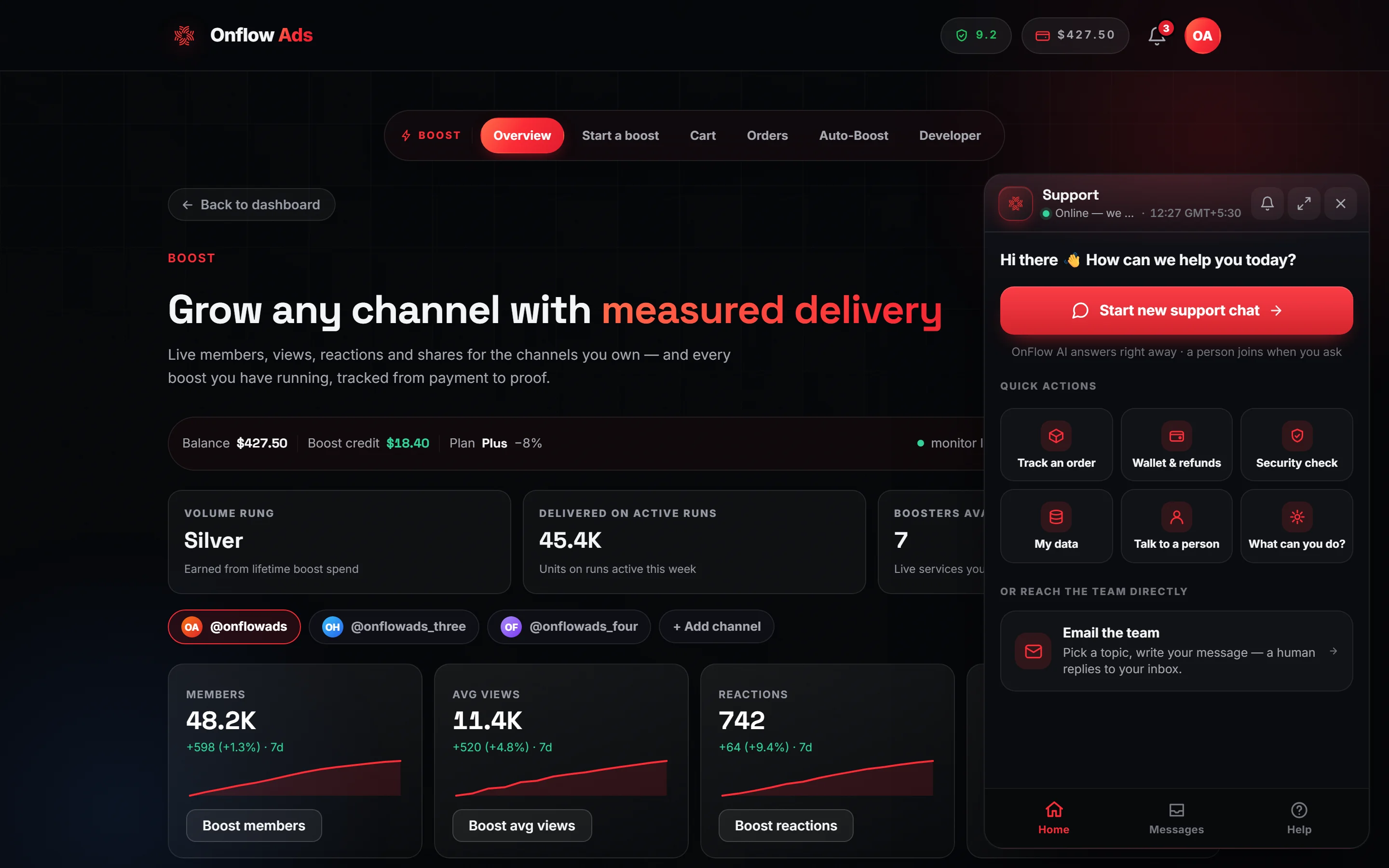
Plus plan · Advertiser — the help widget opened on the Boost page. The Home tab as a signed-in member sees it on a page the panel recognises.
The three tabs
| Tab | What it holds |
|---|---|
| Home | Start new support chat first, then Continue your chat, six quick actions, Email the team, and your open conversations. |
| Messages | Every conversation from this browser, filtered All · Open · Closed, each with its subject, reference, time and a live status chip — and Start new support chat at the bottom. |
| Help | How it works, what it can always do, everything it can look up and carry out for you (grouped by product), the features of this panel, and the keyboard shortcuts. Read from the live registry, so a power the team switched off is not listed. |
The Home tab
Start new support chat
The first thing on the tab, right under the greeting: one full-width button. It always opens a fresh conversation — a new reference, the consent notice, your own clean thread — even if you have one open. The one you had stays under Continue your chat and in Messages. The line under the button says what to expect: Onflow AI answers right away · a person joins when you ask.
The chat knows the page you opened it on
The panel knows which page it was opened on, and a fresh chat opens by asking about it. On a page it recognises — the Boost dashboard, the marketplace, the wallet, pricing, a policy — the assistant's first message reads:
Hi 👋 I'm Onflow AI. I can see you're on the Boost page — do you need help with something here, or is it something else?
Under it sit four chips: Yes — help me with this page, two questions people ask on that page, and Something else, which simply moves the cursor to the composer. The context rides along with everything you type afterwards, so the assistant answers in terms of the screen you are on instead of asking. On a page the catalogue does not know, the welcome is the general one with the four usual starters.
Continue your chat
Shown while you have a conversation open: its subject, its reference and a live dot. One tap picks up where you left off.
Quick actions
Six chips that send a ready-made question: Track an order, Wallet & refunds, Security check, My data, Talk to a person, What can you do?
Email the team
The email-first route: pick a topic, write your message, a person replies to your inbox. It has no meter and never has.
Inside a conversation
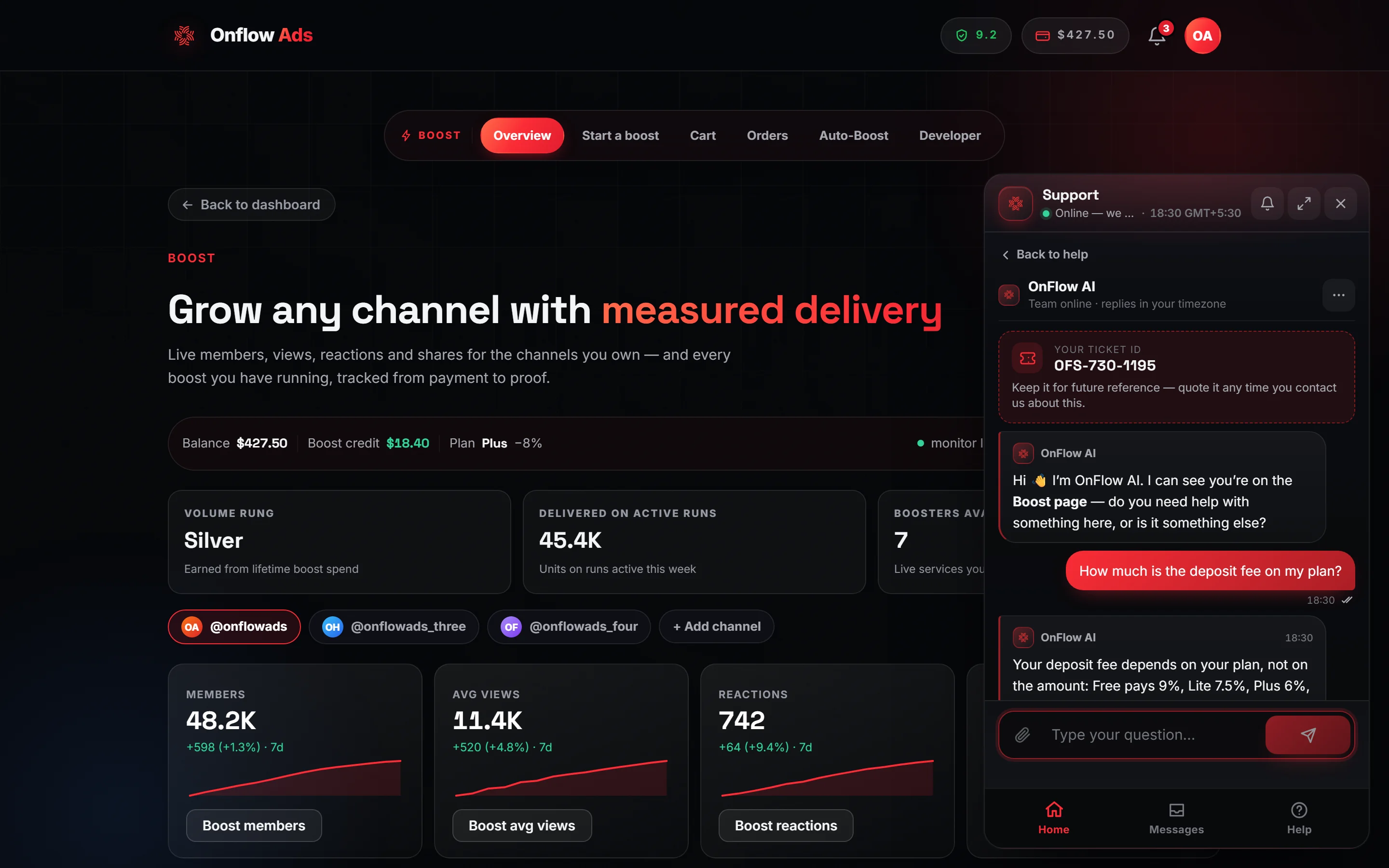
Plus plan · Advertiser — a fresh chat: the ticket ID first, the page-aware welcome, then your first question.
- The ticket ID comes first. The moment a chat starts, the first card in the thread is Your ticket ID with its
OFS-…reference — before the welcome, before any question. Quote it any time you contact us about this. - The welcome asks about your page. On a recognised page the assistant opens by asking whether you need help with it or with something else, with chips to answer in one tap.
- Times are yours. Every message carries its time in your zone; hover for the full date. Day separators (Today, Yesterday, the date) split the thread.
- Delivery ticks on your messages: a single tick the moment the message leaves your device, a double tick once the reply lands, and seen once a teammate has read it. Typing indicators both ways — the assistant's working card, and "the team is typing…" when a person is.
- The composer: Enter sends and Shift+Enter breaks a line on a keyboard; on a phone the arrow sends. The paperclip attaches, pastes or drops a screenshot on accounts that have it. A message you were typing is kept if you close the panel or reload.
- The
/command palette: type/for the list —/human,/orders,/wallet,/security,/data,/page,/notify,/transcript,/earnings,/listings,/bookings,/requests,/results,/reviews,/end. Arrow keys move, Enter picks. - Cards and buttons under answers: a balance as rows, orders as a list with a status chip, a proposal with what is about to happen and when it expires. Three kinds of button, each with its own look: a solid one is the thing the assistant is asking you to open, an outlined one is somewhere to look, and the quiet rows under From the guide are pages of this documentation.
- Confirmation chips: when the assistant proposes a task, Type CONFIRM and No, leave it send the word for you. See What the assistant can do for you.
- Rate any answer with the thumbs under it; your vote reaches the team. Copy copies the answer text.
- Report any answer with the flag beside them, and the whole conversation from the
⋯menu — see Reporting an answer or a conversation. A rating is counted; a report is worked through by a person. - The ⋯ menu: Download transcript, Email me a copy, Talk to a person, End chat.
- Jump to latest: a pill appears when new messages arrive while you are scrolled up.
- Offline banner: when your connection drops the panel says so, and sending resumes when it is back.
- The secret guard: a pasted card number, password or key is masked in the panel before it is sent, and the server masks it again before anything is stored or read.
The header controls
| Control | What it does |
|---|---|
| Clock | The current time in your time zone. |
| Bell | Reply alerts: a browser notification and a soft sound when the team replies while the panel is closed. Off until you switch it on; the browser asks for permission once. |
| Wide (desktop) | A 560-pixel panel for long answers. Remembered. |
| × | Close. Escape does the same. |
Where a reply appears
- Every human reply is emailed to you.
- On a live chat — every Onflow AI conversation is one — a teammate's replies also render in the panel within a few seconds, with their name and team. The name may carry their Admin ID, an
OFAM-…reference, so you can quote exactly who helped you. - On a ticket opened through Email the team, the reply body is deliberately not shown on the page: "✉️ Our team has replied — check your email inbox."
The unread badge
With the panel closed, the pill carries a badge — the total across your recent stored conversations, 9+ past nine. Opening the panel clears it; opening a conversation marks that one read. With the bell on, a reply also raises a notification and a sound.
Where a conversation goes afterwards
Every conversation keeps its OFS-###-#### reference for good. Two ways back: Messages in the widget (same browser), or View your conversation in any email about it (any device). The widget's list lives in that browser's storage; the conversations themselves are untouched.
Every email carries a link holding a long private code. Anyone with that link can open the conversation and post to it without signing in, so do not forward those emails to people you do not trust. The short OFS-… reference is safe to quote anywhere.
The dashboard has its own Support page
The Support page at /telegram/dashboard/support carries the same Start new support chat — it opens the messenger straight into a fresh conversation — plus Open my conversations and the contact form.
What the widget will not do
- It will not accept files other than screenshots (on accounts that have them). Paste error text, links and reference codes into the message instead.
- It will not show a human's reply body on a ticket opened from the message form — those are email-first by design.
- It does not require an account, and it does not create one.
- It will not move money, change security settings or act on anyone else's account — see What the assistant can do for you.
If something goes wrong
| What you see | What it means | What to do |
|---|---|---|
| "You're offline" banner | Your connection dropped | Wait; the panel resumes on its own |
| "Couldn't send — please try again." with retry | The request did not complete | Press retry |
| A conversation disappears when you tap it | The stored code no longer matches a conversation on the server | Reopen it from an email link, or start a new chat quoting the old reference |
| "Too many attempts. Please wait a minute and try again." | A rate limit | Wait a short while; nothing already sent is lost |
| Help-centre answer cards where you expected a chat | Onflow AI is briefly unavailable | Read the cards, or press Still need help? |
| Support access restricted | The account or email has been barred from the support surfaces | Email [email protected] from the address on the account |
FAQ
Do I need to be signed in? No. Signed out you get the live AI chat for the guide and the policies, metered against an anonymous browser handle — never account data, and there is no in-chat verification. Signing in raises the allowance and lets the assistant read your own account on every plan; assisted actions and the account flows (deletion, the data report) are on Plus and above.
Why does the first thing in a chat say "Your ticket ID"? Because the conversation is a ticket from the moment you start it. The reference is yours to quote, and it never changes.
Can I use it on my phone? Yes. The panel fills the screen, the keyboard pushes the composer up, and everything else behaves identically.
Where is the time shown from? Your browser's time zone. The panel tells the server which zone that is, so a teammate reading your conversation sees your local time beside each message too.
Related
- Chatting with Onflow AI — the conversation, the allowance and the handover to a person.
- What the assistant can do for you — reads and actions across Boost, Paid Promotions, the Exchange and Cross Promotion.
- Answers about your own account — the read-only account lens.
- Ticket statuses and threads — reference codes, status chips and follow-ups.