Reporting a problem with a Boost order
If a Boost / SMM order did not deliver the way it should have, do not write a general support message. Use Report a problem on the order itself. It opens a support ticket for you, attaches the order's full details, and is filed at high priority.
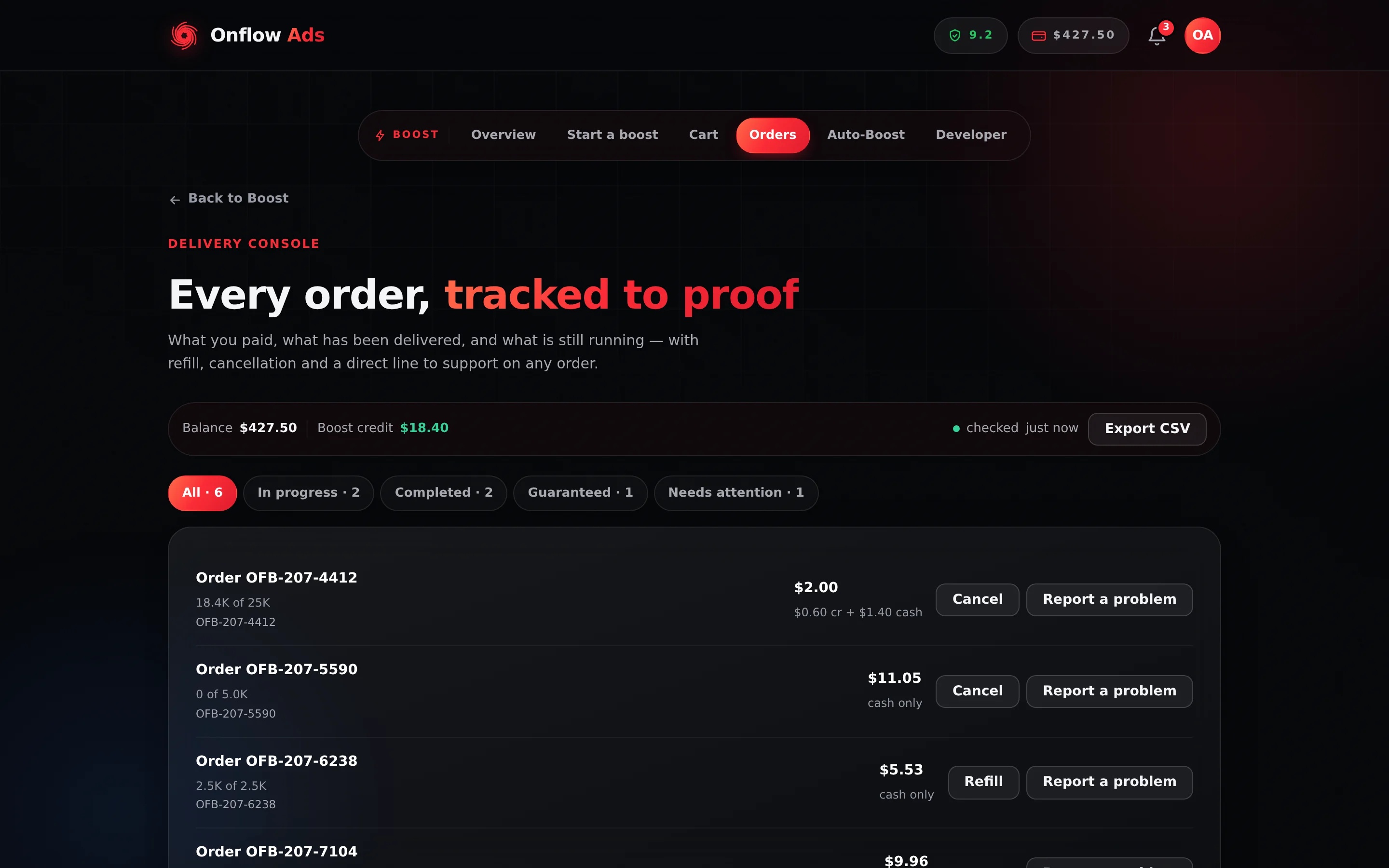
Plus plan · Advertiser. The orders list. Cancel and Refill come and go with the order's state — Report a problem is on every row.
Before you start
- You must be signed in with the account that placed the order. A stale session sends you to the sign-in page.
- Check the order's own state first. Refill and Cancel appear on the row when they are available, and they resolve the problem faster than a ticket does.
- Have the details ready in words: what you ordered, what you have counted, and when it stopped. Attachments are not accepted.
Unlike Refill and Cancel, which are shown only when the server says they are possible, Report a problem is appended to every row. A completed, cancelled or refunded order can still be reported.
Step by step
- Open your Boost orders at
https://onflowads.com/telegram/dashboard/boost/orders. - Find the order. Each row shows its
OFB-reference, how much of the quantity has been delivered, and what it cost. - Press Report a problem. A dialog opens, headed Report a problem, reading "Tell us what went wrong with order OFB-###-####. This opens a support ticket."
- Write the problem under the label What happened? The box is required and holds up to 4,000 characters. The placeholder shows the level of detail that helps: "Delivery stopped at 40% and hasn't moved for two days."
- Press Send report. To abandon it, press Cancel.
- The dialog closes. That is the whole confirmation — the page does not print a success message, and the ticket's reference is not shown to you here.
There is no on-page confirmation, no acknowledgement email and no entry under Your conversations in the help widget. If you want a written record before you send, copy your text. The reply arrives at the email address on your account, and the ticket's OFS- reference is in that email's subject line.
What each field means
| Part of the dialog | What it is |
|---|---|
| The heading | Report a problem |
| The lead line | "Tell us what went wrong with order OFB-###-####. This opens a support ticket." — naming the order you pressed the button on |
| What happened? | The only input. Required, up to 4,000 characters |
| Send report | Files the ticket and closes the dialog |
| Cancel | Closes the dialog without sending |
What you write is the whole report, so the reason has to be in your own words — say what you observed.
"Ordered 1,000, counted 340 after three days, no movement since" gets a faster resolution than "didn't work". Put numbers, dates and the target link in the text.
What gets attached for you
You only describe the problem. Your message is filed with a block of context read straight off the order:
- the order's
OFB-reference and the service name; - the platform;
- the order's current status;
- the quantity ordered;
- the amount paid;
- the target link;
- the date the order was placed.
That is the point of this flow rather than a general message: no round trip to collect details you already gave us.
What happens after you send
- A support ticket is opened on your account with the subject Boost order issue — followed by the service name, flagged high priority.
- The desk is emailed immediately.
- The reply arrives by email, at the address on your Onflow Ads account.
- No AI first reply is produced on this route, and no acknowledgement email is sent.
The report ties an order to a conversation, and each keeps its own reference: the order stays OFB-…, and the ticket opened for it is an OFS-… — see Your Onflow Ads IDs. You do not have to quote either, because the order context is attached for you, but the OFS- is what to mention if you later write in about the same problem by another route.
How this differs from a widget ticket
| Report a problem | Email the team | |
|---|---|---|
| Where you start | The button on an order row | The help widget |
| Sign-in | Required | Not required |
| Order details | Attached automatically | You paste them yourself |
| Priority | Filed high | Normal queue |
| Acknowledgement email | Not sent | Sent, with a link back to the conversation |
| Instant AI first reply | Never | On eligible paid plans |
| Appears under Your conversations | No | Yes, in the browser you sent from |
| Rate limit | 5 per 10 minutes per account | 6 per 10 minutes per connection |
If something goes wrong
| What you see | What it means | What to do |
|---|---|---|
| "Tell us what went wrong." | The box was empty | Describe the problem |
| "Please describe the problem in a short message." | The server rejected an empty message | Same fix |
| "Order not found." | The order is not on this account, or the page is stale | Reload the orders page |
| "Too many attempts. Please wait a minute and try again." | More than five reports from this account in ten minutes | Wait a few minutes. One report per issue is enough |
| "This feature is temporarily unavailable. Please try again shortly." | A temporary service problem | Check the status page, then retry |
| Support access restricted | The account is barred from the support surfaces | Email [email protected] from the account's address |
| You are bounced to the sign-in page | The session expired | Sign in and reopen the orders page |
FAQ
Does this cancel my order or pause delivery? No. It opens a conversation with the team; it does not touch the order. Use the row's own Cancel button if that is what you want.
I picked the wrong order. Report on the correct one and say so in the description, so the team can disregard the first.
I want a refund, not a fix.
Say so in the description. Refund decisions are made by the team under the published policy at https://onflowads.com/refunds; this flow is how you ask for one on a specific order.
Should I use this for a Paid Promotion problem? No. This is only for Boost / SMM orders. For a marketplace booking, use the widget with the topic Paid promotions, or the dispute route in the Paid Promotions section.
Where do I check the reply? The email inbox on your Onflow Ads account. Check spam if nothing arrives.
Related
- Opening a support ticket — for anything not tied to a single order.
- Ticket statuses and threads — what an
OFS-reference is and how to quote it. - Choosing the right support channel — the whole map of routes.