Listing Your Channel
Listing happens in a four-step wizard at https://onflowads.com/telegram/dashboard/paid-promotion/new — the Add channel pill in your subnav. The page promises "Four steps — most owners are live in under five minutes. Buyers only ever see verified, measured reach", and that second sentence is the product: your subscriber and view numbers are pulled from Telegram by the bot, never typed in on trust.
A finished listing gets its own OFPL- reference, separate from the OFCH- on the channel behind it. Quote it if a listing is rejected, hidden or priced oddly — see Your Onflow Ads IDs.
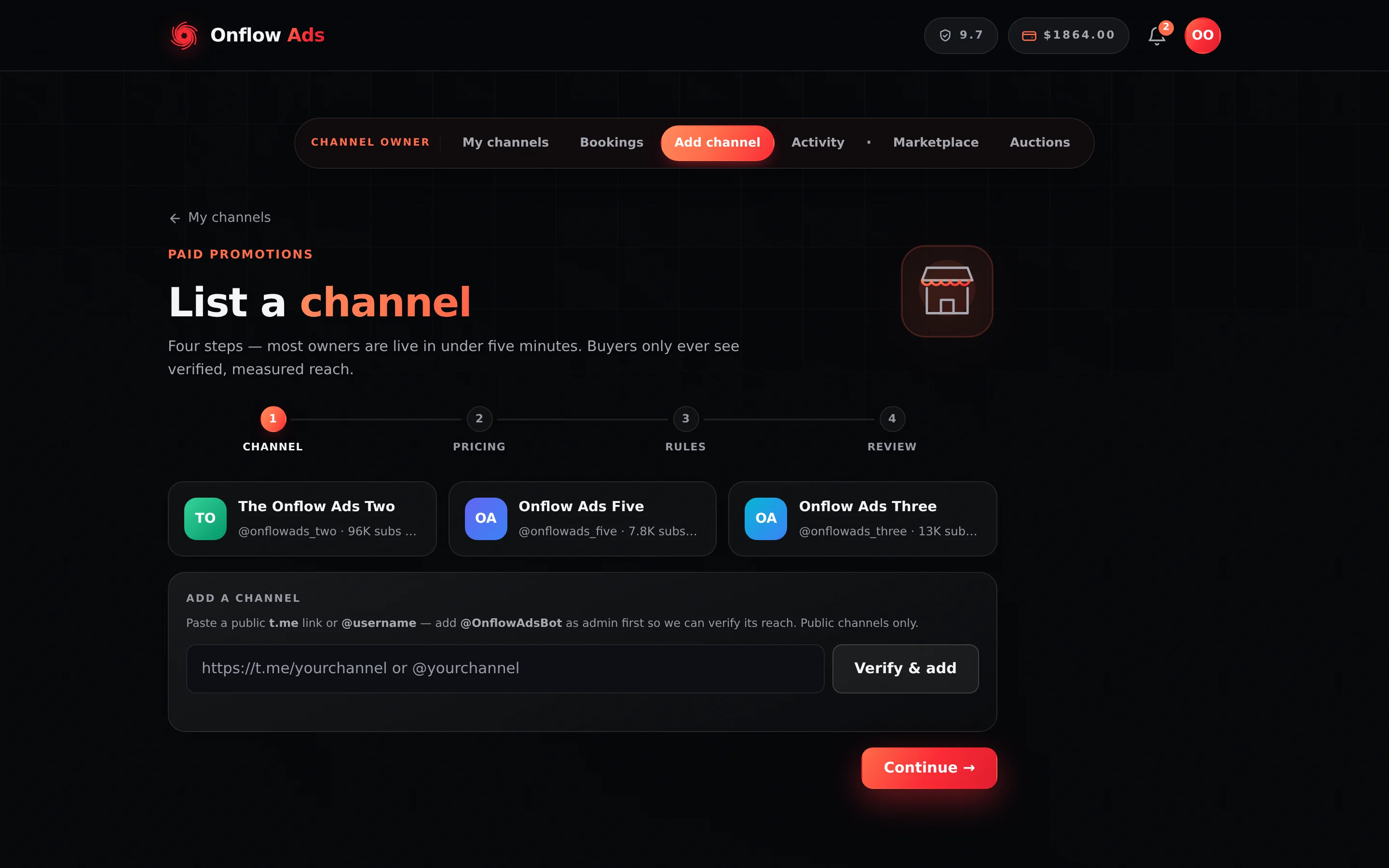
Elite plan · Channel owner. Step 1 of the wizard. The rail across the top is the whole job. On a fresh account the row of channel cards is empty and you start in the Add a channel box at the bottom.
Before you start
- Your channel must be public and carry at least 1,000 subscribers. The floor is set by Onflow Ads; if your channel is short, the refusal names the current minimum and your channel's real count.
- Add @OnflowAdsBot as an administrator of the channel with the Post Messages and Delete Messages rights. The bot needs them to confirm the channel, measure reach from recent posts, publish every booked ad and remove it on schedule when its run ends. Without posting rights, step 1 stops and asks for it. Edit Messages of Others is not required to list a channel; it is required only later, and only if you switch on the pin in step 2.
- Your account must be on the channel-owner side — see Choosing the channel-owner side.
- Link your Telegram account if you want the listing to go live instantly. Automatic verification also has to confirm that your linked Telegram account is an admin of the channel.
Your plan sets the ceiling: Free 5, Lite 10, Plus 15, Elite 30, Master 60, Ultimate unlimited. At the ceiling, adding another is refused with a message naming your plan and its limit. Removing a channel frees a slot immediately.
Step by step
- Pick or add the channel. Existing channels appear as cards at the top, each showing the handle, subscriber count and current status. To add a new one, paste a public
t.melink or@usernameinto Add a channel and press Verify & add. Onflow Ads confirms the channel exists, that it is a public channel rather than a group or a user, that @OnflowAdsBot is an administrator, and reads the live subscriber count. Re-adding a channel already in your pool returns the existing listing. - Fill in the channel panel. Change photo / Remove photo replaces the logo pulled from Telegram (JPG, PNG, WebP or GIF, up to 2 MB). Channel name is what buyers see, up to 120 characters. Category — where your channel is listed and discovered is required. "Where do your subscribers come from?" is a free-text answer up to 2,000 characters, shown to buyers on your public channel page, and required before you can publish. A green line confirms the state you are in: "@OnflowAdsBot verified as admin · reach measured from recent posts".
- Press Continue →. The wizard refuses to advance without all four of a selected channel, a name, a category and a subscriber source, and names the missing one — for example "Choose a category so buyers can find your channel."
- Price the slots (step 2). Four rows, priced in whole US dollars. The 1h top · 24h feed row carries a green Required badge and cannot be switched off; the other three each have a switch that dims the row to "· not offered". The required slot must be at least $1, or Continue refuses with "Set a price for the required 1h top · 24h feed format." Below the four rows sits a fifth control — the Pinned for the whole campaign extra, with its own switch and price box. Read the note above it: your slots promise the ad is the newest post for their opening hours, and pinning is sold separately.
- Set the rules (step 3). Four panels — buyer perks, lead time, delivery and prohibited topics. They all have defaults, so you can pass straight through; the section below explains what each one really does.
- Review and publish (step 4). The review screen is a ledger of every field you set, ending in the highlighted row "Your payout per 1h top — $X after N% fee". Tick the terms box, then press Publish listing ✓.
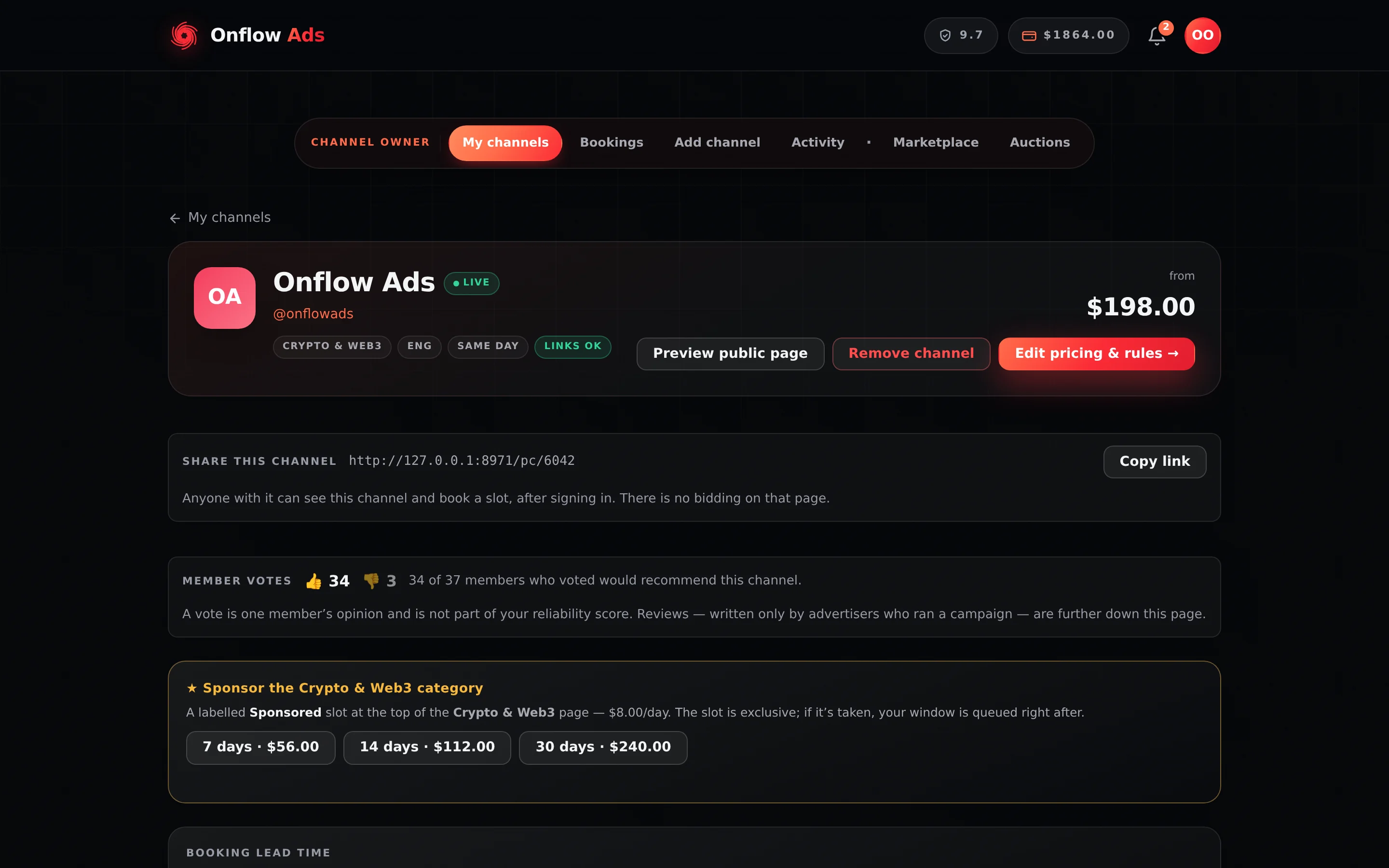
Elite plan · Channel owner. The listing manager. Every tab saves on its own, so you can fill it in over several sittings.
What each field means
Step 2 — the four priced slots, and the one extra
| Row | What the buyer gets | Newest post for | Promised time in feed |
|---|---|---|---|
| 1h top · 24h feed | The newest post in the channel for a full hour, then a day in the feed. Required | 60 minutes | 24 hours |
| 2h top · 48h feed | Two hours as the newest post, then two days in the feed | 120 minutes | 48 hours |
| 3h top · 72h feed | Three hours with nothing posted after it, then three days in the feed | 180 minutes | 72 hours |
| Native · 7 days in feed | An hour as the newest post, then a week quietly in the feed | 60 minutes | 7 days |
The first row is compulsory and cannot be switched off. Every row you price appears on your rate card exactly as written above, so a buyer reads the same promise that is checked afterwards.
Selling "1 hour at the top" commits you to publishing nothing else in that channel for the first hour — it does not pin anything, and nothing pins it for you. After the window closes, Onflow Ads reads the channel's history once and checks whether you kept it; posting inside the window costs 0.40 reliability and no money. See Delivery monitoring.
If you want to be paid for keeping an ad pinned, that is the separate extra below.
Pinned for the whole campaign — the one paid extra, sitting under the four rows with its own switch. Off by default, and there is no price box: the rate is the platform's, the same on every channel. The ad is worth $5.00 a placement, the buyer pays $6.00, and $4.00 reaches you. The bot must already have the Edit Messages of Others right in the channel or the save is refused. Full rules in Prices and offers.
Step 3 — the rules panels
| Panel | What it does |
|---|---|
| Buyer perks — your offer, moves your payout too | Two standing discounts, each Off, −5%, −10% or −15%: Repeat buyers (an advertiser with a prior booking on this channel) and First-time buyers. They come off the price, so they come off your payout. New listings start at −10% repeat and −5% first-time |
| Lead time — how fast can an ad run? | Same day, Within 24h or 48h+. This writes a display label only — see the warning below |
| Delivery | Automatic, on every booking: Onflow Ads publishes the ad the moment the window opens, so a deadline can never be missed, and removes the post when the booked duration ends. If the buyer paid for the pin extra, it also pins on publish and unpins when the campaign ends; if they did not, nothing is pinned. There is nothing to switch — the panel states the contract |
| Prohibited topics | Tap to refuse Politics, Crypto shills or Loans. Adult content and gambling are not on this list because they are not yours to decide: Onflow Ads does not carry them anywhere (adult since 22 September, gambling and betting since 25 September 2026), so they are refused before a booking ever reaches you. The same goes for the rest of the prohibited list, which is why none of it appears in the category grid either |
The Lead time choice on step 3 writes a free-text turnaround label that appears as a chip on your rate card and in your Telegram listing summary. It does not move the booking gate, and it does not put you in the marketplace's Available today filter — the wizard's own on-screen hint claims otherwise and is wrong.
The setting that actually decides how soon an advertiser may book you is Booking lead time (2h / 12h / 48h) on the listing manager. Every new listing sits at the 48-hour default until you change it there. Picking "Same day" in the wizard and stopping leaves you on 48 hours.
The check runs in the advertiser's booking composer: a creative that trips one of your listed topics disables their Continue button before they can pay. It is not re-run at checkout, so it is a pre-flight, not a wall.
The matching is literal, not conceptual: each comma-separated topic is matched as a whole word, case-insensitively, against the caption text, and any topic shorter than three characters is ignored entirely. "Gambling" blocks a caption containing the word gambling; it does not recognise a casino promotion that never uses the word. Treat the list as a filter that removes obvious mismatches, and keep reading every request you accept.
Publishing, and the two outcomes
Publishing runs three calls in order: it saves the listing, saves your two buyer perks, then submits the listing for verification. Before any of that, a completeness gate has to pass — each failure names exactly one field:
- "Add a channel name before submitting."
- "Paid Promotions channels need at least 1,000 subscribers."
- "Set a price for the mandatory “1 hour top · 24 hours in feed” format (at least $1) before submitting."
- "Choose a channel category before submitting."
- "Tell us where your subscribers come from before submitting."
- "Please accept the platform terms before submitting."
"Listing is live" — automatic verification passed. Every one of these had to be true at once: your plan carries instant verification (Lite and above; Free always goes to the manual queue), @OnflowAdsBot is an administrator with Post Messages, your own linked Telegram account is an admin of the channel, and the stored subscriber figure is not grossly inflated against the bot's live count. On success the live count is written over whatever was stored, so the marketplace shows reality.
The screen adds one detail: for its first 48 hours after verification a new listing is shown only to advertisers on the Ultimate plan — first-look inventory — and then to the whole marketplace. Those are among the highest-spending buyers on the platform, so the first two days are not dead time.
"Submitted for review" — the listing went to the manual queue: "Your channel is in the verification queue. It goes live in the marketplace as soon as it's approved — we'll let you know. Until then it stays on your desk marked Pending." That happens when your plan is Free, when your Telegram is not linked or is not an admin of the channel, or when the stored subscriber figure is more than double the bot's live count (or more than 5,000 above it, whichever is larger).
Either way you hear the outcome twice: an email, and — if your Telegram is linked — a bot message, "✅ Your channel is live!" or "⚠️ Channel needs attention" with the reason. Both carry the 📊 Manage channel button, which is the only route in the product to your listing manager.
While a listing sits Pending, its listing-manager page offers Priority review · $5 — a flat charge from your wallet that moves it to the front of the moderation queue. It buys queue position, not a different decision. See The listing manager.
Editing a live listing
Press Manage listing on your desk card, or Edit pricing & rules → on the listing manager. Both reopen this same wizard with your saved values, starting at the Pricing step, under the heading "Edit listing" — "Update your rate card and rules — changes republish through the same verification path."
That last clause is the cost: publishing an edit sends the listing back through verification.
A live listing may re-enter verification only once per cooldown, measured from its last moderation decision: Free 15 days, Lite 10, Plus 7, Elite 5, Master 3, Ultimate none. Inside the window you get "A verified channel can go back for re-verification once every N days. Next available on …" with the exact date. A live slot auction on the channel also blocks re-verification until it closes or is cancelled.
Several settings deliberately live outside the wizard so they never cost you a cooldown: booking lead time, blackout dates, auto-accept, dynamic pricing, spotlights and category sponsorship all save instantly on a live listing. They are all on the listing manager.
Continuous re-verification — what changes without you touching it
A live listing does not keep the numbers it was verified with forever. Every 14 days Onflow Ads re-pulls the channel's Telegram snapshot and overwrites the listing's subscribers, average views, engagement and posts sampled with what it measures now. Nothing is unlisted automatically, and a failed read never overwrites good numbers.
Two outcomes are visible to you:
- A drop of 40% or more in subscribers raises a public note on the listing and sends you a message: "Your channel's audience has dropped … Advertisers now see these updated numbers on your listing — please refresh your listing if this looks wrong to you."
- Three consecutive unreachable checks raise the note "Channel unreachable on re-verification — stats may be stale". The usual cause is the bot being removed from the channel, or the channel going private.
Re-verification changes the measured numbers buyers read. It never edits your rate card. If your audience has genuinely grown or shrunk, repricing is still your decision — see Prices and offers.
Statuses your listing can show
| Badge | Meaning |
|---|---|
| LIVE | Verified and visible in the marketplace; bookable |
| IN REVIEW / PENDING | Waiting on manual verification; not bookable yet |
| NEEDS CHANGES | Verification did not pass; fix the named issue and submit again |
| DRAFT | Created but never submitted |
| PAUSED | Hidden from the marketplace |
If something goes wrong
| What you see | What it means | What to do |
|---|---|---|
| "Add @OnflowAdsBot as an admin of that channel first, then try again." | The bot is not an administrator of the channel | Add it in Telegram, then press Verify & add again |
| "@OnflowAdsBot is an admin but is missing the “Post Messages” right." | The admin role exists but lacks posting rights | Turn Post Messages on in the channel's admin settings |
| "You must be an administrator of this channel to list it." | Your linked Telegram account is not a channel admin | Add yourself as an admin of the channel, then verify again |
| "Only public Telegram channels can be verified — that looks like a group or user." | The link points at a group, a user or a private chat | Only public channels can be listed |
| "Enter a public Telegram link, e.g. https://t.me/yourchannel." | The link could not be read as a public handle | Invite links and joinchat links are not accepted; use the t.me handle |
| "Paid Promotions channels need at least 1,000 subscribers. This channel has M." | Below the marketplace floor | Grow the channel, or list a different one |
| "We couldn't reach Telegram from our server right now." | A temporary connection problem on our side | Try again in a moment; nothing was saved or lost |
| "Your … plan covers N channels. Upgrade to list more." | You are at your plan's listing ceiling | Remove a channel you no longer sell, or move up a plan |
| "That channel isn't in your pool." | You are signed into a different account, or the listing was removed | Check which account you are on |
Taking a break, and removing a channel
- To close specific days without unlisting — a holiday, a busy week — use Blackout dates on the listing manager. Your channel stays live, ranked and discoverable; buyers cannot book the closed days. See Managing your availability.
- Remove (on the desk card) and Remove channel (on the listing manager) take the channel out of your pool entirely. Both arm before they act: the desk button reads "Confirm — earnings kept"; the manager asks "Remove — bookings & earnings kept?" with Yes, remove and Cancel.
Your booking history and earnings survive removal. The listing does not — coming back means adding the channel again and passing verification again, and you lose the reviews, the Standing history and the daily Standing series attached to that listing. A live slot auction blocks removal outright: "This channel has N live slot auctions with bidders' money held in escrow. Cancel the auction first — every bidder is refunded in full — then remove the channel."
Related
- The listing manager — the nine controls that are not in this wizard, and how to reach them.
- Prices and offers — turning a published listing into a rate card that sells.
- Managing your availability — when your priced slots can actually be booked.
- Promoting your listing — Standing, sponsorship and the analytics that tell you what to fix.