Receiving, Accepting, and Declining Bookings
Every sale starts as a request: an advertiser has chosen your channel, picked a slot, written the ad and already paid into escrow. Your job at this stage is one decision — yes or no, at the price on your rate card — made inside 24 hours, or before the ad's go-live if that comes sooner.
Each request carries an OFO- order id that stays with it through acceptance, posting, proof, payout and any later dispute. When two advertisers book similar slots in the same week, the OFO- is what tells them apart — quote it in any message to support or to the buyer. See Your Onflow Ads IDs.
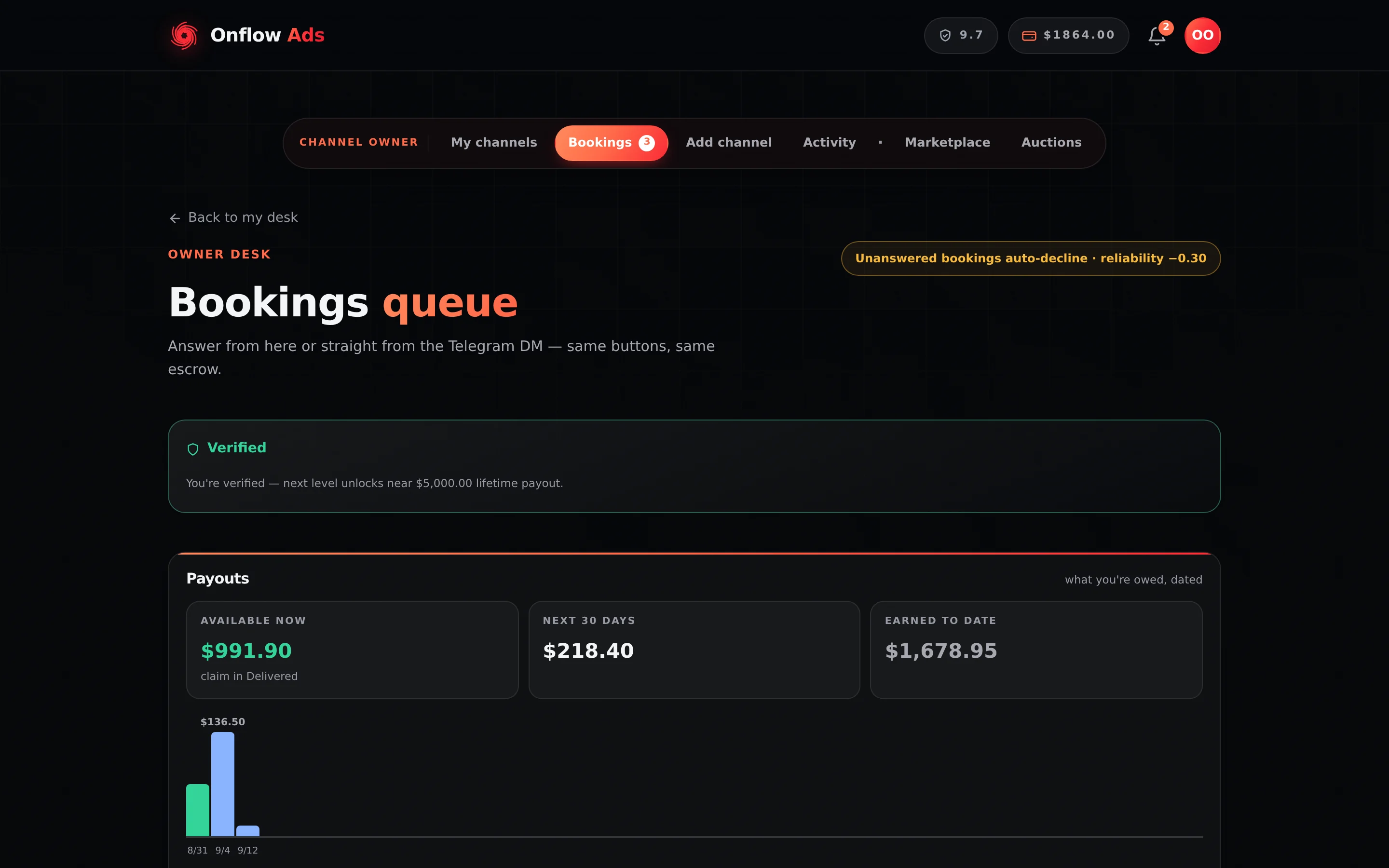
Elite plan · Channel owner. The queue at
/telegram/dashboard/paid-promotion/bookings. Two panels sit above the tabs — your verification card and your Payouts ledger — and the pill in the corner is the one rule worth memorising.
Before you start
- Your account must be on the channel-owner side, with at least one LIVE listing.
- Your reliability must be at least 4.0 out of 10 to accept anything. Every account starts at 8.0.
- Your account must not be under an open fraud review. During one you can finish work already in flight but cannot take on new counterparties.
- Your withdrawable wallet balance must cover the good-faith deposit on high-value bookings — see below for the exact numbers.
The queue
Six tabs, each with a live count. The page opens on New, and inside New the requests are ordered by urgency, so the one closest to auto-declining sits first.
| Tab | What is in it |
|---|---|
| All | Everything, newest first |
| New | Requests awaiting your answer, each with a live countdown |
| In progress | Accepted, not yet posted — your delivery obligations |
| Delivered | Posted and proven; payouts scheduled or claimable |
| Completed | Paid out and finished |
| Cancelled | Declined, expired, refunded or cancelled bookings, plus a breakdown of your decline reasons |
Two panels sit above the tabs and follow you across every one: the Payouts ledger (see Escrow and getting paid) and a verification card when identity verification is needed or near (see Identity verification).
Every new request must be answered within 24 hours — or by the ad's go-live, whichever comes first. On a channel with a lead time under 24 hours (12h or same-day) the clock is the time to go-live, and the card says so with a Short notice line. Each card shows a live countdown and the header carries a standing reminder: "Unanswered bookings auto-decline · reliability −0.30". A request nobody answers auto-declines, refunds the advertiser in full, and docks your reliability by 0.30. Declining by hand costs nothing at all. Only silence costs.
While your account is under review (an open fraud concern, or a frozen wallet) or your reliability is below the marketplace floor, you cannot accept. A request that reaches your queue in that state is not left to run out its clock: the platform declines it for you at once, refunds the advertiser in full, and records no ghosting penalty. The advertiser sees "The channel owner is temporarily unable to accept bookings."
What a request shows you
- The advertiser, by the display name on their account — the name they set in Account → Full name, or, until they set one, the readable part of their address with the domain dropped (
john.doe@…reads asJohn Doe). You never see their address, masked or otherwise. When other owners have rated them, a gold ★ rating with its count sits beside the name. A track record before you commit. - The slot, the schedule and the channel — the format label, the scheduled date and time, and which of your channels it is for.
- The booking's
OFO-reference, on its own line. - The ad itself, rendered the way Telegram will render it: links look like links, the inline buttons are shown and named, and attached images and video are shown, not counted. This card is where you consent to a post going out in your channel, so it shows the real creative rather than a text snippet or the words "+ 2 images attached".
- Where every link actually goes. Every link in the creative reads as an
onflowads.com/rr/…short link — the advertiser's text links, the addresses and @handles typed into the text, and every button — and a short link does not name the site, the page or the channel it opens. The card resolves each one back to its real destination in a legend beneath the preview — the page, the Telegram address, or which channel a campaign invite link opens — so the question you are actually asking — where does this send my subscribers? — is on the screen before you accept. - "you receive $X" / "after N% fee" — your exact payout and the marketplace fee applied to this booking.
- A ⏳ countdown to auto-decline.
- On high-value bookings, a shield notice: "High-value booking — accepting stakes a refundable $X good-faith deposit from your wallet, returned on clean delivery."
Step by step — accepting
-
Press Accept booking. Two things happen as one atomic step that either fully succeeds or does not happen at all.
-
The good-faith deposit is staked if this booking asks for one — the amount was already printed on the card.
-
The booking moves to In progress and the advertiser is notified ("Your placement was accepted").
-
Read the confirmation: "Accepted — we'll publish and pin it for you on [date] UTC. Nothing else to do." Delivery is automatic on every booking — the bot publishes at the window open and removes the post when the run ends. Where a deposit was taken the card adds: "A refundable $X good-faith deposit is held from your wallet and comes straight back when you deliver."
The word "pin" in that confirmation is staleThe message says "publish and pin" on every booking. A pin only actually happens where the buyer paid for the pin extra. On an ordinary booking the ad is published and nothing is pinned. What you owe either way is the format's opening window — see The quiet window you owe.
Auto-post is resolved per booking: your explicit choice if you made one, otherwise the listing's saved default, otherwise on. Accepting also snapshots your channel's live member count, which is the baseline any retention hold on the booking is later measured against.
The good-faith deposit, in numbers
| Rule | Shipped value |
|---|---|
| Deposit | 10% of the booking charge |
| Only on bookings of | $50.00 or more |
| Capped at | $20.00 |
All three are set by Onflow Ads and can change; the exact dollar figure is always printed on the card before you accept, and again in the confirmation.
- It is refundable, and it comes back as its own wallet line — never netted off your payout — when you deliver cleanly, and also when the advertiser cancels.
- It must come from real, withdrawable funds. Promotional and locked credit do not count. If you are short, the accept is refused with the exact shortfall named — "Accepting this booking asks for a $X refundable good-faith deposit in real (withdrawable) funds, and you're $Y short" — and the booking stays pending. You are never charged for an accept that did not happen.
- It is forfeited to the advertiser, never to Onflow Ads, when a failure is yours: you accepted and never posted, or the monitor flagged the placement. The injured party is the one whose campaign window was destroyed.
- A window missed because of a platform or Telegram failure returns the deposit and leaves your reliability untouched.
Keep enough withdrawable balance to cover a couple of deposits, especially if auto-accept is on. The automatic pass silently skips a booking whose deposit you cannot cover — the request stays in your queue with its clock running, and nothing tells you why.
Your rate is the rate
There is no counter-offer. Every booking arrives at the price on your rate card, already paid into escrow by the advertiser — the card shows exactly what you receive, and the only answers are Accept booking and Decline. To charge more, change your rates in the listing manager; the new price applies to the next booking.
Cancelling after you accepted
Until the ad is actually posted, an accepted booking can still be cancelled — by you or by the advertiser:
- Press Cancel booking on the accepted card (it arms into "Tap again · full refund, no strike" and does nothing until you tap it a second time).
- The advertiser is refunded in full, your good-faith deposit comes back, and nobody's reliability changes. Nothing has run, so nothing has been lost that money cannot put back.
- Once the ad is live — the bot publishes it at the window open — the button is gone; a placement that has run cannot be un-spent.
A booking cancelled this way shows as Cancelled · Cancelled by the channel before posting on both sides.
Declining
Press Decline and the card asks Why decline? with six one-tap reasons:
- Off-topic for my audience
- Slot already taken
- Content not a fit
- Timing doesn't work
- Below my rate
- Against channel policy
Pick one and the decline lands immediately. The advertiser is refunded in full on the spot and told the reason. Press cancel if you opened the reasons by mistake.
Declining a pending request never costs reliability. On the Cancelled tab, a "Why bookings were declined" strip groups your reasons with counts — a pile of "Below my rate" says raise nothing and wait; a pile of "Off-topic" says your category or audience description is steering the wrong buyers to you.
Bulk actions
In the New tab, tick the checkbox on the cards you want and a sticky bar appears reading "N selected":
- Accept all — runs the same accept, one booking at a time. Every accept still stakes its own deposit and each is checked against the reliability floor.
- Decline all — asks for one shared reason, then declines each and refunds each advertiser.
- Clear — deselects everything.
When the run finishes you get a tally, including anything that could not be processed — typically an accept whose deposit your wallet could not cover. Bulk actions are the same money path as the single buttons; there are no shortcuts inside them.
What arrives in Telegram
With your Telegram linked, each pending placement arrives as its own message from @OnflowAdsBot:
📣 New booking request An advertiser wants to pay to run a post on your channel. Accept to take the job, or Decline to pass.
👥 Channel: · ⭐ Ad slot: · 💰 You receive: · 📌 Pinned: (only when they bought the pin) · 📅 Go-live: · 🆔 Order: the
OFO-id⏳ This request declines by itself in 24 hours if nobody answers. — or, on a short-notice booking, …at go-live — in about N hours…, followed by a ⏰ Short notice line explaining why there is no 24-hour window.
📝 Tap Get the post here to see the ad exactly as it will appear in your channel — photo, links and buttons included.
💬 From the advertiser — their own note to you, if they wrote one.
It is one message per booking: the ad itself is never pasted into the card as an excerpt, and there is no second "you have a request" message about the same booking — the feed and email carry that, Telegram carries the card. On Plus and above the card wears the bot's premium look: animated emoji, and buttons coloured by what they do (blue looks, green decides). Free and Lite see the same words with plain emoji and plain buttons.
💬 From the advertiser
A booking can carry a short note written to you — not part of the ad, and never published anywhere. The advertiser writes it in the booking composer, in the same editor as the ad, and it is what they would tell you if they were asking in person: what the product is, why it suits your audience, where a link goes.
It appears under the ad preview on the Telegram card, and again on the booking card in your queue, in its own blue block so it can never be mistaken for a line of the post you are being asked to publish.
- It is optional. Most bookings will not carry one, and its absence says nothing about the booking.
- It is the advertiser's claim, not ours. Nothing in it is verified. Judge the ad on the ad; read the note for context.
- It is one note per checkout. A buyer booking four channels at once writes it once, and all four owners read the same words.
- Up to 2,000 characters; the Telegram card shows the first 700.
📌 Pinned
Where the buyer bought the pin, the card names it before you accept — "this post stays pinned for the whole campaign, from go-live until the run ends — we pin and unpin it for you, and $4.00 of your payout is for this". You are agreeing to leave it pinned, and nothing else: the platform applies and releases the pin on both delivery routes. See Prices and offers.
Two buttons sit under it:
| Button | What it does |
|---|---|
| 📄 Get the post here | Sends you the complete placement — the media, the caption exactly as it will be published (attribution line included), the buttons with their real destinations, the format, the quantity, the channel and the schedule — as a message in the same chat. Nothing leaves Telegram and nothing is decided |
| ✅ Review & respond | Opens your bookings queue at that exact booking — the page scrolls the row into view and pulses it for three seconds, so a busy queue lands you on the right card rather than at the top of the list |
Get the post here exists because an owner asked to publish something in their own channel should not have to leave Telegram to find out what. The decision stays on the website deliberately: accepting moves money, stakes a good-faith deposit and writes your reliability ledger, and those belong on one surface.
The button is answered only for the Telegram account linked to the owner of that booking — someone else pressing a forwarded copy gets nothing. Very occasionally it is not offered at all, in which case Review & respond still is.
A checkout that books several of your channels at once is capped at five messages per owner. Beyond that you get one line instead: "…and N more request(s) in the same order. Open your bookings queue to handle them together."
Reporting an advertiser
From the moment you accept — the point at which the creative is yours to look at — every booking card carries 🚩 Report advertiser, and it keeps carrying it long after the ad has run. It is a proper ghost button beside the other controls, not the link it used to be: on a delivered booking it was a single word inside the grey hint sentence, in the same grey as the rest of the sentence.
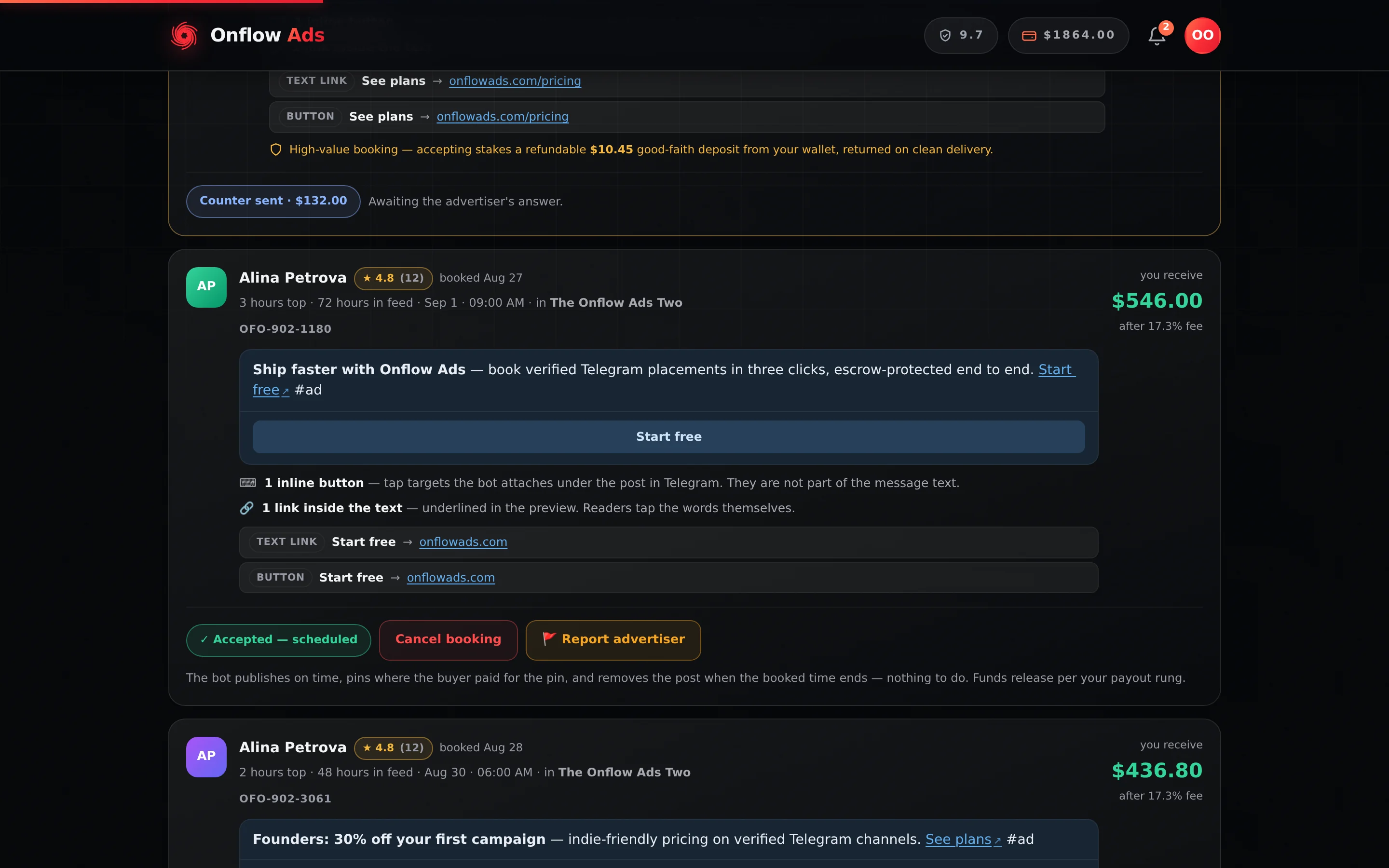
Elite plan · Channel owner — a booking already accepted. Two things to notice: the advertiser is named by their display name, never a masked email address, and 🚩 Report advertiser is a button shaped like the controls beside it.
It opens a case a person reads, with your own reason list — the creative is not the one you approved, a link leads somewhere it should not, the ad breaks your channel's rules or the platform's, false or misleading claims, pressure to break a rule, impersonation — plus the shared ones every member gets. You can attach up to six screenshots, and the advertiser never sees them.
The form says this above the reasons, because these are the two faster doors:
- A booking you simply do not want → Decline it. Declining by hand is free and costs you no reliability.
- An accepted booking you want out of before it posts → Cancel it. The advertiser is refunded in full and nobody's reliability moves.
Report is for when something is wrong, not merely unwanted. And it does not unpublish anything by itself — if the ad is already live and must come down now, say so in the first line.
Full detail, including the advertiser's mirror of this list, is on Reporting a campaign.
Rating advertisers
Once an ad has actually run — delivered or completed — the booking card offers Rate this advertiser: 1 to 5 stars, once per booking, with an optional note. The card then reads "✓ You rated this advertiser" and cannot be changed. The aggregate of every owner's ratings is what shows as the gold star pill on that advertiser's future requests, the same courtesy their reviews give your channel.
If something goes wrong
| What you see | What it means | What to do |
|---|---|---|
| "Your reliability is X/10 — you need at least 4/10 to accept bookings." | Your score is below the accept floor | Finish work already in flight; clean completions and the recovery schedule bring it back. See Delivery monitoring |
| "Top up your wallet to stake the good-faith deposit." | Your withdrawable balance cannot cover the deposit | Top up, or wait for a pending payout to clear, then accept. Promotional credit does not count |
| "That request can't be accepted — it may have changed." | The booking is no longer pending — cancelled, expired or already answered | Reload the queue |
| A refusal citing an open review | You are under an active fraud review | You can still deliver accepted work; you cannot take new bookings until it is decided. See Disputes |
| "We couldn't reach your queue just now" | A load failure, not a data loss | Press Retry. Nothing auto-declines without the timers you can see |
| A booking never appeared at all | It was stopped by one of your own rules | A blackout day, or a start time inside your lead time. See Managing your availability |
Selecting several at once
Tick the checkbox on any pending cards and an action sheet slides up from the bottom of the screen — "N selected · Accept all · Decline all · Clear". It floats over the page rather than sitting in the middle of it, so the cards you are reading stay readable, and it leaves as soon as the selection is cleared.
When the advertiser cancels
- Cancelled while still pending — the request disappears. Nothing is owed either way and nothing touches your score.
- Cancelled after you accepted, before the ad was posted — the advertiser is refunded in full, your good-faith deposit comes back, and neither side's reliability moves. You can do the same from your side; see Cancelling after you accepted.
- Cancelled after the ad went live — refused. A placement that has run cannot be un-spent.
The activity feed
The Activity pill opens /telegram/dashboard/paid-promotion/activity — a running list of up to 40 recent Paid Promotions events, newest first. The header counts them ("5 unread · 12 recent", or "You're all caught up · 12 recent") and two buttons sit beside it: Notification settings, which controls whether events reach you in-app, by email or in Telegram, and Mark all read.
Four kinds of row, each with its own icon: 📣 booking, 💰 payout, ⭐ feedback and ⚠️ dispute. Unread rows carry a dot; clicking one marks it read and follows its link. Empty, it reads "You're all caught up — Booking requests, payouts and feedback will show up here as they happen."
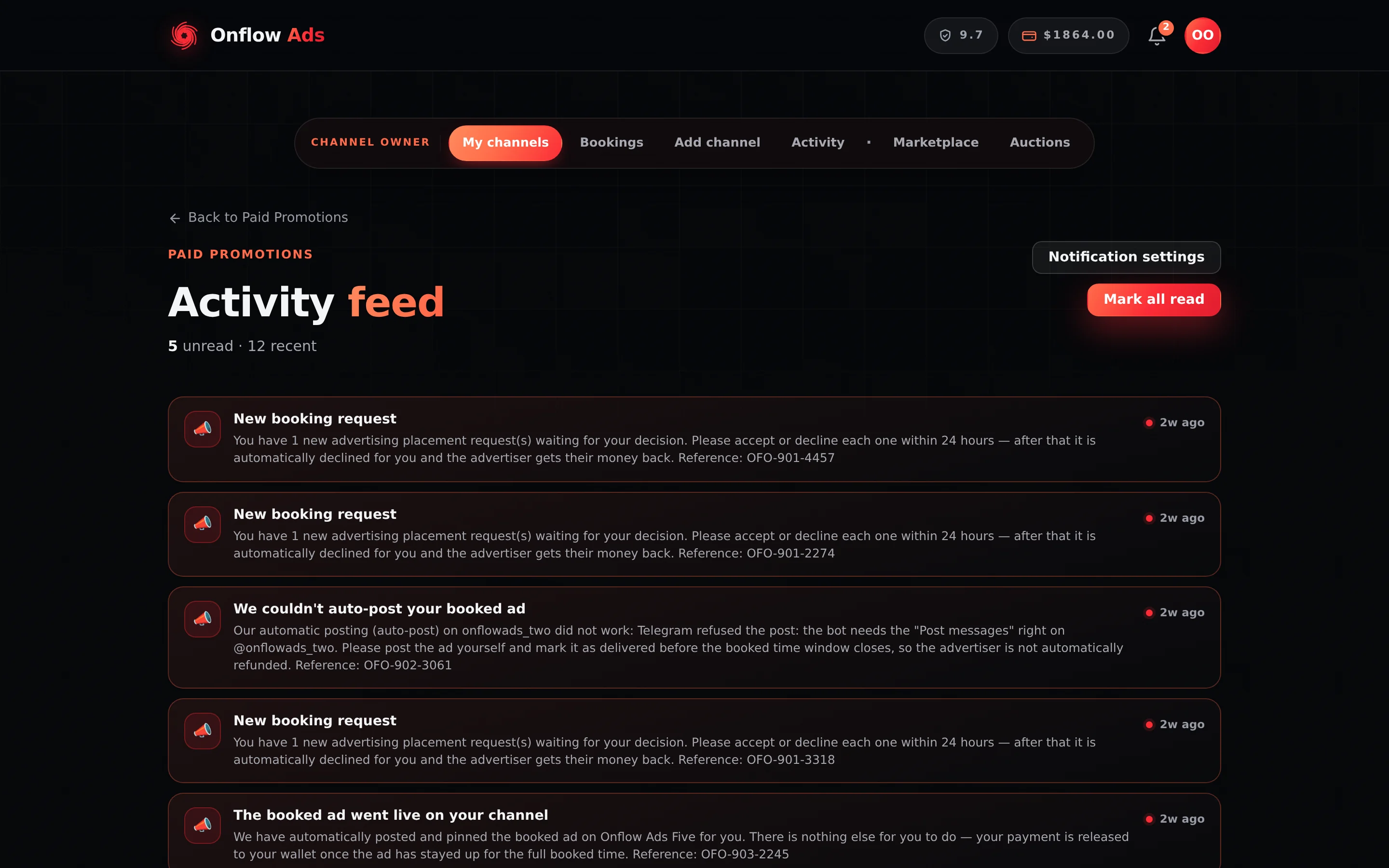
Elite plan · Channel owner. The feed is a log, not a workspace — every row links back to the booking it is about. Read the auto-post failure row first: those are the ones with a deadline.
Statuses at a glance
| Card state | What it means |
|---|---|
| Countdown pill with Accept booking / Decline | Pending — yours to answer, clock running |
| "✓ Accepted — scheduled" | Onflow Ads publishes it for you at the window open, removes it when the booked duration ends — and pins it for the whole run if the buyer paid for the pin extra |
| "Delivered — funds release on …" | Proof accepted; the release date was fixed at delivery |
| "Delivery verified — the hold has cleared." with Claim $X payout | The money is claimable |
| "Get it now · $X" with an early-release fee line | Instant payout is open on this booking |
| "Paid out ✓ · $X" | Completed and credited to your wallet |
| A red pill — "Declined · [reason]" / "Cancelled" / "Refunded" | Closed. "The advertiser was refunded instantly and told why." |
A channel owner can accept the booking OFO-… or decline the booking because … in the chat; the assistant shows the booking it found and waits for CONFIRM before acting. Cancel my booking withdraws one you accepted that has not been published. What the assistant can do for you has the full list and the confirmation rule.
Related
- Posting the ad — an accepted booking is a promise with a date on it.
- Escrow and getting paid — the Payouts panel, the release dates and instant payout.
- Managing your availability — auto-accept, and the gates that filter requests before they reach you.
- The listing manager — auto-accept, reviews and every other per-channel control.
- Reporting a campaign — the owner's reason list, the rules panel, and what filing does.