Channel Finder
The Channel Finder turns a budget — and, if you like, a sentence about what you are promoting — into a shortlist of channels, with a projected reach, a blended CPM, and a stated reason for every pick. It lives on the Channel finder page at https://onflowads.com/telegram/dashboard/paid-promotion/finder (the older /plan address still opens it).
Use it when you know how much you want to spend but not where. If you already know your channels, build your own cart; if you want a pre-vetted set at a discount, book a curated bundle from the same page.
Plus plan · Advertiser. The Channel finder page. On plans below Plus the finder is replaced by exactly this locked panel — the padlock, the four cards and the plan it unlocks on. Curated bundles below it stay open to everyone.
Same page, same arithmetic, one form instead of two. Until September 2026 the page carried an AI brief box, an "or set it yourself" divider and a second form underneath; the two were merged into one form with one button, and the page took the name buyers actually use for it. Saved plans became Saved searches; their OFPN- references are unchanged.
Before you start
- Advertiser role required. The page redirects a channel-owner account to the Paid Promotions hub.
- The finder needs Plus or above. It also needs a channel cap above zero, which is the same thing — see the table below.
- Curated bundles on the same page have no plan gate at all.
- Searching and saving costs nothing. You are charged only when you check the shortlist out. Reading a written brief costs one AI action from your plan's allowance; a search by targeting alone costs none — the line under the button says which it is going to be before you press it.
Step by step
- Open the Channel finder pill.
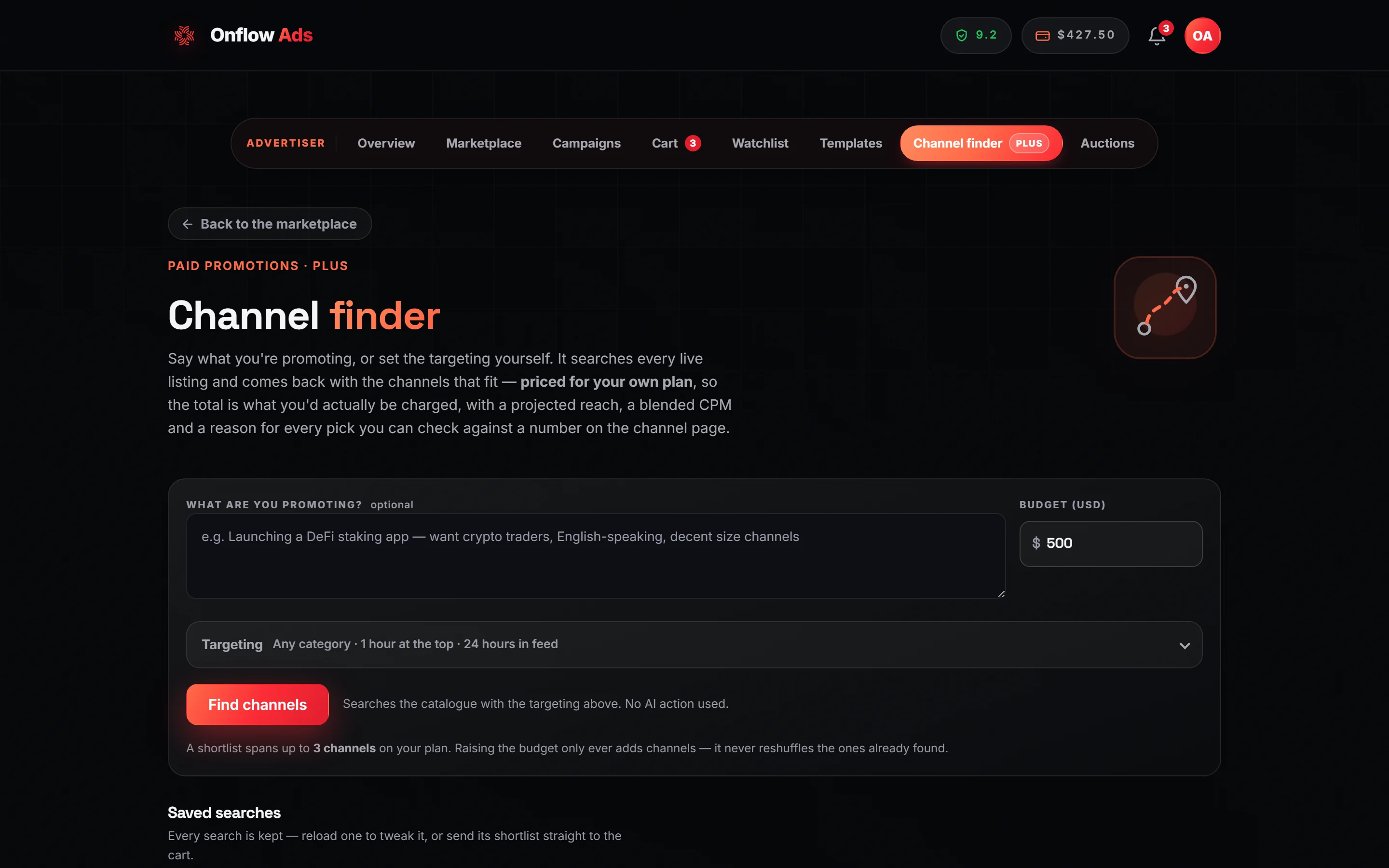
- What are you promoting? — optional. Write a sentence ("Launching a DeFi staking app — want crypto traders, English-speaking, decent size channels") and the AI reads it into targeting: a category, a language, a size floor, a CPM ceiling. It never chooses a channel or an amount; the ranking below does that from live catalogue numbers.
- Enter a Budget (USD). It defaults to 500.
- Optionally open Targeting — the summary line says what it is currently set to:
- a Category chip — single-select, with Any category to clear it, and a search box because the list is the whole category ladder, not only the categories with a listing today;
- a Placement chip — the placements come from the same table checkout sells, with the owner's obligation as a tooltip;
- Max CPM · optional;
- Min subscribers · optional.
- Press Find channels. With a brief it reads "✨ AI reads your brief into targeting, then the ranking searches the catalogue. Uses one AI action."; without one, "Searches the catalogue with the targeting above. No AI action used."
- Read Your shortlist, the allocation chart, and the reason on each pick. A How your brief was read line states what the AI took from your words — and says plainly when the words were read by the fallback table instead of the model.
- Press "Add all to cart" to send the shortlist to your cart, where the ordinary checkout takes over.
The hint under the form states the cap and the one behaviour worth relying on: "A shortlist spans up to N channels on your plan. Raising the budget only ever adds channels — it never reshuffles the ones already found."
What comes back
| Tile | What it is |
|---|---|
| Channels | How many the search picked |
| Spend | What the shortlist costs, at your own plan's pricing |
| Projected reach | The sum of the picked channels' advertised average views |
| Blended CPM | Spend divided by projected reach, per 1,000 |
| Unspent | Budget the search could not fill |
Below the tiles:
- Budget allocation — a per-channel spend chart, captioned "Spend per channel, as this shortlist would be charged at checkout." It appears with two or more picks.
- A card per pick, each carrying its statistics, its price, and a one-line reason.
- "Add all to cart", with a line beside it saying how many channels were considered and whether the search was saved.
- A monthly-placement note: either "Uses N of your M monthly placements — R left this month." or, if the shortlist is too big, the exact number checkout would clear.
If nothing fits, the finder says which of two things happened rather than proposing something worse: "No channel fits that yet" with either no channel is offering this placement yet (try another placement) or there are channels for this placement, but none this budget reaches (raise the budget, or pick a shorter placement). A category the brief was read too narrowly into is widened to the whole catalogue once, automatically, and the result line says so.
How picks are chosen
Every candidate is scored on four things. The weights are fixed, and they are:
| Input | Weight | What it measures |
|---|---|---|
| Cost per view | 50% | The channel's CPM against the cheapest reach actually available in this search today |
| Engagement | 25% | Views as a share of subscribers, capped at a ratio of 0.40 before normalising |
| Witnessed delivery | 15% | How the channel performed on placements the monitor actually measured |
| Owner reliability | 10% | The owner's score out of 10 — a tiebreaker |
Then a greedy fill: best score first, skipping anything that no longer fits the remaining budget, until the budget or the channel cap runs out.
Three deliberate properties:
- Engagement is capped before it is scored. A channel whose views exceed 40% of its subscriber count scores the same as one at exactly 40%, so one viral week cannot outrank a year of consistency.
- No delivery history scores a neutral 0.5, never zero. A channel the monitor has never measured is not penalised for it — no history is not bad history.
- Raising the budget only ever adds channels. It never reshuffles the ones already found, so you can nudge the number up without losing picks you liked.
Every pick carries a reason you can check
Each card states one reason, and every one of them is traceable to a number on that channel's page:
- "Cheapest reach in this search"
- "Delivered 104% of promised reach on monitored placements"
- "34% of subscribers see a post"
- "Owner reliability 9.2/10"
- or the channel's CPM itself
"Our model liked it" is not a reason you can act on or argue with, so the finder never gives one — and the AI never picks a channel, only reads your brief.
The projection is labelled, not oversold
Under the tiles, the shortlist prints its own confidence:
Projected reach is the average views each owner advertises, not a measurement. N of M of these channels have delivered placements we monitored.
When none of the picks has a monitored history it says so instead: "None of these channels has a monitored delivery history with us yet." Blended CPM is derived from projected reach, so it inherits exactly the same confidence.
The number in the Projected reach tile is the sum of what the owners advertise. Your campaign's measured reach is a different number entirely, and it is the one analytics reports after the run. Use the "N of M monitored" line to judge how much weight the projection deserves.
Limits and gates
| Gate | Behaviour |
|---|---|
| Plan requirement | The finder unlocks on Plus |
| Channels one search may span | Free 0 · Lite 0 · Plus 3 · Elite 5 · Master 10 · Ultimate 10 |
| Candidates considered | At most 300 listings per search. The result line says how many it looked at |
| Your own channels | Never picked — you cannot buy ads from yourself |
| First-look listings | Included only for plans that hold first look, so a search never proposes a channel you cannot see |
| Monthly placements | If the shortlist would exceed your allowance, the page says how many placements it needs, how many your plan covers, and how many you have used |
| The AI brief | One AI action per search that carries a brief, from your plan's text allowance. When the allowance is spent or the AI is unavailable, the brief is read by a word table instead and the result says so |
A Plus plan spans three channels; your ordinary cart holds up to fifty lines. The cap is a limit on what the finder proposes in one go, not on what you may buy. Run a search, add it to the cart, then add more channels by hand.
On a plan without the finder, the page is replaced entirely by a locked panel: the padlock, the eyebrow Plus feature, the heading The channel finder, four cards — Searches every listing, Priced for you, A reason per pick, One click to cart — a See plans button, and the line "Unlocks on Plus".
Prices are your real prices
Every pick is priced through the same code checkout charges by, for your own plan. The shortlist's total is the total you would actually pay, not a list-price estimate that grows at the till.
Saved searches
Every search is kept under Saved searches on the same page, each with its own OFPN- reference. A card shows the search's budget, projected reach, channel count, spend, CPM and the filters used, plus a Booked badge once its shortlist has been booked. Two actions:
- "Load this search" — restores the budget and filters and runs it fresh. Prices are always re-quoted live: a saved search is a saved brief, not a saved price.
- "Add N to cart" — sends the saved shortlist straight to your cart.
If something goes wrong
| What you see | What it means | What to do |
|---|---|---|
| The whole page is a padlock and "Unlocks on Plus" | Your plan does not include the finder | Use the cart directly, or book a curated bundle — those are open to every plan |
| "No channel fits that yet" | Every candidate failed a filter or the budget; the line under it says which | Try another placement, raise the budget, or lift the Max CPM ceiling |
| "That brief is too short to read" | Fewer than six characters were typed into the brief | Write a sentence, or clear the box and search by targeting alone |
| "That's a lot of searches in one hour" | The rate limit | Wait a minute |
| "The marketplace didn't answer just now. Nothing was charged" | A server fault | Try again in a moment; no AI action was spent |
| The shortlist left budget unspent | The next best pick would not fit what remains | The finder never partially books a channel. Raise the budget, or loosen the filters |
| A channel you expected was skipped | It failed the CPM or subscriber filter, did not offer the chosen placement, did not fit the remaining budget after better-scoring picks, or is not visible to your plan | Open its channel page and check against the filters you set |
| The same brief produced a different shortlist | Searches run against the live catalog | Expected. Prices, availability and listings change between searches |
| The shortlist is bigger than your monthly allowance | The page prints exactly how many placements checkout would clear | Trim the shortlist or upgrade before paying |
Related
- Curated bundles — the pre-packaged alternative, on the same page and open to every plan.
- Cart and checkout — where Add all to cart delivers the shortlist.
- Reading a channel page — where every pick's reason can be checked.
- What each plan includes — the channel cap and the plan gate, side by side.