Browsing the Marketplace
The catalog at https://onflowads.com/telegram/dashboard/paid-promotion/catalog (the Marketplace pill) lists every verified channel currently taking bookings. This page covers finding and shortlisting; a channel's full detail page is covered on Reading a channel page, and saving channels on Watchlist and price alerts.
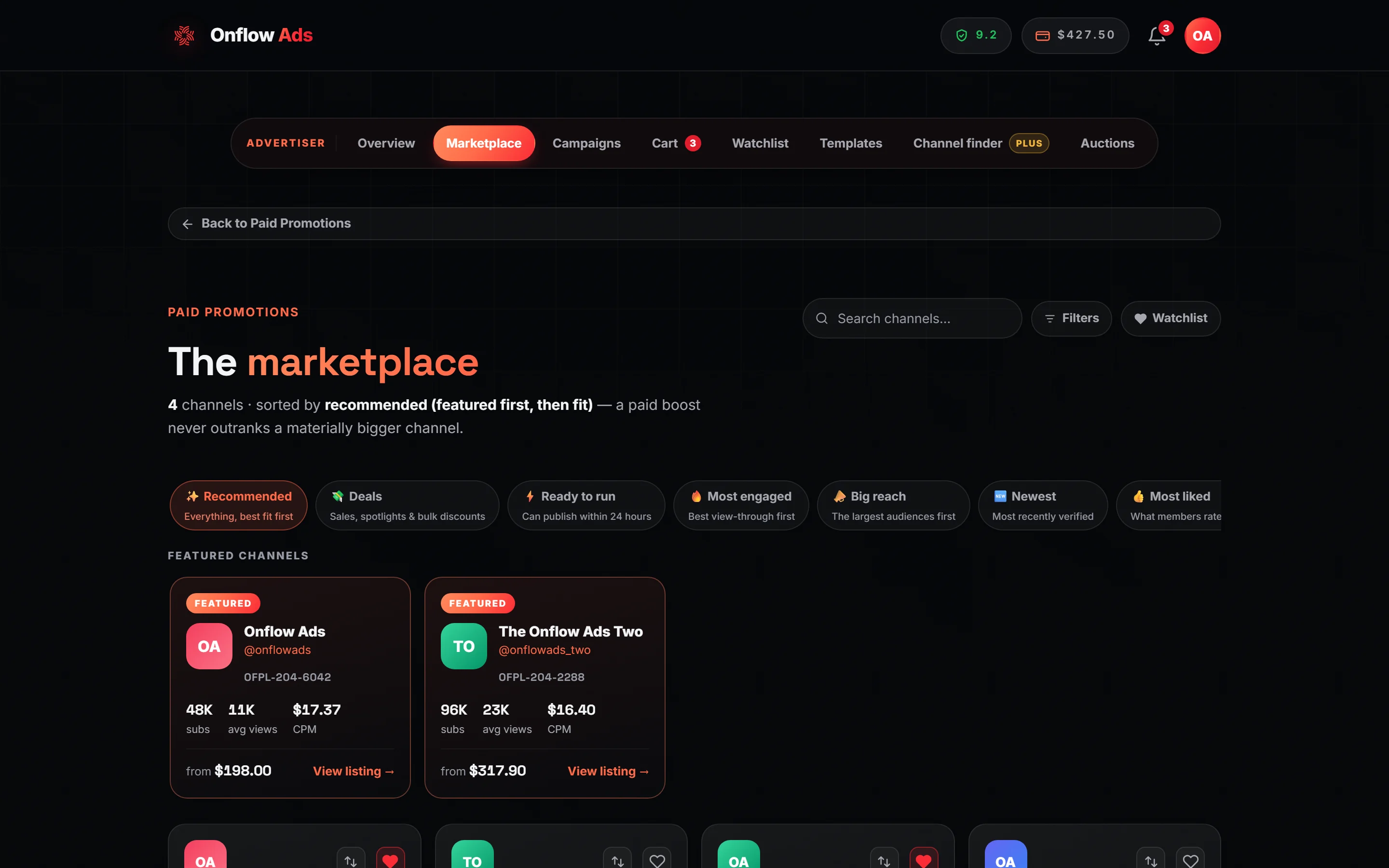
Plus plan · Advertiser. The marketplace. Everything that narrows the grid sits above it: the search box and the Filters button on the right, and the single row of collection chips on the left. Read the count line under the heading first — it always states what you are looking at and how it is sorted.
Before you start
- Any plan can browse, including Free. Prices are re-quoted per plan, so what you see is what you would pay.
- Any role can browse. A channel-owner account can look at the catalog but cannot book from it.
- Nothing on this page spends money or commits you to anything.
The count line
Under the heading The marketplace, one sentence describes the current view and updates on every change. It reads, for example:
48 channels in Deals · sorted by best value (lowest cost per 1k views) · 2 filters — a paid boost never outranks a materially bigger channel.
It names the collection (omitted on Recommended), says "from your watchlist" when the Watchlist toggle is on, states the sort in words, and counts how many Filters-panel switches are active. The clause about paid boosts is the catalog's standing promise: a paid placement can move a channel within a band of comparable reach, never above a materially bigger one.
Search
The "Search channels…" box filters as you type, after a short pause so the grid does not flicker. It matches the channel's title, its @username or its description.
The seven collections
One visible row of chips, exactly one active at a time. A collection is a named group, not a single switch: picking Deals asks for a live sale or a spotlight or a bulk discount, because the intersection of three kinds of deal is almost always empty.
| Chip | What it shows | How it sorts |
|---|---|---|
| Recommended | Everything, best fit first | Featured first, then a band of comparable reach, then paid rank, then earned Standing, then subscribers |
| Deals | Sales, spotlights and bulk discounts | Best value — lowest CPM |
| Ready to run | Can publish within 24 hours | Best fit |
| Most engaged | Best view-through first, with a 3% engagement floor | Engagement, highest first |
| Big reach | The largest audiences first | Most subscribers first |
| Newest | Most recently verified | Newest first |
| Most liked | What members rate highest | Likes, most first |
A collection chip that would return nothing right now is drawn disabled with the tooltip "Nothing in this collection right now" rather than left as a trap.
Every other chip is a group and an order. Most liked is only an order: every channel you are allowed to see is in it, most-liked first, and any Filters-panel switches you already have on stay on.
That is deliberate. A collection that also filtered would quietly redefine the label — "most liked" would come to mean "most liked among the ones we kept", which is not what you asked for.
Ties break on subscribers, not on whichever listing was created last, so a shelf of channels with one like each still has a stable and meaningful order.
Likes and dislikes on a channel
Any signed-in member can give a channel a thumbs-up or a thumbs-down, and every card carries the tally as a badge — 34 liked · 3 did not.
Read them with the right weight:
- Both numbers are always shown, and the badge appears even when the votes are mostly negative. A badge only well-liked channels ever get is an advert, not a signal.
- They are never combined into one score. A single net figure lets a channel bury a bad reception under likes, and you are entitled to see that forty people liked it and thirty did not.
- A vote is one member's opinion. It costs an account and nothing else, and the voter need never have bought anything. It is not a review, which only an advertiser whose placement was paid for and completed can leave.
- Votes affect nothing but this ordering. They do not touch a channel's reliability score, its price, or where it sits in any other collection.
You can vote from a channel's page in the marketplace, or from the public link its owner shares. One vote per channel: pressing the other button switches it, pressing the same one again withdraws it. An owner cannot vote on their own channel.
The chips are the only OR in the marketplace. Everything inside the Filters panel is a requirement: switches AND with each other and with the active collection. That is the right rule for "it has to allow my links" and the wrong one for "show me any kind of deal".
The Filters panel
Press Filters to open the panel. The button carries a badge with the number of active requirements, and every control inside it carries a live count of the channels it would return. The panel edits a draft — nothing in the grid moves until you apply.
Order
A single select, replacing the collection's own order while it is set:
| Option | What it sorts by |
|---|---|
| Best fit | The recommended order (featured first, then fit) |
| Best value — lowest CPM | Cost per 1,000 views, cheapest first |
| Cheapest first | Entry price, cheapest first |
| Most engaged | Engagement rate, highest first |
| Biggest reach | Subscribers, most first |
| Most average views | Average views, most first |
| Newest | Most recently verified |
| Most liked | Likes, most first |
The first option in the list is always the active collection's own order, named after it.
Category
Category chips with a count each. You may select up to 3; the section header says so. Selecting several matches any of them.
Language
An "Any language" select. Each option carries the number of channels in that language.
Placement
One checkbox per placement format, labelled with the format's own name and its count. The section is headed "offers any of" — a channel matches if it prices any of the formats you ticked.
Deals & availability
| Chip | Shows only channels that… |
|---|---|
| Available today | Can publish within 24 hours (their own lead time is 24 hours or less) |
| On sale | Are running a live channel-wide sale |
| Spotlight | Are running a flash deal on one placement format |
| Bulk discount | Offer a cheaper rate when you book more than one placement on the same line |
| ★ Featured | Hold a paid featured slot |
| ✦ First look | Are newly verified — your early-access window (Ultimate only, see below) |
Content & terms
| Chip | Shows only channels that… |
|---|---|
| Links allowed | Accept a creative carrying a link |
| ✍️ Author-run | Are run by one person, the author |
| Labels the ad | Have set their own listing to mark a sponsored post as an ad |
It filters on one listing setting, and it is not a guarantee that a post will be labelled — nor is its absence a sign that a post will not be. The platform appends its own line, advertisement via onflowads.com, under every ad it delivers, unless the channel owner's plan is Plus or above. So a channel without this chip can still carry a label, and a channel with it may carry only the owner's own. See What you are actually buying.
Budget & audience
Six numeric fields: Min price, Max price, Min subscribers, Max subscribers, Min engagement %, Max CPM. A minimum above its own maximum shows the warning "Your minimum price is above your maximum, so nothing can match." before you apply.
The panel's own footnote states the rule the whole page runs on: "Prices and CPM are what you pay — the same numbers printed on the cards."
Since September 2026 no filter chip carries an inventory count, and no option is ever greyed out or hidden for having nothing behind it today. Every collection, category, language and placement stays clickable; the results area says what it found. The category list is the marketplace's whole category ladder — the same list an owner picks from when listing — so you can ask for a category before anyone has listed in it.
The footer
Clear all resets the draft. The primary button counts the result before you commit to it: it reads "Show 12 channels", or "No channels match" and goes disabled when the draft returns nothing.
The count on Show N channels comes from a real server count of exactly the filters you have drafted. You never have to apply a filter set to find out it was empty — and counting inventory this way logs no impression against a channel nobody has actually seen.
Removing a filter
Applied requirements appear under the chips as removable pills, labelled "Filtered by", each with an ✕, plus a Clear all button. The collection and the search box carry their own controls and are deliberately not repeated in that row.
The Watchlist toggle
The heart-labelled Watchlist chip next to search narrows the whole marketplace to the channels you have saved. It is a real server-side filter over your entire watchlist, not a sieve over the page you happen to be looking at. With nothing saved it produces its own message rather than a failed search: "Your watchlist is empty. Tap the heart on any channel to keep it here and get told when its price drops."
Reading a card
Each card carries the avatar, the channel name (with a green tick if it passed platform verification), the @handle, the channel's OFPL- reference, a badge row, three numbers — subs, views and ER — and the footer: "from $X" and "$Y CPM". The heart saves the channel; the arrows icon adds it to the compare tray.
| Badge | Meaning |
|---|---|
| ★ Sponsored | The paid top slot on a single-category browse. Always disclosed, always first |
| Category | The channel's own category |
| −N% | A live spotlight: a flash deal on one format |
| Today | The channel can publish within 24 hours |
| NEW · first look | A newly verified listing you are seeing before the wider marketplace |
Above the grid, a Featured channels rail shows the listings holding a paid featured slot. Both Featured and ★ Sponsored are paid placements and both say so on their face.
First-look inventory
For 48 hours after a listing is first verified, it is visible only to plans that hold first look — currently Ultimate. This is the one entitlement that works by withholding rather than adding, so it is applied carefully:
- The window bounds the base visible set, so a newly verified listing is missing from the grid and from every facet count. A lower plan is never shown a count of channels it cannot reach.
- It is also applied in the Channel finder, so a plan never proposes a channel you cannot see.
- An Ultimate account additionally gets the ✦ First look filter chip, to browse exactly that window.
- An operator can switch the whole mechanism off, in which case every plan sees everything immediately.
How the numbers on this page behave
Four deliberate rules, worth knowing because they explain things that would otherwise look like bugs:
- Facet counts are computed over everything you may see, not over your current filters. A chip that says "4" always resolves to four channels, and the numbers do not jump around as you narrow.
- Price and CPM bounds match your all-in price — owner list price plus the marketplace fee at your rate — not the owner's list price. "Under $100" can never hide a card that says $95.
- A filter that leads to an empty grid is drawn disabled, not offered and then disappointing.
- Test-suite listings are excluded everywhere, including from a direct channel link. Accounts on the reserved
.testdomain can never surface in the live marketplace.
Comparing channels side by side
You can compare up to 3 channels at once.
- Press the compare arrows icon on a card, next to the heart. A Compare tray appears at the bottom of the screen. Adding a fourth shows "Compare up to 3 channels at once."
- Add up to two more the same way. Remove one with the ✕ on its avatar in the tray, or press Clear to start over.
- Press "Compare N" in the tray. It enables at two channels.
The overlay table has seven rows:
| Row | Best is |
|---|---|
| Subscribers | Highest |
| Avg views | Highest |
| Engagement | Highest |
| CPM | Lowest |
| From price | Lowest |
| Category | — |
| Channel ID | — (the OFPL- reference, for quoting to support) |
The best cell in each numeric row is marked Best in green, and the overlay's footnote repeats which direction counts: "Green = best in that row. CPM and price: lower is better." View → under any column opens that channel's page; Escape closes the overlay.
From browsing to booking
- Open a channel — press any card. See Reading a channel page.
- Save it for later — press the heart. See Watchlist and price alerts.
- Book it — the channel page's "Book a post →" button opens the booking composer.
If something goes wrong
| What you see | What it means | What to do |
|---|---|---|
| "Nothing matches those filters." with a Clear filters button | Your combination is real but empty | Press Clear filters, or drop one requirement at a time |
| "No channels are listed yet" | The marketplace itself is empty, not your filters | Nothing to fix. Owners' listings appear as they go live |
| "Your watchlist is empty." | The Watchlist toggle is on and you have saved nothing | Press Browse all channels, then save a few with the heart |
| "Couldn't update your watchlist." after tapping a heart | The save was refused — most often the listing is no longer live | The heart reverts on its own. Reload the page to see the listing's current state |
| "Network error — your watchlist didn't change." | The request never reached us | Retry. Nothing was saved or removed |
Related
- Reading a channel page — how to judge a shortlisted channel before you spend on it.
- Watchlist and price alerts — save a channel and let the price come to you.
- Discounts and deals — what the bulk-discount, spotlight and sale badges are actually worth at checkout.
- What each plan includes — the marketplace fee behind every price on this page, the same on every plan.