Booking a Promo Slot
The booking composer is where you write your ad, schedule it and add the placement to your cart. You reach it from a channel page — the "Book a post →" button, or a row in Formats and rates, which pre-selects that format.
The page is a six-step wizard: 1 · Slot → 2 · Template → 3 · Write → 4 · Media → 5 · Check → 6 · Review. Each screen asks one thing, and Back and Continue sit at the bottom of every step (pinned to the bottom of the screen on a phone). The browser's own Back button moves between steps too, and a step you have finished can be reopened by tapping its number. Nothing is charged here; the charge happens at checkout.
Everything you choose and write is kept on this device as a draft for this channel, so a reload, a closed tab or a trip to the cart and back picks up on the step you left. The draft is cleared once the placement is in your cart — the cart holds it from then on.
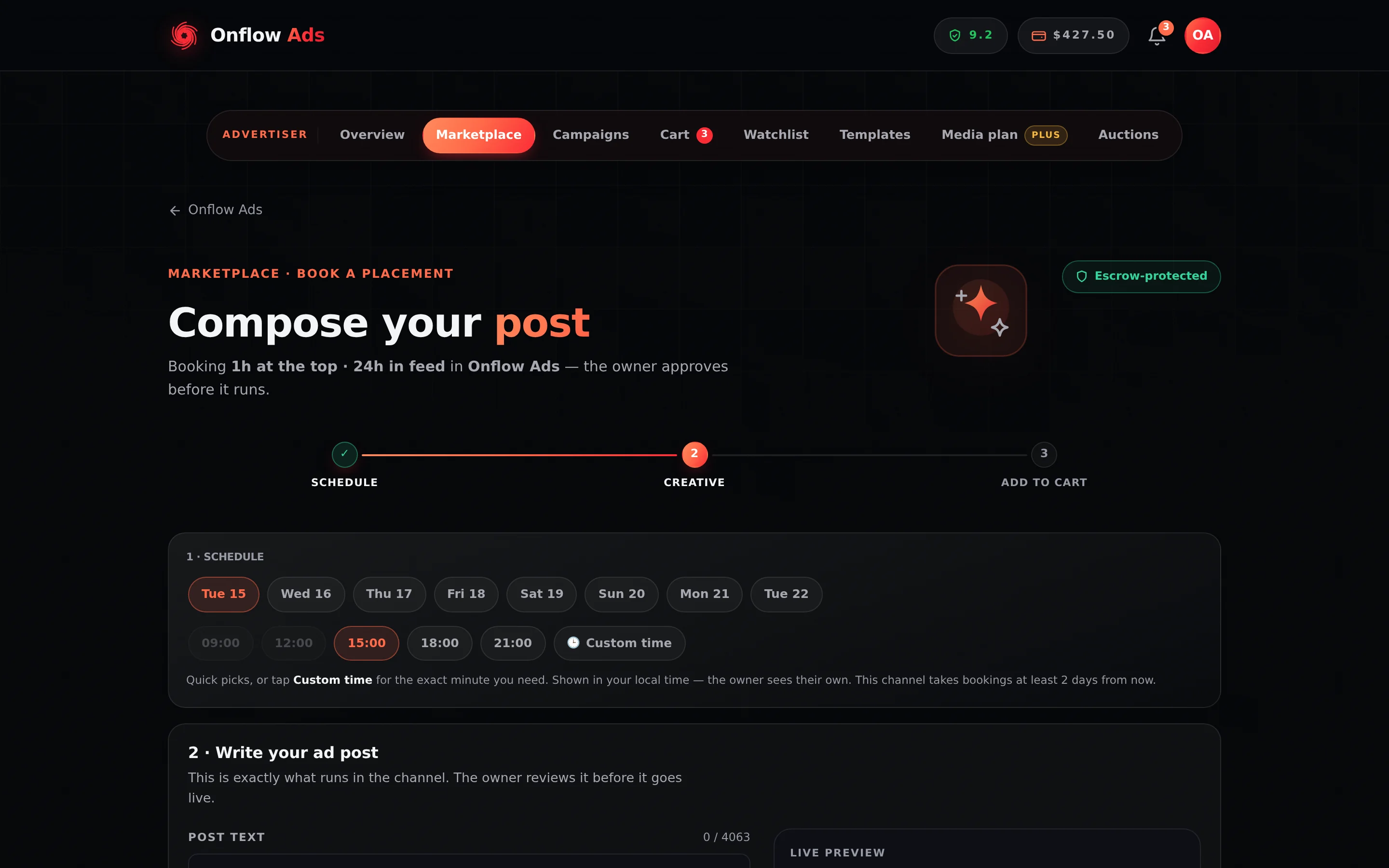
Plus plan · Advertiser. The composer. The left column builds the post; the right column shows you exactly what Telegram will render and what it will cost. The number of photo slots and inline buttons you see depends on your plan.
Three things about a placement are not what most buyers assume: "an hour at the top" is exclusivity, not a pin; the pin is a separate extra some owners sell; and the platform adds one line under your copy, which is why the character counter stops short of Telegram's own limit. All three are on What you are actually buying.
Before you start
- Advertiser role required. A channel-owner account opening this URL is redirected to the Paid Promotions hub.
- You need a channel in mind. The composer always books one channel and one format at a time.
- Check the channel's Availability strip first — the composer does not know the owner's blackout dates, and a closed start date is only refused at checkout. See Reading a channel page.
- If your post will carry a link to a site outside Telegram, see the link policy before you write it.
Step by step
- Slot — pick the placement, a day and a time. When the channel sells more than one format, the Placement chips at the top switch between them. Then pick a day: eight day chips are offered, starting at the first day this channel's own lead time allows — 48 hours unless the owner has set something shorter, and as little as 2 hours on a same-day channel. Days that cannot hold a valid time are disabled. Then pick a time: five quick picks — 09:00, 12:00, 15:00, 18:00, 21:00 — and a Custom time chip that opens a time picker for the exact minute you need (5-minute steps). All of them are in your browser's local time; a quick pick that falls inside this channel's lead is disabled, and a custom time inside it is refused with the earliest minute that works — never silently moved. The note under the row states the channel's own figure — "This channel takes bookings the same day", or "…at least 2 days from now" — rather than a fixed 48 hours.
- Template — start from a saved one, or blank. Your saved templates are listed with Use this template; a locked one says so and tells you which plan opens it. See templates.
- Write — the words and the buttons. Type into the field headed Post text, placeholdered "A hook, the offer, and your link." The counter above the box shows how much of your budget you have used, and turns red when you go over. On most channels that budget is 991, not 1,024 — see below. Add inline buttons here too, if your plan includes them: each is a label, a URL and — from Plus up — a colour. Every tap on one is counted. Draft with AI writes a first version for you.
- Media — attach a photo or video, if you want any. The Photo or video field starts with a choice of creative type — Photos or Video — and the slots appear under whichever you pick. Generate image with AI draws one into the next free slot.
- Check — the compliance check. Declare what the ad is about, then press Run the check (the step's own button runs it). It has to pass before you can go on; the pre-flight rows above the preview say what is still in the way.
- Review — the post as it will run, and the price. The preview renders the post in Telegram's own chrome beside the itemised charge, with the optional note to the owner under it. Press Add to cart: the button becomes Review cart and a notice confirms "Added to your cart — N placements".
Step 1 produces a single instant. The day chip and the time chip together are the moment the owner is committing to, and it is the moment the delivery monitor starts its clock from. If a placement has to land at a different hour on a different channel, that is a separate booking.
Slot — the schedule, in detail
| Rule | The figure |
|---|---|
| Earliest start | The listing's own lead time — 48 hours by default, 12 hours or 2 hours (⚡ Available today) where the owner allows it. A mixed cart is held to the strictest lead time in it |
| Days offered | 8, beginning at the first day fully outside the lead window |
| Times offered | Quick picks at 09:00, 12:00, 15:00, 18:00 and 21:00, or any custom HH:MM in 5-minute steps — the reader's local time, sent as a UTC instant |
48 hours is the marketplace's default, not a rule: an owner picks 48h, 12h or same-day (2h) for their channel, and the ⚡ Available today filter finds the ones at 24 hours or less. The figure on the booking page is always that channel's own, and a short-notice start costs nothing extra. The owner's answer window shrinks with it: a request normally waits 24 hours for an accept, but a slot that starts sooner waits only until go-live — an unanswered one auto-declines at that moment and refunds you in full.
Each listing carries its own minimum lead time. Checkout enforces the strictest one across your whole cart, so putting one 48-hour channel in a basket with a same-day channel pushes the entire campaign out to 48 hours. The composer is per-channel and cannot see this.
Write and Media — the creative
The length budget is Telegram's own, minus the line
Telegram allows 4,096 characters on a text-only message and 1,024 on a caption once a photo or video is attached, and the composer enforces exactly those — the counter's ceiling changes the moment you attach or remove media. The server applies the same two ceilings when the post is saved, at checkout and again at go-live, so nothing you can book is a post Telegram would refuse.
The counter does not show the raw ceiling on every channel. On a channel that carries the platform's line under the ad it reads 991 (or 4,063 for a text-only post), because 33 characters are held back for that line. A note under the box says so: "33 characters are held back for the “advertisement via onflowads.com” line added under this channel's placements."
| The channel's owner is… | Your counter reads | Why |
|---|---|---|
| Free, Lite or Referral Premium | N / 991 with media · N / 4063 text-only | The line is appended, and 33 characters are reserved for it |
| Plus or above | N / 1024 with media · N / 4096 text-only | That owner's plan removes the line, so nothing is reserved |
The reserve is per channel, not per account, and it is read from the listing you are booking — so the same creative can have two different budgets on two different channels. A listing the composer could not read is assumed to carry the line, which only ever reserves characters that turn out to be free.
Going over produces a hard pre-flight failure: "Too long — Telegram allows 1,024 characters in a caption when a photo or video is attached (4,096 for a text-only post)." Attaching a photo to a text post that is already over 1,024 is refused at the file picker for the same reason, with the same numbers.
The line under your ad
One blank line under your copy, every placement the platform delivers carries:
advertisement via onflowads.com
It is a hyperlink back to Onflow Ads. It is the platform's own ad disclosure — which is why the composer no longer asks you to type #ad, and why the pre-flight's Disclosure row is now a pass that reads "Disclosure is added for you — every placement is labelled as an advertisement."
The line is dropped on Plus and above — but the plan that is read is the channel owner's, never the advertiser's. Upgrading your own plan does not remove it from your ads. A channel's public page states which of the two applies to it before you book. Full detail on What you are actually buying.
If a caption would overflow Telegram's limit once the line is added, the line is left off and the ad goes out unchanged. A placement never fails because of it.
The platform appends the line itself only when it publishes the ad — which is an option the owner opts into. On the default path the owner posts by hand, and the caption they are handed already carries the line; what cannot be checked is whether the version they pasted kept it. See What you are actually buying.
Photos and video
| Plan | Photos per creative | Video |
|---|---|---|
| Free | 2 | — |
| Lite | 3 | — |
| Plus | 4 | — |
| Elite | 5 | ✓ |
| Master | 6 | ✓ |
| Ultimate | 8 | ✓ |
| Referral Premium | 2 | — |
The field is headed Photo or video and opens with the choice of creative type, once, above the slots: Photos or Video. A creative is one or the other — Telegram will not accept an album that mixes them — so the choice belongs to the field rather than to each slot.
- Photos — JPG, PNG, WebP or GIF, up to 2 MB each. Your plan sets how many slots appear. Slots fill in order, so slot 3 opens once slot 2 holds an image. Press the ✕ on a thumbnail to remove it. An image whose file is technically valid but undecodable is refused at the file picker rather than at go-live: "We couldn't use that image — … Please choose another one."
- Video — MP4, MOV or WebM, up to 20 MB, and it renders exactly one slot. On plans without it the Video button is marked Locked; pressing it says, in a notice, which plan includes video. The slots below carry no lock text of their own.
Pressing Video on a creative that already holds photos removes them, and pressing Photos on a video removes the video. The two cannot travel together downstream, and carrying a stale file into the wrong creative type is how a send fails at publish time instead of in front of you.
Two or more photos post as one album, and Telegram decides how they sit inside it. It arranges them by their shapes, not by the order of your slots:
| The photos you attach | How Telegram lays them out |
|---|---|
| Two wide (landscape) | Stacked, one above the other, each full width |
| Two tall (portrait) | Side by side |
| One wide, one tall | Side by side |
| Three, first one wide | The first across the top, the other two beneath it |
| Three, first one tall | The first down the left, the other two stacked beside it |
| Four or more, first wide | The first across the top, the rest in a row under it |
| Four or more, first tall | A block, two across |
The slots in the composer are a row of equal squares because they are an upload order, not a layout. The live preview is the thing to trust: it measures your actual photos and shows the arrangement Telegram will use.
Even then it is Telegram's call, and the phone and desktop apps can differ slightly on the same album. If a specific arrangement matters to your creative, the reliable way to get it is to combine the images into one photo before uploading.
Inline buttons
The field is headed Link buttons. Buttons sit under the published post, and a button's link is measured by exactly the same rules as a link in the caption: it is published as its own onflowads.com/rr/… short link that counts every tap (one unique per reader per day). A link into one of your connected channels then opens a campaign invite link that counts joins too; any other Telegram address — somebody else's channel, an invite hash, a bot — opens exactly as written; and an ordinary web link opens your page carrying your campaign tags. See Tracked links and delivery proof.
| Plan | Inline buttons per post | Button colours |
|---|---|---|
| Free | 0 | — |
| Lite | 1 | — |
| Plus | 2 | ✓ |
| Elite | 3 | ✓ |
| Master | 4 | ✓ |
| Ultimate | 4 | ✓ |
| Referral Premium | 0 | — |
Each row is a label (1–48 characters, no line breaks), a link, and — where your plan includes it — a colour. A locked row shows a Locked button, and pressing it names the plan that opens it in a notice; on Free the whole block is one locked Inline buttons row.
The text under the Link buttons heading opens with "Up to 4 buttons under your post." Four is the cap on Master and Ultimate only. Your real allowance is the table above, and it is enforced when the ad post is saved and re-checked at checkout — so a post with too many buttons is refused when you press Add to cart, not silently trimmed.
Button colours
From Plus upward each button row grows a small Colour control: four swatches, one radio group per button. One colour per button, and every button you are allowed may carry its own.
| Choice | What Telegram draws |
|---|---|
| Default | Telegram's normal button. No style is sent at all |
| Blue | A blue button |
| Green | A green button |
| Red | A red button |
There is no version check and nothing to warn about: a Telegram client too old to know about button styles simply draws a plain, working button.
Colour is re-checked at checkout against your plan at that moment. Below the rung that includes it the colour is dropped, not refused — the creative still saves and still books, minus its colours. An uncoloured button is byte-identical to one written before colours existed, so nothing about the post breaks. Buttons themselves are enforced the other way: too many of them is a refusal, not a trim.
These are Telegram's rules, not ours: an inline keyboard rides on a text message, a single photo with its caption, or a video — and the album send (two or more photos) has nowhere to put one. The composer marks the pairing as a hard failure — "Telegram cannot show buttons under an album. Keep the buttons with one photo, a video or a text-only post — or remove the extra photos." — Add to cart stays blocked while it stands, and checkout refuses it independently. One photo, one video, or no media — any of those can carry buttons, with a caption of up to 1,024 characters (4,096 with no media).
Links and the External Links add-on
Link destinations are policed in two places — the rich editor's <a href> targets and inline button URLs — when the ad post is saved, and again at checkout against your entitlements at that moment.
| Destination | Who can use it |
|---|---|
A public Telegram link (t.me/channelname) | Every plan |
A private Telegram link (t.me/+invite, /joinchat/…) | Lite and above — "Private Telegram links are not available on this account." |
Any external http(s) destination | Requires the paid External Links add-on — "External links need the External Links add-on ($1)." The add-on is bought once, scoped to your current plan |
The gate applies to rich links and to buttons. A URL you simply type into the caption is stored as text, and Telegram linkifies it in the channel — so it publishes without the add-on. The difference is only about who may use which destination: for measurement there is none. A linked word keeps its visible text exactly as you wrote it and gets its own onflowads.com/rr/… short link as its destination; a typed URL is replaced by its own short link — or linked in place, when replacing it would take the post past Telegram's length limit. Both are counted on every tap.
The live preview
The right column renders the post exactly as Telegram will: the channel's avatar and name, your text, your media and your buttons. Under it a single footnote states the expected view count, your chosen time and the in-feed duration — for example "12.4K expected · 03:00 PM · stays 24h in feed". It says nothing about a pin, because on an ordinary booking there is none. When your post carries links, the legend under the preview lists each destination. Once the ad is booked, every one of them goes out as its own onflowads.com/rr/… short link — see Tracked links and delivery proof.
The pre-flight checklist
The checklist updates as you type, and it is built from two halves. Four rows are computed in the browser as you write; the channel-specific ones are fetched from the server against the real listing, because you cannot see the owner's own rules.
| Check | Where it runs | Passes when | Fails or warns with |
|---|---|---|---|
| Empty | Local | There is text, or a photo | Hard failure: "Write your ad post, or attach a photo." — a media-only post is legal here |
| Length | Local | You are inside the counter's budget (1,024 with media, 4,096 text-only, minus the line) | Hard failure: "Too long — Telegram allows 1,024 characters in a caption when a photo or video is attached (4,096 for a text-only post)." |
| Link | Local | The caption, a rich link or a button carries a link | Warning: "No link yet — add a text link or a button so results can be measured." The server-side pre-flight then says how your links will be measured — every tap on each one, joins too into one of your connected channels, and nothing only for an address it leaves as written |
| Buttons and media | Local | Buttons ride a single photo, a video, or no media — Telegram's own rule | Hard failure: "Telegram cannot show buttons under an album. Keep the buttons with one photo, a video or a text-only post — or remove the extra photos." |
| Links policy | Server | The owner accepts links, or your post has none | Hard failure: "This channel doesn't accept posts with links — remove the link or choose another channel." |
| Prohibited topics | Server | None of the owner's declined topics appear in your text | Hard failure: "This channel declines these topics: … Reword or choose another channel." |
| Compliance check | Server | You ran the compliance check on the Check step for the post as it reads now, and it found nothing — in Telegram's limits or in the channel's rules, screened together in one pass | Hard failure either way: "Run the compliance check before booking — it screens your post against Telegram's limits and this channel's own rules, in one pass." until you run it, or "Compliance check: …" naming what it found |
Warnings never block. Any hard failure blocks Add to cart until it is fixed.
The composer refuses an empty post with "Write your ad post, or attach a photo." — a photo with no words is a legal ad. The server's own length check, which is what a bare API call would hit, still answers "Write your ad post before booking." Seeing the second one means the request reached the server without going through the composer.
The checklist carries a Disclosure row that always reads "Disclosure is added for you — every placement is labelled as an advertisement." It used to warn you to type #ad yourself and offered a chip to insert it; both are gone on purpose, because the platform stamps the label now and asking twice for the same thing meant the one that could be forgotten was yours. Do not hand-type #ad — it buys nothing and spends caption.
You never see the owner's declined-topics list — it is theirs, not published. The pre-flight is how you avoid composing blind, paying, and being declined two days later. The check matches whole words, case-insensitively, against the owner's own list.
The AI helpers
Four helpers sit in the composer. They behave differently and it is worth knowing which one costs what. All of them produce a suggestion you still edit and still pre-flight.
One of them opens a dialog; the other three are chips in the composer's own action row, and they appear only when they have something to do.
Draft with AI
On the Write step, the field headed Write it with AI carries a single button, "Draft with AI". It opens a dialog titled "Draft your ad post" with two tabs:
- Generate — "What should the post say?" Describe the offer in up to 600 characters and press Generate.
- Image — "Describe the image", and the button reads Generate image. This tab is the same helper as the Generate image with AI button below, and it obeys the same plan gate.
The result appears inside the dialog, with Regenerate and Apply to my post. Nothing touches your draft until you press Apply — which is the point of the dialog: a suggestion you looked at before it replaced what you wrote.
Generating spends one AI text action, and the action is handed straight back when the model returns nothing usable: "Couldn't draft that just now — no action was used." A brief shorter than six characters is refused before anything is spent: "Describe the ad you want, and I'll draft it."
Where the owner's listing says they mark sponsored posts, the brief handed to the model still asks it to include #ad. The platform already labels the placement, so a hashtag in a returned draft is redundant — delete it and save the characters.
Fix to pass
On the Check step, this button appears only while the pre-flight has hard failures. It rewrites your current post to clear exactly those failures. It also spends one AI text action, with the same refund on an empty result. If you press it with nothing to fix it answers "Nothing to fix — this post already passes pre-flight." and spends nothing. With fewer than six characters written it answers "Write your ad post first, then I can fix it."
Your formatting and your links survive the rewrite: the rewrite hands the model the formatted body and takes formatted text back, and the instruction it carries is to preserve every link exactly as given. A rewrite that turned your link into dead words would be a deletion, not an edit.
The compliance check
This one is compulsory. You cannot add a placement to your cart, and you cannot pay for one, until the post as it currently reads has been screened for that channel. It is a system pre-screen and is not metered against your AI allowance — running it costs you nothing.
The button is only there while a check is owed. On an empty post it is not drawn at all; once a post has passed and has not been edited since, it disappears, because there is nothing left to do; after a failure it stays and reads Re-run the check, since re-running is the remedy. Continue on the Check step runs the check for you when one is owed, and will not move on past a failure — the verdict panel under the preview says what was found and, when the automatic screen refused it, carries an Appeal this decision button that sends exactly this post to a person. Edit the post after a pass and it comes back — along with a notice saying so at the time:
Your post changed — Run the compliance check again before booking — it screens the post as it reads NOW, against Telegram's limits and this channel's rules.
It asks three questions in one pass, and the first two can fail your post.
1. Will Telegram carry this post at all? The platform's own hard limits — the caption budget (4,096 characters, or 1,024 with media attached), an album with inline buttons, a half-filled button row — are screened in the same press, and reported first, because they decide whether the post can be published at all. This used to be checked separately, which meant a post 300 characters over the limit could be told it was "compliant" and then refused at the moment it mattered. A pass now means, in the notice's own words, within Telegram's limits and this channel's rules.
2. Does the ad break a rule this owner actually stated? The screen is given the channel's whole rate card, not a keyword list: its category, the topics the owner said they accept, the topics they prohibit, whether links are allowed at all, and the audience they describe. A prohibited topic is read the way the owner meant it — "no casinos" covers a "200 free spins" post that never says the word — but beyond that it is deliberately lenient: only a clear violation fails, never a borderline reading.
3. Is the ad in one of the platform's sensitive categories? Finance and crypto, dating, loans, alcohol and the rest are labels: they are judged on what the ad promotes, not on the words it happens to use — "guaranteed 100× returns, join the VIP" is a finance ad whether or not it says trading.
The prohibited list is not a "sensitive category" at all. Adult and 18+ material, gambling and betting ("200 free spins" is a gambling ad whether or not it says casino), illegal drugs, weapons, terrorism, scams, hacking and stolen data, and fake documents are not carried anywhere on Onflow Ads. Detecting one — in your words, your links, your buttons or your picture — fails the ad outright, and declaring one fails it too. No owner can accept it, because it is not theirs to accept. The full list, what is allowed (copyright and piracy are never a reason to refuse), and how to appeal are on Prohibited content.
A picture the check cannot read is held, never passed. If the model is unavailable or cannot look at your image, the post is sent to a person automatically and cannot be booked until they have looked; you get a notice when they decide, and a grant lets exactly that post (those words, links and pictures) through on the next check.
Every other sensitive category on its own never fails the ad. The owner's rules are the whole rulebook: an owner who prohibited crypto and said nothing about dating has not prohibited dating, and the screen does not invent that rule for them. The category is reported instead, so you know how the post reads before you hand it to the owner — who still reviews every booking and can decline it.
What you see. Every outcome arrives as a slide-in notice as well as a pre-flight row:
| Outcome | The notice |
|---|---|
| Clean | ✅ Compliance check passed — Within Telegram's limits and this channel's rules. |
| Passed, sensitive category | ⚠️ Passed, with a note — the category, as information |
| A Telegram limit broken | ❌ One thing to fix first (or n things to fix first), naming the limit |
| An owner rule broken | ❌ Compliance check flagged this post, naming the rule |
A pass renders as a green row, with a note underneath when the post falls into a sensitive category the owner has not ruled out. A failure renders as a hard ✕ — a blocking row, never an amber warning you could scroll past — and Add to cart stays blocked until you edit the post and run the check again.
Change a word after it passed and the check reopens — a pass on an earlier draft is not a pass on this one, otherwise the whole step would be a formality. And a pass in one channel says nothing about the next: the rules being screened against are that owner's. A cart spanning three channels needs three verdicts, which is why the cart carries its own compliance panel.
When the model itself cannot be reached, the run still counts and you are not stranded: "Compliance check recorded — the AI screen was unavailable, so the channel owner reviews this one unaided." Nothing is recorded as having passed. The deterministic checks above still applied, and the owner still approves the booking before it runs.
Generate image with AI
Paints an ad photo straight into your next free photo slot — or over the last one, once your plan's slots are full. The chip takes your post text as the prompt, so write the ad first; with fewer than three characters it answers "Describe your ad first — a brief or the post text." (The Image tab inside the AI dialog is the same generator with its own "Describe the image" box, for when the picture should not follow the copy.)
It runs a content-safety check before anything is spent, so a refused prompt costs nothing: "That request breaks our content policy. Please try a different, on-topic prompt." It is metered against your AI image allowance on both the daily and the monthly window, and the unit is refunded on every failure path — including a generation that comes back empty and a store that fails.
Image generation is a top-tier feature: it is available from Master upward, where the image allowance is 2 a day and 10 a month. Below that the button answers "AI image generation isn’t included on this account." with a link to plans.
Draft, Fix to pass and Generate image all draw on the same account-wide AI allowance as every other AI button on the platform — not a Paid-Promotions budget of their own. The daily window resets at 00:00 UTC and the monthly one on the 1st. See AI quotas and limits for the numbers.
A note to the channel owner
Under the ad composer sits a second, smaller editor headed "3 · A note to the channel owner". It is optional, and it is never posted anywhere.
Optional, and never posted. The owner reads this when deciding whether to accept — tell them what the product is, why it suits their audience, or where a link goes.
It exists because a booking already carried three pieces of text and none of them was this one: the caption is written for the channel's readers, the brief is written for the AI, and the rate card goes the other way. The owner deciding whether to publish your ad is judging a stranger's business from a caption — and a caption is not written for them.
| Where it appears | The owner's Telegram booking notification, under the ad preview, headed 💬 From the advertiser; and on the booking card where they accept or decline |
| Formatting | The same editor as the ad — bold, italics, links, quotes, code |
| What it does not get | No media, no buttons, no AI, no measured links, no ad label. It is a message to a person, not a post |
| Length | Up to 2,000 characters of visible text. The Telegram card shows the first 700 and marks the cut |
| How many | One per checkout, not one per channel. Every owner in the cart reads the same note — which is what writing it once in a single field already implies |
Anything you write survives a trip back to the cart and back again, so you can compose it in any order.
Review — the price ledger and Add to cart
The Price panel itemises the placement:
| Row | What it is |
|---|---|
| format · day and time | The unit price of the format you chose, in your own money |
| Spotlight −N% or the owner's perk | An owner discount applied automatically — shown only when one applies |
| Pinned for the whole campaign · +$6.00 | A tickable row, offered only where this owner offers the pin — see below |
| Platform service fee — included | The marketplace fee is already inside the prices above; nothing is added later. It is the same on every plan — the standard rate is 9% on top of the owner's price, or the veteran rate once you have earned it |
| Total | What this one line will cost at checkout |
Under the button: "Charged at checkout into escrow. Auto-refund if the owner declines or the post is pulled early."
The pin
The one row in the ledger you can act on is a checkbox, and it is the only way to buy a pinned ad on a timed format:
Pinned for the whole campaign — +$6.00
The ad is pinned in the channel from the moment it goes live until the campaign ends — so it stays at the top even after the owner posts again. Unpinned automatically when the run finishes.
It is off until you tick it. The owner offering it only makes it available; nothing about your booking changes, and nothing is charged, unless you accept it yourself.
| What it costs | $6.00 a placement — $5 for the pin, $1 platform charge on your side |
| How long the pin lasts | The whole booked run, from go-live until the campaign ends |
| Who pins and unpins | We do, automatically, at both ends |
| Where it appears in the total | Added after every percentage, exactly as checkout adds it — no percentage lever ever touches it |
- It appears only on channels whose owner offers it. A channel that does not shows no row at all, rather than a greyed one.
- The rate is the platform's, identical on every channel — it is not the owner's to set, so it cannot be marked up on a channel that is in demand.
- It does not change the opening hours. A
1/24promises one hour as the newest post whether or not you tick this; the two ride together, and neither shortens or extends the other. - Ticking it resets the button from "Review cart" back to "Add to cart" — the line has changed price, so it has to be re-added rather than silently re-priced.
- The same checkbox appears again on the line in your cart, so you can change your mind before you pay.
- It is not offered on the 7 days in feed · pinned throughout format, because that format already is the pin: the post is pinned from the moment it goes live until the run ends. There is nothing for the extra to add there, so the tick does not appear, and checkout would not charge it even if something asked.
Their booking notification names it: that they are keeping the post pinned for the whole campaign, and that $4.00 of their payout is for doing so. They accept knowing what it asks of them — which is why it is worth ticking only when the pin genuinely matters to your creative.
The formats named "N hours at the top" buy top-of-feed exclusivity, not a pin — the ad is the newest post for that window, and after it the post sits in ordinary feed position. The only two ways to get a pin are this extra and the 7 days in feed · pinned throughout format — and you never need both: on that format the pin is the product, so the extra is not offered and is never charged.
Pressing Add to cart:
- saves your caption, buttons and media as a reusable ad post on your account, with its own
OFPT-reference; - adds one cart line for this channel and format, at quantity 1 — re-adding the same channel and format replaces the line rather than duplicating it;
- carries the creative and the schedule along to checkout;
- fires no charge of any kind;
- clears this channel's booking draft — the cart holds the post from here on;
- and turns the button into "Review cart".
A checkout books one ad post across every channel in it, at one start time. If different channels need different copy or different times, book them in separate checkouts. The cart's schedule label always reflects the last slot you chose.
Saving and reusing templates
Two steps of the wizard touch the library:
- Template (step 2) lists your saved templates. Use this template loads one into the booking — text, buttons and media — with the compliance gate reopened because the post has changed; Start blank empties the post (photos you attached stay until you remove them on the Media step).
- Review (step 6) has Keep this post: name it and press Save as template to keep the post as it stands — text, formatting, buttons and media. The booking keeps its own working copy, so you can carry on editing without touching the saved one.
The library itself lives under Templates in the Paid Promotions bar. There you can rename and edit a template in three steps (Write, Media, Review, with Save template as the last button; unsaved edits are kept on this device until you save), delete it, or send a template straight into a booking with Use in a booking — the marketplace opens, and the template loads into whichever channel you pick.
One post you cannot delete: the creative attached to a bid you are currently leading on an open auction. A bid is a binding commitment, and that post is what makes it deliverable — deleting it would leave nothing to publish if you win, and the whole auction would close unsold with the owner's slot wasted. The attempt is refused and the message names how many live bids are affected. Change the post on those bids, or let the auctions close first.
How many you may keep is a plan limit: Free 2, Lite 4, Plus 8, Elite 12, Master 16, Ultimate 20. The working draft a booking writes into is never counted. When a plan change leaves you over the allowance, your templates are ranked oldest-first: the first N stay fully usable and the rest lock — kept exactly as they are, shown with a 🔒 and the plan that unlocks them, and neither editable, usable nor deletable until you upgrade. Everything above your allowance is said plainly on the page: "3 locked — your plan keeps 2 templates unlocked, oldest first."
If something goes wrong
| What you see | What it means | What to do |
|---|---|---|
| "Pick a day and time for your post." | No slot selected | Choose an enabled day chip and an enabled time chip |
| "Bookings must start at least 48 hours from now." | The chosen instant slipped inside the lead window while you were composing | Pick a later chip; the disabled ones re-compute as time passes |
| "That format isn't available on this channel." | The owner withdrew the format's price while you were composing | Go back to the channel page and pick a format that is still priced |
| "Write your ad post first." / "Trim your post" | The caption is empty, or over the budget on the counter | Fix the caption; the counter above the box is the authority — 1,024 with media, 4,096 text-only, minus the line on most channels |
| "Fix your post first" (a slide-in notice) | Any hard failure under the post — an album with buttons, an over-long caption, a half-filled button row | Nothing enters the cart until the post is one Telegram will carry; the notice names the first problem |
| A red ✕ row in the pre-flight | A hard failure — links policy, prohibited topics or length | Fix it, or press Fix to pass on the Check step to have it rewritten. Add to cart stays blocked until it clears |
| "Couldn't save your ad post — please try again." | The ad post could not be written | Usually a refused link, too many buttons, or your saved-ad-post limit. Retry; if it persists check the button count against your plan |
| "That file is over the 2 MB limit." / "…over the 20 MB limit." | The upload is too big | 2 MB per photo, 20 MB for a video |
| "Please upload a JPG, PNG, WebP or GIF image." / "Please upload an MP4, MOV or WebM video." | The file's real type is not accepted | The check reads the file's own signature, not its extension. Re-export it |
| "We couldn't load that channel to book." | The listing was removed, or the link is missing its listing reference | Go back to the marketplace and open the channel again |
| "You've used today's AI actions." | Your AI allowance is spent | The composer still works without AI. The allowance resets at 00:00 UTC |
Related
- What you are actually buying — exclusivity, the pin and the line under your ad.
- Cart and checkout — review the placements, apply a code, and pay into escrow.
- Reading a channel page — the rate card and the availability strip that decide what you can book.
- Tracked links and delivery proof — what happens to the links in your caption.
- What each plan includes — photos, video, buttons and saved ad posts by plan.