Paid Promotion for Advertisers
The Paid Promotion marketplace is where you buy sponsored posts in verified Telegram channels. Channel owners list their channels with a public rate card; you browse the catalog, compose your ad, pick a posting time, and pay from your Onflow Ads wallet. Your money moves into escrow — it reaches the channel owner only after the platform's own monitor has checked that the post ran as promised. If the owner declines or ignores the request you are refunded automatically.
This section covers the advertiser (buyer) side of the marketplace. If you own Telegram channels and want to sell placements instead, see Paid Promotion for channel owners.
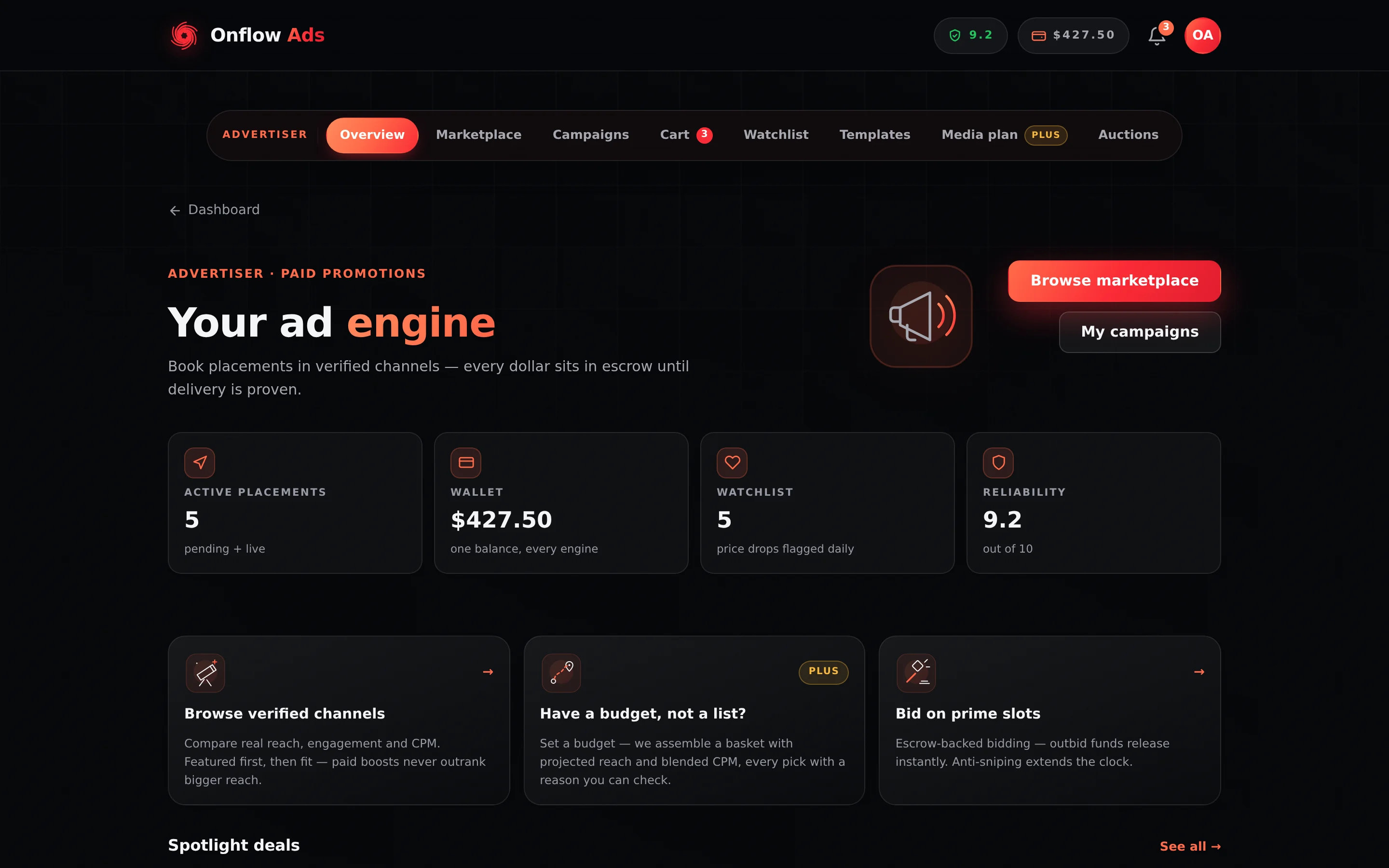
Plus plan · Advertiser. The advertiser home at
/telegram/dashboard/paid-promotion. Look at the navigation bar first: the role label on its left says which side of the marketplace your account is on, and it never changes.
Before you start
Three things gate every page in this section, in this order.
- Your account must be reachable. Every dashboard flow is served behind an onboarding gate. If you signed up with an email address, you must link the Telegram bot before any flow opens; if you signed in with Telegram, you must claim a real email address and confirm it with a code. Either way you land on
/telegram/linkuntil it is done. See Connect your account. - You must choose the advertiser side. The first time you open Paid Promotions you are asked which side of the marketplace you are on. The choice is permanent — see below.
- You need wallet balance to book. Every placement is paid from your one Onflow Ads wallet. See Adding funds.
Choosing the advertiser role
The entry screen is headed "Sponsored posts, escrowed end to end." and offers two cards: "I'm an advertiser" and "I own channels".
- Go to
https://onflowads.com/telegram/dashboard/paid-promotion. - Press the "I'm an advertiser" card. Its button changes to "Tap again to confirm — this can't be undone".
- Press the same card a second time. If your email was verified more than 48 hours ago, you are sent to a 6-digit code screen first and the role is committed once you enter the code.
enlistment_role is written once and can never be changed — a database trigger enforces it, and no support request can move it. The two-tap confirmation exists because of this. To sell placements as well as buy them, you need a second account.
A channel owner may open the Marketplace and the Auctions floor — browsing what other channels charge is legitimate, and owners host auctions on the auctions page. They cannot book, fill a cart, keep a watchlist or build a Channel finder: the buy-side pages redirect them to the Paid Promotions hub, and the buy-side endpoints refuse them. On a channel page an owner sees the line "Your account sells slots, so booking is not available on it." instead of Book a post →.
Where everything lives
Every Paid Promotions page carries the same navigation bar. On an advertiser account it holds seven pills — Overview, Marketplace, Campaigns, Cart, Watchlist, Channel finder (badged Plus) and Auctions — with the role label Advertiser on its left. The Cart pill carries a live line count.
| Page | URL | What it is |
|---|---|---|
| Overview | https://onflowads.com/telegram/dashboard/paid-promotion | Your advertiser home: four stat tiles, quick links, and a Spotlight deals rail |
| Marketplace | https://onflowads.com/telegram/dashboard/paid-promotion/catalog | The channel catalog — search, collections, the Filters panel, compare |
| Campaigns | https://onflowads.com/telegram/dashboard/paid-promotion/orders | Every campaign and placement, with live status, proof and disputes |
| Cart | https://onflowads.com/telegram/dashboard/paid-promotion/cart | Review placements and pay into escrow |
| Watchlist | https://onflowads.com/telegram/dashboard/paid-promotion/watchlist | Saved channels with price tracking and drop alerts |
| Channel finder | https://onflowads.com/telegram/dashboard/paid-promotion/finder | The budget-to-shortlist finder (Plus and above) and curated bundles (every plan) |
| Auctions | https://onflowads.com/telegram/dashboard/paid-promotion/auctions | Escrow-backed bidding on prime slots |
| Analytics | https://onflowads.com/telegram/dashboard/paid-promotion/analytics | Per-campaign rollups, exports and rebooking |
Analytics has no pill of its own — you reach it from a campaign card on the Campaigns page, or by its URL. Your marketplace events arrive through the site-wide notification centre.
Your advertiser home
Four tiles summarise the account:
| Tile | What it counts |
|---|---|
| Active placements | Pending plus live orders — everything currently in flight |
| Wallet | Your Onflow Ads balance. One balance, every engine |
| Watchlist | How many channels you have saved. Price drops are flagged daily |
| Reliability | Your score out of 10. Booking and bidding need at least 4.0 |
Below the tiles are three quick cards — Browse verified channels, Have a budget, not a list? (badged Plus) and Bid on prime slots — and a Spotlight deals rail of channels currently running a flash deal.
A brand-new advertiser account — zero active orders and an empty watchlist — sees a dismissible panel headed "👋 New here? Get your first placement live in 3 steps." with a Browse the marketplace → button. It disappears for good once you dismiss it, and it stops appearing on its own as soon as you have a booking or a saved channel.
The three-step flow
- Browse the marketplace. Compare verified channels by measured reach, engagement and CPM. See Browsing the marketplace.
- Compose and schedule. Write the post, attach media, pick a slot at least 48 hours out, and read the pre-flight before you commit. See Booking a promo slot.
- Pay into escrow. The cart prices everything once, and the amount on the button is the amount charged. See Cart and checkout.
Three things about a placement catch nearly everyone out: "an hour at the top" is exclusivity, not a pin; the pin is a separate extra some owners sell; and the platform adds one labelling line under your copy, decided by the channel's plan rather than yours. All three are on What you are actually buying.
The IDs a booking carries
Paid Promotions has more moving parts than anywhere else on Onflow Ads, so it has the most references — and they nest. Each is one of the platform-wide Onflow Ads IDs.
The three you will use constantly:
| ID | What it names | The distinction |
|---|---|---|
OFPL-… | A listing — a channel's shop window in the marketplace | Somewhere you can book. It exists before you do anything. |
OFP-… | A campaign — everything bought in one checkout | The container. May hold several placements. |
OFO-… | An order — one placement, in one channel, at one time | The thing that actually runs. This is the one to quote about a specific post. |
So: you book a listing, your checkout becomes a campaign, and the campaign holds one order per line you bought. A five-channel checkout gives you one OFP- and five OFO-s.
The rest, as you meet them:
| ID | What it names | Where you'll see it |
|---|---|---|
OFPD-… | A dispute you raised on an order | Quote it when you follow up with support — see Raising a dispute |
OFPA-… | An auction | On the auction card and in every bid notification — see Auctions and bidding |
OFPB-… | A curated bundle | On the bundle's card on the Channel finder page — see Curated bundles |
OFPN-… | A saved Channel finder | Under Saved plans in the Channel finder |
OFPT-… | A saved ad post (creative) | In the booking composer, labelled Ad post ID, and in the auction bid form's creative picker |
And two from outside the marketplace that you will see alongside them: OFT-…, the wallet movement for each escrow charge and each refund (Wallet), and OFCH-…, which names a channel.
Almost every support question about Paid Promotions is about one placement — it went up late, the copy is wrong, the proof looks wrong. That is an OFO-. The OFP- campaign ID is for questions about a whole checkout: its combined spend, its export, its report. Quoting the campaign when you mean one post makes us ask which one.
All of these are safe to share. Knowing an OFO- does not let anyone cancel, dispute or read your booking — a reference names a thing, it does not open it.
The escrow promise, in one paragraph
When you pay, the money moves into escrow, not to the owner. The owner then has 24 hours from the moment you book to accept; a live countdown runs on the order. If they decline, or the window lapses, you are refunded in full automatically. Once the post is published, the delivery monitor re-checks that it is still live for its promised in-feed duration — and, where a pin was bought, still pinned — and samples its view counts. The owner is paid only after delivery has been checked, and a monitor flag or an open dispute pauses that release. The full mechanics are on Escrow and buyer protection.
Every Paid Promotion refund lands in your Onflow Ads wallet as non-withdrawable balance. You can spend it anywhere on the platform; you cannot cash it out. The one exception is an auction hold coming back to you, which returns in exactly the pocket it was taken from. A refunded paid pin lands in the usual pocket but on a delay — when the campaign finishes or within 48 hours, whichever is sooner. This is the rule most people get wrong — see Escrow and buyer protection.
What is measured and what is claimed
Everything in this marketplace is labelled with where the number came from. Channel statistics carry "· measured" or "· self-reported" suffixes. Delivery numbers come from the platform's own monitor. Clicks are counted first-party. When a number cannot be measured it is shown blank or as "Measuring…" — never as zero.
In this section
The pages below run in reading order: browse and shortlist, book and pay into escrow, then track delivery, read the results and use the advanced buying tools.
Browsing the Marketplace
Find the channels worth your budget — the seven collections, the Filters panel and everything in it, what each card badge means, and the side-by-side compare tool.
Reading a Channel Page
Decide whether a channel deserves your budget — the Standing grade, measured versus self-reported stats, audience quality, price history, the performance passport, the rate card and its optional extras, and the availability strip.
What You Are Actually Buying
Top-of-feed exclusivity is not a pin, the pin is a fixed-price extra the owner opts into, and every placement carries a one-line ad label — the three things that decide what your ad looks like in the channel.
Watchlist and Price Alerts
Save channels with the heart, track their list price with daily snapshots, and get told about real drops and new auctions — the cap, the threshold and which price is tracked.
Booking a Promo Slot
The six-step booking wizard — Slot, Template, Write, Media, Check, Review — the lead time and the five posting times, the caption budget and the line the platform adds, photos and video, coloured inline buttons and the link policy, the pre-flight, the mandatory compliance check over Telegram's limits and the channel's rules in one pass, the note to the owner, the pin, and adding the placement to your cart.
Cart and Checkout
How the Paid Promotion cart prices a basket — the Summary ledger row by row, the per-line pin, the compliance panel, the bundle offer, the overlap check, the limits that refuse a checkout, and what happens the moment you pay.
Discounts and Deals
Every discount that can touch a Paid Promotion price — spotlights, channel sales, owner perks, bulk discounts, the volume ladder, promo codes and the bundle offer — who funds each one, and how they stack.
Orders and Campaigns
Follow every booking from payment to payout — campaign cards, the exact status badges, the five-step timeline, cancelling (always a full refund before go-live), the retired counter-offer, and what a published placement lets you do.
Tracked Links and Delivery Proof
What every link in your ad becomes — its own onflowads.com/rr/ short link that counts every tap, and joins too for your own channel — where the click analytics panel shows each tap, and what the frozen, signature-checked delivery-proof archive on every delivered order contains.
Analytics and Reporting
Read what a campaign actually delivered — the KPI tiles, the per-channel breakdown, the Rebook the winners panel, and which exports each plan includes.
Auctions and Bidding
How prime-slot auctions work — the collections and filters, escrow-backed bids, instant refunds when outbid, anti-sniping, reserves, instant-buy caps, proxy bidding, and what happens when you win.
Channel Finder
Say what you are promoting, or set the targeting yourself, and the Channel Finder searches every live listing for the channels that fit your budget — the four scoring weights, the greedy fill, the channel cap per plan, why every pick carries a checkable reason, and how to book or save a search.
Curated Bundles
Book a hand-picked package of channels at a platform-funded discount — how a bundle is priced, the inline composer, and how it differs from the cart's own bundle offer.
Escrow and Buyer Protection
How escrow protects your money end to end — the lifecycle, the automatic refunds, the owner's good-faith stake, how a failed delivery is attributed, and where a refund actually lands.
Your Reliability as a Buyer
The score that gates booking and bidding — where it starts, every event that moves it, what a rejected dispute costs, why cancelling before go-live never costs anything, and how to get it back.
Raising a Dispute
The buyer-side dispute flow step by step — when a concern can be raised, the four reasons, what freezes the moment you submit, your plan's resolution target, and what a rejected concern costs.
What Each Plan Includes
Every Paid Promotions limit that depends on your plan, in one place — monthly placements, creative limits including button colours, monitoring, exports, disputes and the advanced buying tools; the marketplace fee is the same on every plan.
FAQ and Troubleshooting
Quick answers to the questions advertisers ask most — roles, booking, escrow, auctions, delivery proof, disputes and where refunds land.
Next: Browsing the marketplace — find and shortlist the channels worth your budget.