Two-Factor Authentication
Two-factor authentication (2FA) puts a second lock on your account: after your password, you also enter a 6-digit code from an authenticator app. Someone who learns your password still cannot get in.
Onflow Ads uses standard TOTP, so it works with Google Authenticator, Authy, Microsoft Authenticator, 1Password, Bitwarden or anything else that scans a QR code.
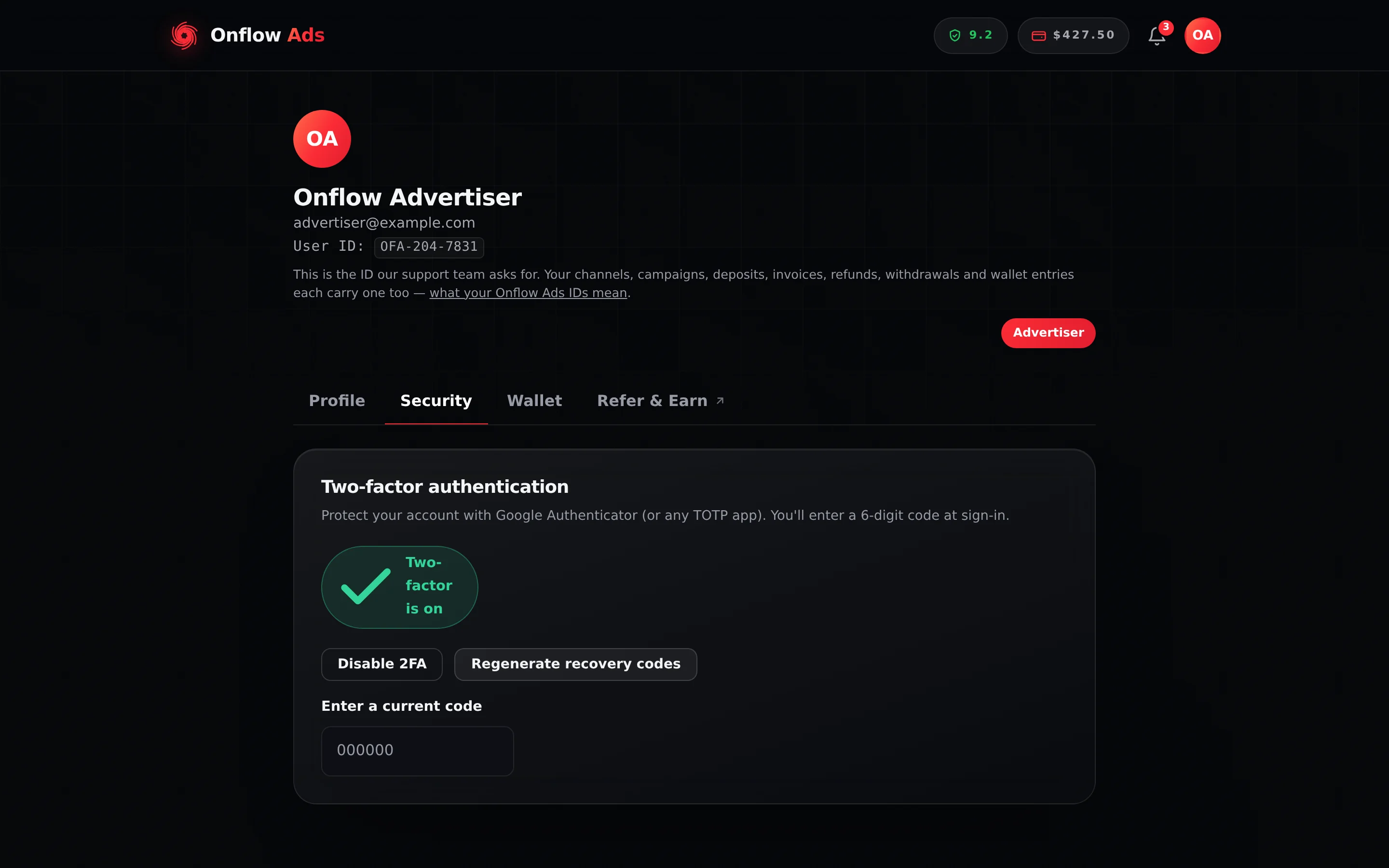
Plus plan · Advertiser, with two-factor already switched on. The Security tab holds one card, and this is all of it. On an account without 2FA the same card offers Enable two-factor instead, and neither the two buttons nor the code field is there.
Before you start
- A signed-in account with a verified email. Without one you get "Verify your email before enabling two-factor."
- An authenticator app installed on a phone or in your password manager.
- Somewhere safe to keep ten recovery codes — a password manager is ideal.
Turning it on
- Sign in and open https://onflowads.com/account.
- Open the Security tab and press Enable two-factor.
- A panel appears with a QR code. Scan it with your app. If your app cannot scan, the same secret is printed beside it in groups of four under "Scan this with Google Authenticator (or any TOTP app), or enter the key manually:" — type that in instead.
- Save your recovery codes. Ten are listed, under the warning "Save these recovery codes now — they're shown only once." Copy them somewhere safe now, before you go on.
- Type the current 6-digit code from your app into Enter the 6-digit code to confirm and press Turn on 2FA.
- The badge changes to Two-factor is on, and a confirmation email arrives. Every other device signed in to the account is signed out at the same moment — a session somebody else already held would never meet the new second step otherwise. The browser you are using stays signed in.
Leave the panel sitting unconfirmed and it dies with "Your setup expired. Start again." Pressing Enable two-factor again mints a brand-new secret and a brand-new set of recovery codes — the QR code and the codes from the abandoned attempt are void. Delete the half-finished entry from your authenticator app before you scan the new one, or you will have two entries and only one of them works.
They are never displayed again, and support cannot retrieve them. If you close the panel without copying them, the only way to get a set is to regenerate — which requires being able to sign in, which is precisely what you will not be able to do if you have lost your phone. Copy them now.
Signing in with 2FA on
- Enter your email and password and press Sign in.
- The page swaps in place. The subtitle becomes "Two-factor authentication is on for this account." and an Authentication code field appears, with the helper line "Enter the 6-digit code from your authenticator app — or a recovery code if you've lost your device."
- Enter the code and press Verify & sign in.
Signing in with Google, Apple or Telegram asks for the code too. Once the provider has confirmed who you are, you land on the same Authentication code step, and you are signed in only after you enter it. Your Google or Telegram account alone is not enough to get into an account that has two-factor on.
You get 5 tries in one sign-in — "Incorrect code. N attempts left." — and there is a second counter you cannot see: 10 wrong codes against your email address in a rolling hour. Either one hitting zero locks sign-in for 6 hours, and the second one survives closing the browser, opening a private window and starting the sign-in again. Nobody can lift it early.
TOTP codes are derived from the current time. We accept the code from the previous and next 30-second step to absorb small drift, but a phone whose clock has wandered further produces codes that are always rejected. Set the phone's time to automatic or network time and try once — before you spend your attempts.
Recovery codes
Each recovery code is a one-time stand-in for an app code. They are printed as two groups of four characters; typing them without the dash, or in a different case, works fine.
| Where a recovery code works | Yes or no |
|---|---|
| The two-factor step at sign-in | Yes |
| Confirming a Disable 2FA | Yes |
| Confirming a Regenerate recovery codes | Yes |
| Confirming the initial Turn on 2FA | No — that one needs a live app code |
Each code works exactly once. There are ten.
To get a fresh set:
- Open Account → Security.
- Press Regenerate recovery codes. A field reading Enter a current code appears.
- Enter a current app code, or an unused recovery code, and press the button again.
- Save the new set. You see "New recovery codes generated."
All ten previous codes stop working the instant the new ones are issued — including any you had already written down and any you had not used. Replace your saved copy, do not add to it.
With no authenticator and no unused recovery code, you cannot pass the second step, and there is no way around it from the sign-in page. Keep the codes somewhere that survives losing the phone — not only on the phone. If it happens anyway, the only way back is a support request: the Onflow Ads team can switch two-factor off for an account that is locked out — see If the team changes your sign-in details.
Turning it off
- Open Account → Security.
- Press Disable 2FA. A field reading Enter a current code appears.
- Enter a current app code or an unused recovery code, and press the button again.
You see "Two-factor disabled." and receive a confirmation email. The account goes back to password-only sign-in, and your old recovery codes are void.
Two-factor and your sign-in email
There is nothing here for 2FA to guard, because the door is closed altogether: a sign-in email cannot be changed from the site once it is set, with or without a code. Only the Onflow Ads team can move one — the new address has to confirm the move, and the old address is told.
The same team can switch two-factor off for an account that is locked out — no authenticator, no recovery codes left. Every device is signed out, you are emailed the reason, and the account signs in with the password alone until you turn 2FA back on. Both are covered in If the team changes your sign-in details.
If something goes wrong
| What you see | What it means | What to do |
|---|---|---|
| Verify your email before enabling two-factor. | The address on the account is unverified | Finish verifying your email first |
| Two-factor is already enabled. | It is already on | Nothing to do |
| Your setup expired. Start again. | The 10-minute setup window closed | Press Enable two-factor again and use the new QR code |
| That code didn't match — check your app and try again. | The confirmation code was wrong | Check the phone's clock, then read the current code again |
| That code didn't match. when disabling or regenerating | Wrong app code, or a recovery code already used | Try a live app code, or a recovery code you have not used |
| Two-factor isn't enabled. | You tried to disable something that is already off | Nothing to do |
| Incorrect code. N attempts left. at sign-in | Wrong code | Fix the clock, or use a recovery code |
| Too many incorrect codes. For your security this is locked for 6 hours. | An attempt counter hit zero | Wait 6 hours |
| Your sign-in expired. Please sign in again. | You took too long at the code step | Start the sign-in again |
| Too many attempts. Please wait a minute and try again. | 10 setups an hour, or 20 code submissions a minute, from your network | Wait — see Limits and Lockouts |
| The panel shows Use the key below instead of a QR code | The QR image could not be drawn | Type the printed key into your app manually; it is the same secret |
| A confirmation email you did not trigger | Someone else may have your password | Reset your password immediately, then contact support |
Keeping the account secure
- Turn 2FA on. It is the single biggest improvement you can make to the account's safety.
- Use a unique password, stored in a password manager.
- Keep the recovery codes separate from the phone.
- Sign out on shared computers, and leave Remember me unticked there.
- Read the confirmation emails. We email you when 2FA is turned on or off; one you did not trigger is a warning worth acting on.
- Onflow Ads will never ask for your password or a 2FA code by email, chat or bot message.
Related
- Account settings and profile — the page the Security tab lives on.
- Signing in with email — the step 2FA adds.
- Sessions and staying signed in — what 2FA does and does not change about sessions.
- Limits and lockouts — the counters behind the code step.