Signing In with Email
You sign in at https://onflowads.com/signin. This page covers the email and password route end to end. The password-free alternatives have their own pages: Signing In with Telegram and Signing In with Google or Apple.
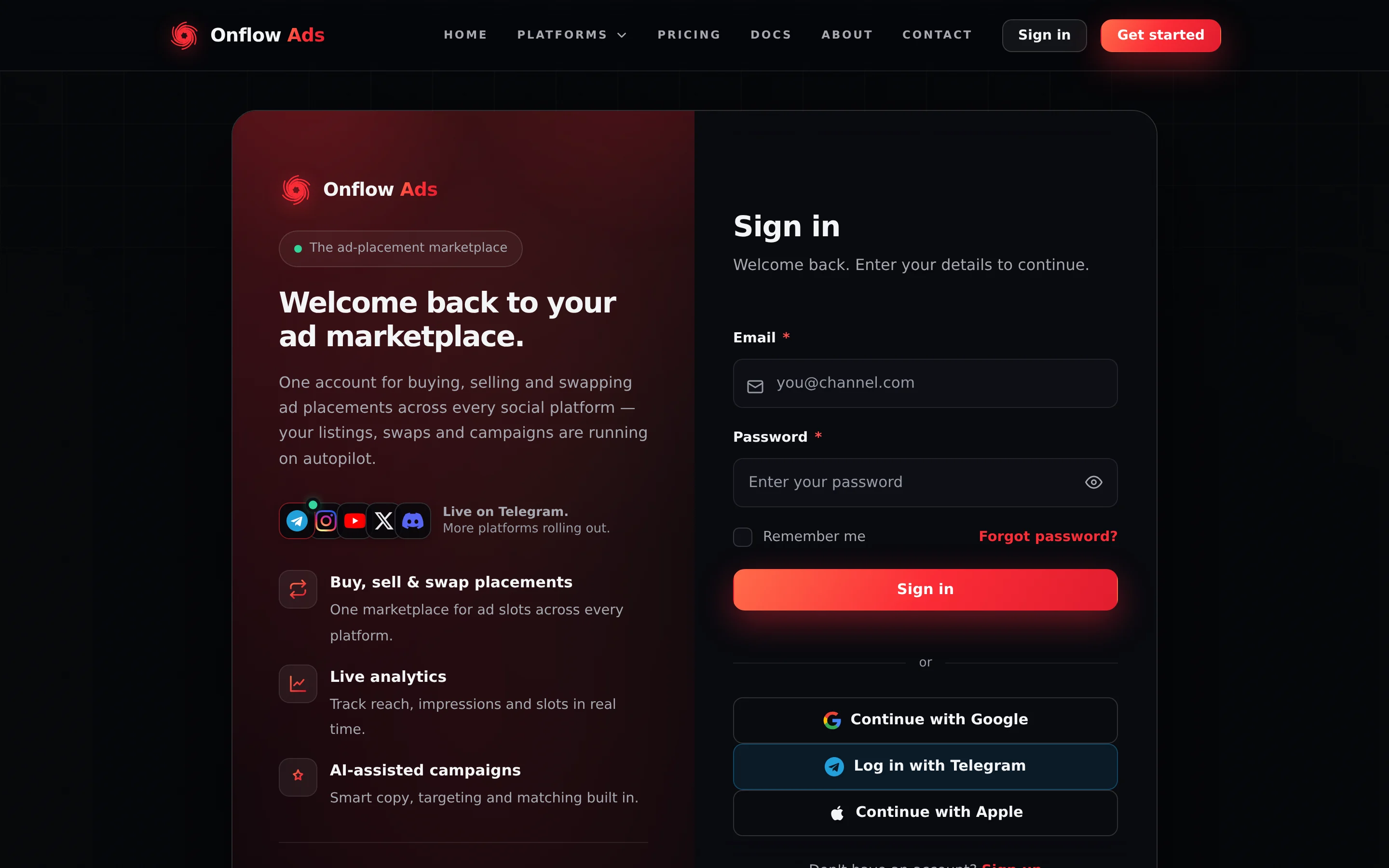
Signed out. The sign-in page. Remember me and Forgot password? share the line under the password field; the three provider buttons below the "or" divider appear only while that method is switched on.
Before you start
- The email address currently on the account. If you changed it, the old one no longer works.
- Your password — or, if you have two-factor on, your authenticator app or a recovery code as well.
Step by step
- Go to https://onflowads.com/signin.
- Enter your Email and Password.
- Tick Remember me if you want a long session on this device.
- Press Sign in.
- If two-factor is on, the page swaps to a second step. The subtitle becomes "Two-factor authentication is on for this account.", an Authentication code field appears, and the button reads Verify & sign in. Enter the 6-digit code from your app — or one of your recovery codes — and press it.
- You land on the platform launchpad at
/dashboard.
What Remember me changes
| Option | Session length |
|---|---|
| Remember me unticked (default) | About 48 hours |
| Remember me ticked | About 30 days |
A 30-day session on a shared or public computer is 30 days of access for whoever uses it next. On a machine you do not control, leave the box unticked and use the account menu to Sign out when you are finished.
Each browser holds one session. Signing in again on the same browser destroys the previous one and issues a new one — it does not stack. Signing in on a phone does not touch your laptop. See Sessions and Staying Signed In.
Common sign-in messages
| Message | What it means | What to do |
|---|---|---|
| Incorrect email or password. | The combination did not match | Check for typos, and that you are using the address currently on the account. Use Forgot password? if needed |
| Please enter a valid email address. | The email field is empty or malformed | Correct it |
| Please enter your password. | The password field is empty | Fill it in |
| Too many attempts. Please wait a minute and try again. | 10 attempts from your network in a minute, or 5 wrong attempts against your address from your network in 15 minutes | Wait — see Limits and Lockouts |
| A human challenge appears above the button | Forty attempts have been made against your address in 15 minutes from anywhere — usually somebody else's doing | Complete it and sign in; your account is not locked |
| Your account is suspended until [date]. | A timed suspension | Access returns by itself; the first attempt after that date reactivates the account |
| Your account has been suspended. | The account is banned | Contact support with your OFA ID |
| Incorrect code. N attempts left. | Wrong two-factor code | Check your phone's clock is set to automatic, then retry — or use a recovery code |
| Too many incorrect codes. For your security this is locked for 6 hours. | The two-factor attempt budget ran out | Wait 6 hours |
| Your sign-in expired. Please sign in again. | You took too long at the two-factor step | Start the sign-in again |
| A bare Forbidden. page | Your IP address is blocked before sign-in is even attempted | This is not about your account — try another network and contact support |
"Incorrect email or password." is returned whether or not an account exists for the address, and the check takes the same time either way. This form cannot be used to discover who has an account here — which also means it will not tell you that you typed the wrong address.
If your suspension end date has passed, you do not need to ask anyone. Try signing in: the attempt itself reactivates the account and you are straight back in.
Signing out
- The account menu — the avatar at the right of the top navigation, on every page. Sign out is the last item.
- The Sign out button in the top right of the launchpad at
/dashboard, and on the engine dashboards.
The account menu is the universal route. Opening it also gives you Upgrade plan (unless you are already on the top tier), Account, Dashboard, Reliability, Wallet, Notifications and Help & Guide. On a wide screen, Wallet, Reliability and Notifications are also their own pills in the header; on a phone they move into the menu.
If you cannot get in
- Wrong address? Try the other addresses you use. The account is found by address, not by name.
- No password? An account created through Log in with Telegram, Google or Apple has no password anyone has seen. Sign in with that button instead, or set a password with a reset.
- Forgotten it? Press Forgot password? and follow Resetting Your Password.
- Lost your authenticator? Use a recovery code at the two-factor step — see Two-Factor Authentication.
- Still stuck? Contact support from https://onflowads.com/contact with your OFA ID.
Email, Telegram, Google and Apple are four doors into the same account, identified by the same OFA ID — as long as they resolve to the same identity. Google and Apple match you by email address; Telegram matches you by the Telegram account linked to yours.
Related
- Signing in with Telegram — the password-free route.
- Signing in with Google or Apple — the other two.
- Sessions and staying signed in — how long a session lasts and what ends it.
- Resetting your password — when the password is the problem.