Resetting Your Password
Reset your password yourself in three steps at https://onflowads.com/reset-password. You need access to the inbox on the account.
This is also how you change a password you still know, and how an account created through Telegram, Google or Apple sets its first one. There is no separate change-password form anywhere on Onflow Ads.
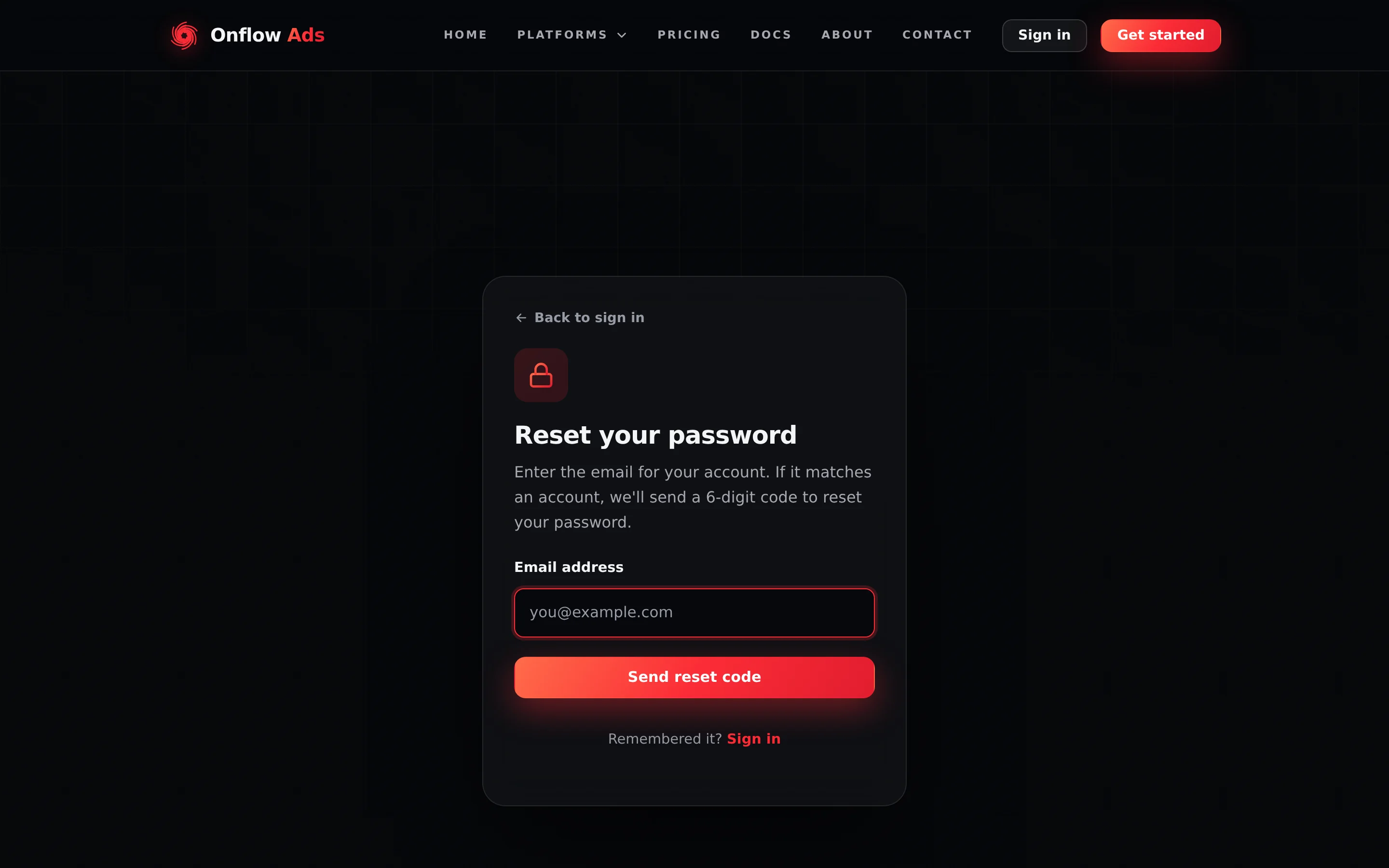
Signed out. Step one of three. The card stays in place and swaps its contents for the code step and then the new-password step, so the address bar never changes.
Before you start
- The email address currently on the account, and the ability to read that inbox.
- Nothing else — this flow runs while you are signed out, and no password is needed to start it.
An account created with Log in with Telegram starts on a placeholder address with no inbox, so there is nowhere to send a reset code. Attach a real address on the connection screen first — see Connecting Your Account — and then run this flow on it.
Step 1 — Request a code
- Go to https://onflowads.com/reset-password, or press Forgot password? on the sign-in page.
- Enter your account's Email address.
- Press Send reset code.
The page always answers "If an account exists for that email, we've sent a 6-digit code." — whether or not the address is registered, and whether or not the account is in good standing.
The anti-enumeration is thorough: an unknown address gets the same message and the same behaviour, so nobody can use this form to test who has an account here. The flip side is that a typo carries you all the way to the code screen and only reveals itself when the code you never received "expires". If nothing arrives after checking spam, go back and re-read the address you typed.
Step 2 — Enter the code
- Open the email from Onflow Ads and find the 6-digit reset code.
- Type it into the Reset code box on the Check your email step.
- Press Verify code.
The rules are the same as at sign-up: the code is valid for 10 minutes, you get 5 attempts, and Resend code works up to 4 times with a 60-second gap — the page counts it down as "You can request another code in Xs." Too many wrong codes locks the address and network for 6 hours. Every counter is listed on Limits and Lockouts.
Step 3 — Choose a new password
- On Choose a new password, enter your new password and repeat it in Confirm new password.
- Press Reset password.
The field's own hint reads only "Use at least 8 characters.", but the full rule set is enforced on our side, and it is the same one as at sign-up:
| Rule | Detail |
|---|---|
| Length | 8 to 20 characters |
| Composition | A lowercase letter, an uppercase letter, a number and a symbol |
| Spaces | None |
| Common passwords | Refused |
| Your email's name part | Must not appear in the password |
A password that passes the field's 8-character check can still be refused by the server, and the message names the exact rule it missed.
On success you see "Your password has been reset. Please sign in with your new password." and land on the sign-in page.
The reset destroys every session on the account, everywhere, including the browser you reset from. This is deliberate: if somebody else had access, this is the moment their session dies. Expect to sign in again on your phone, your laptop and anywhere else.
Once the code is accepted, the window to pick the new password is 15 minutes. If it closes you see "Your reset session expired. Please start again." and go back to step 1 for a fresh code. The used code is destroyed the moment it is accepted, so it cannot be replayed.
If something goes wrong
| What you see | What it means | What to do |
|---|---|---|
| If an account exists for that email, we've sent a 6-digit code. but no email | Unknown address, a typo, spam filtering, or the hourly email cap | Check spam and promotions, then re-check the address you typed |
| Password reset by email isn't available right now. Please contact support. | Email delivery is unavailable on our side | Contact support from https://onflowads.com/contact |
| Incorrect code. N attempts left. | Wrong or stale code | Use the newest email; N is what you have left |
| That code expired. Tap "Resend code" to get a new one. | More than 10 minutes passed | Press Resend code |
| Too many incorrect codes. For your security this is locked for 6 hours. | An attempt counter hit zero | Wait 6 hours; starting over does not reset it |
| Your reset session expired. Please start again. | The 15-minute window at step 3 closed | Request a fresh code from step 1 |
| Too many attempts. Please wait a minute and try again. | 5 requests from your network in an hour, or 3 for your address from your network in 15 minutes | Wait, or try from another network |
| The usual confirmation, but no email arrives | Twelve resets have been requested for your address in 15 minutes from anywhere, so the page answered as normal without sending a code | Wait 15 minutes and request once more; check spam |
| A password the field accepted is refused when you submit | It failed one of the server-side rules above | Read the message — it names the rule |
| You never receive a code and the account was made with Telegram | There is no inbox on the account yet | Claim an email address first |
Changing a password you still know
Run exactly the flow above, while signed out. There is no change password control on the account page, and there is no endpoint behind one — the reset flow is the only path, and it will sign you out everywhere as described.
A password you have changed is a good moment to add the second lock. Two-factor authentication makes a stolen password useless on its own, and it takes about two minutes to set up.
Related
- Signing in with email — where you land afterwards.
- Two-factor authentication — the second lock.
- Sessions and staying signed in — why a reset ends every session.
- Limits and lockouts — every counter this flow runs into.