A Tour of the Dashboard
Signing in gives you two levels of home base:
- The platform launchpad at https://onflowads.com/dashboard — pick which platform you are working on.
- The Telegram dashboard at https://onflowads.com/telegram/dashboard — the command centre for everything on Telegram, the platform that is live today.
This page covers the first one and the navigation that follows you everywhere. The second has its own tour: The dashboard home.
Before you start
- Signed in, with a verified email. If you are not signed in you are sent to the sign-in page; if your email is unverified you are sent to the verification page first.
- Connected, if you want to go past the launchpad. The launchpad itself is always open.
The platform launchpad
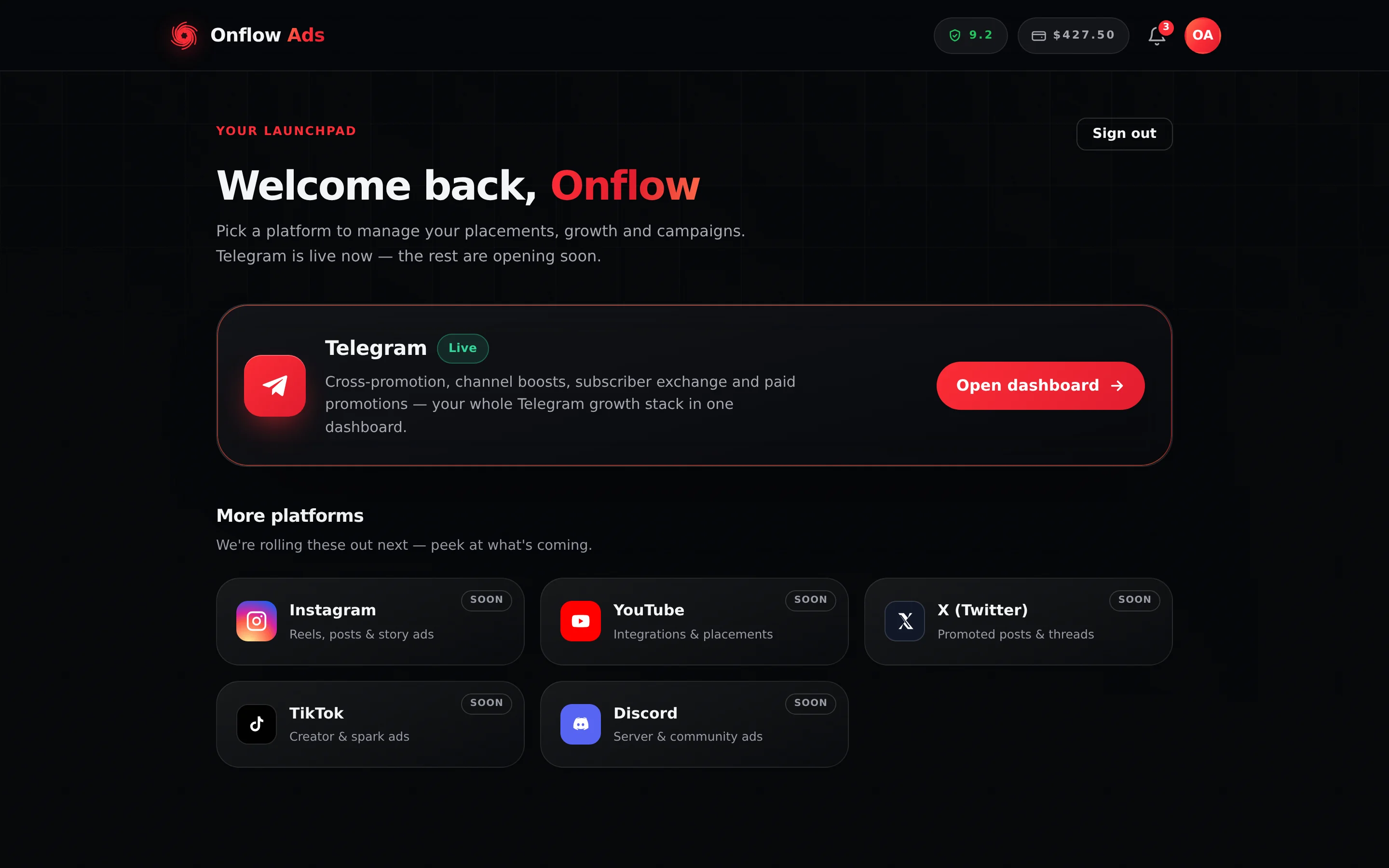
Plus plan · Advertiser. The launchpad at onflowads.com/dashboard. This is the whole page — the Telegram card is the only live one, and the header pills above it are the reliability score, the wallet balance and the notification bell.
There are exactly four things on it:
| Element | What it does |
|---|---|
| Welcome back, [your name] under the eyebrow Your launchpad | The greeting, taken from your profile name |
| Sign out | Ends this browser's session immediately |
| The Telegram card, marked Live | Open dashboard takes you into the Telegram hub |
| More platforms — Instagram, YouTube, X (Twitter), TikTok, Discord | Marked Soon. They are not open yet |
A brand-new account lands on the connection screen instead, headed Connect Telegram to continue or Add your email to continue. That is expected — it is the last step of signing up. Finish it once and Open dashboard goes where it says from then on. See Connecting Your Account.
The header, on every signed-in page
Along the top right of the site, next to your avatar:
- A shield pill with your reliability score.
- A card pill with your wallet balance.
- A bell with your unread notification count.
- Your avatar, which opens the account menu.
On a phone the three pills collapse into the account menu.
The account menu
The avatar dropdown is the one piece of navigation that is on every page of the site, signed in or out of a dashboard:
| Item | Where it goes |
|---|---|
| Your plan | A badge on its own row under your name and email — gold for Ultimate — with an Upgrade → link beside it on every plan below the top |
| Account | Your account page |
| Dashboard | The platform launchpad |
| Reliability | Your reliability score |
| Wallet | Your balance, with the figure shown in the row |
| Notifications | The notification centre |
| Help & Guide | This documentation |
| Sign out | Ends this browser's session |
The Sign out button on the launchpad is convenient, but the account menu carries the same item on every page — including deep inside an engine. You never have to navigate back to the launchpad to sign out.
The Telegram dashboard, in one paragraph
Pressing Open dashboard takes you to /telegram/dashboard: an All platforms link back to the launchpad, a sidebar labelled Telegram · Engines listing Overview, Paid Promotions, Subscriber Exchange, Boost Metrics and Cross-Promotion with a wallet panel and a Top up wallet button beneath it, a greeting and a Sign out button, four live figures — Active campaigns, Connected channels, Reach · 7 days and New subscribers · 7 days — then a card per engine and your My channels list at the bottom. Support is the floating chat widget in the bottom right, on every page, rather than a sidebar entry.
The dashboard home walks through all of it, including exactly what each of the four figures counts.
My channels, and the page behind a row
My channels is the last section of the hub — one list of every channel you have brought into any engine, whichever one brought it in, with an Add a channel link in its heading.
A row is not just a label. A channel you added or submitted through the setup wizard has a channel reference of its own (an OFCH-… id), and its row is a link straight to that channel's own page:
https://onflowads.com/telegram/dashboard/channels/OFCH-123-4567/overview
That page is the deepest view of a channel the product has: the date Telegram says the channel was created, subscribers, views, reactions and shares per post, a fortnight of history, what each of the four engines has done with it, and what it has earned and spent. A figure you typed in yourself rather than one we measured from Telegram is labelled "As stated by the owner — not measured by us", and a figure we cannot measure at all is left off the page rather than shown as zero. A channel's own dashboard walks through every tile.
A channel that only ever reached us through a Boost order or a Subscriber Exchange enrolment was never registered, so it has no OFCH-… and there is no page to open. Those rows still work — they open the channel's story popup instead, which is the most we can say about a channel we do not hold a record for.
Notices, and what an upload looks like
Everything the site has to tell you in the moment — saved, failed, blocked, uploading — arrives in the same place: a card that slides in at the corner of the window, with an icon for what kind of news it is, and leaves on its own.
| Card | Means |
|---|---|
| ℹ️ Blue | Something happened. No action needed |
| ✅ Green | It worked |
| ⚠️ Amber | It worked, or did not run, and there is something you should know |
| ❌ Red | It failed, and the card carries the reason |
Some cards carry a title above the line, and a few carry a button — Run it now, Top up, See plans — so the fix is one tap from the news rather than a hunt for the screen it lives on.
Uploads
Every file you send the platform raises one of these, with a progress bar that follows the actual bytes — a channel photo, an ad image or video, a report screenshot, a support screenshot, an admin's document. The card fills as the file climbs, changes its words to Almost there… once the bytes are gone and the server is still thinking, and then turns green or red in place rather than being replaced by a second card.
That is a change worth naming, because it used to be different: uploads printed the word Uploading… into whatever small grey line happened to be nearest — often the same line errors used, which made the two read as the same kind of thing — and never said how far along the file was. On a phone sending a 2 MB screenshot, that is the difference between is this frozen? and nearly there.
| What you see | What it means |
|---|---|
| A bar that fills | Real byte progress — this is how much of your file has reached us |
| A bar that sweeps side to side | The step has no measurable fraction (the server is processing what it already has) |
| Almost there… | Your file has arrived; the server is still working on it |
| Green, with a line naming what changed | Done. The page behind it has already updated |
| Red, with the server's own reason | Nothing was saved. The reason is the server's, not a generic line |
Where a page has its own confirmation screen — the report widget's Report sent panel, for instance — the upload card closes quietly instead of stacking a second green card on top of it.
Suggested first steps
- Finish connecting your account if you have not.
- Open the Telegram dashboard and add your first channel.
- Create or join a free cross-promotion swap.
- Check your wallet, and top it up if you plan to use Boost Metrics or paid placements.
- Turn on two-factor authentication under Account → Security.
- Grab your referral link while you are on the account page.
If something goes wrong
| What you see | What it means | What to do |
|---|---|---|
| You are sent to the sign-in page | No live session on this browser | Sign in again |
You are sent to /verify | Signed in, but the email on the account is not verified | Finish verifying your email |
You are sent to /telegram/link | Signed in and verified, but not connected yet | Finish connecting your account |
| The launchpad greets you as there rather than by name | Your profile name has not loaded, or is empty | Set it under Account → Profile → Full name |
| The four figures on the Telegram hub show dashes | There is nothing to count yet | They fill in as campaigns and channels appear |
Related
- The dashboard home — the Telegram hub in full.
- A channel's own dashboard — the page behind a My channels row, tile by tile.
- Connecting your account — what stands between you and it on day one.
- Account settings and profile — where the account menu's first item goes.
- Account FAQ and troubleshooting — quick answers if something did not behave.