Creating Your Account
Signing up takes three steps: fill in a short form, confirm your email address with a 6-digit code, and connect the Telegram bot. All three are covered here, and the third one is not optional.
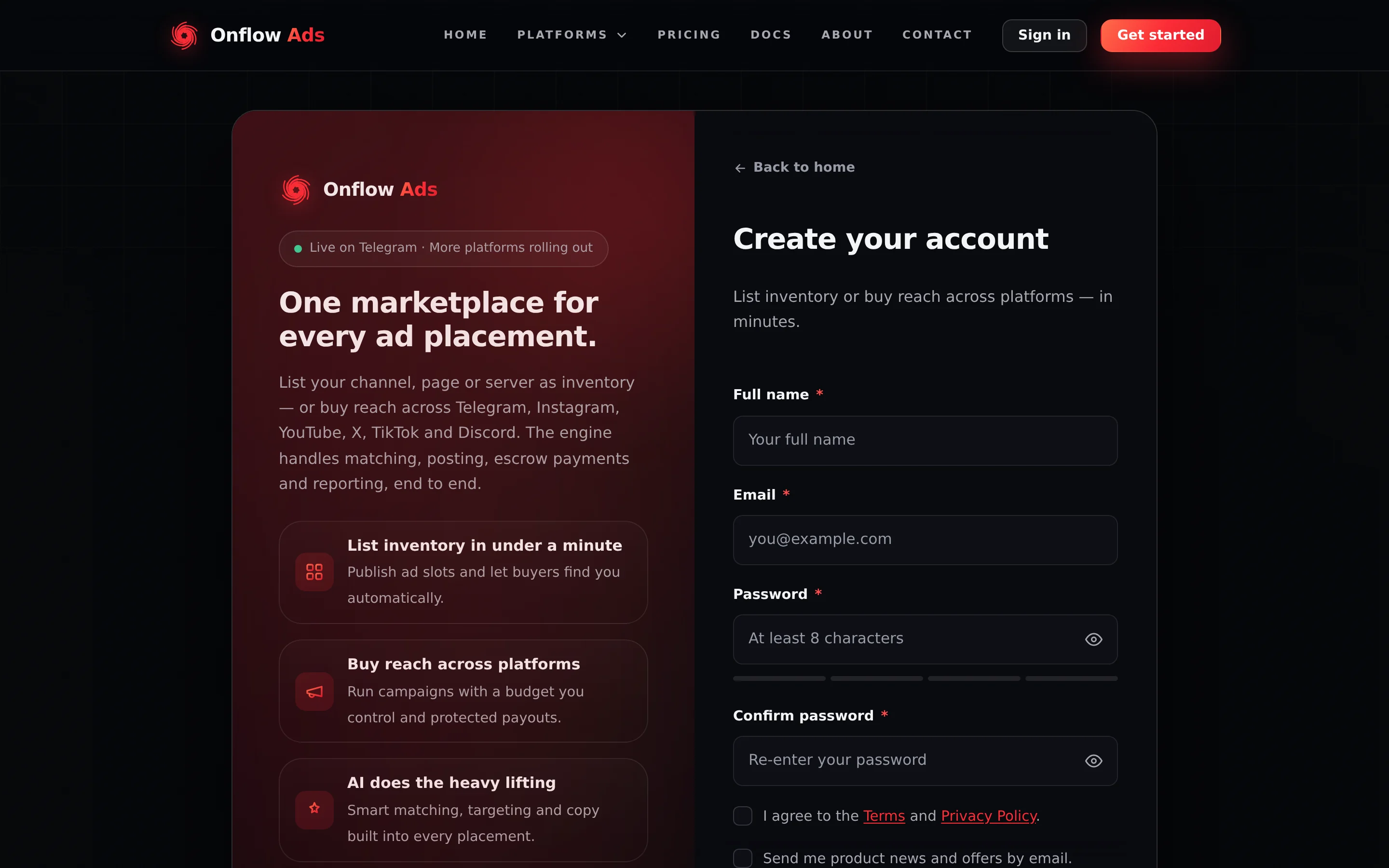
Signed out. The sign-up form at onflowads.com/signup. The four short bars under the password field are the strength meter; the Create account button and the Google, Telegram and Apple buttons sit directly below the Terms checkbox, past the bottom of this shot.
Before you start
- An email address you can check within the next 10 minutes.
- A password that meets the rules below.
- Telegram installed, or Telegram Web signed in — you will need it at step 3.
When they are switched on, Continue with Google, Log in with Telegram and Continue with Apple appear under the "or" divider and create your account in one press, with no form and no email code. See Signing in with Google or Apple and Signing in with Telegram. If a button is not on the page, that method is currently switched off — use the form.
Step 1 — Fill in the sign-up form
- Go to https://onflowads.com/signup.
- Enter your Full name. This is how we address you in emails and across the app, and you can change it later on the account page. Up to 200 characters.
- Enter your Email. This becomes your sign-in address and is where the verification code goes.
- Choose a Password and repeat it in Confirm password. The strength meter under the field moves as you type, and the eye button on the right reveals what you have typed.
- Tick "I agree to the Terms and Privacy Policy." Both are linked from the checkbox: Terms and Privacy Policy.
- Decide about "Send me product news and offers by email." This box is optional and starts unticked. Leave it blank and you receive no marketing email at all — only the account, order and payment messages every account gets. Tick it and you can switch it off again any time from your notification settings or the link in any such email.
- If a "prove you're human" challenge is shown above the button, complete it. It is not always present.
- Press Create account. You are taken to the Check your email page.
What each field must satisfy
| Field | Rule | Message if it fails |
|---|---|---|
| Full name | Required, up to 200 characters | Please enter your name. |
| A valid address, up to 254 characters | Please enter a valid email address. | |
| Password | 8 to 20 characters | Choose a password 8-20 characters long. |
| Password | At least one lowercase letter | Password needs a lowercase letter. |
| Password | At least one uppercase letter | Password needs an uppercase letter. |
| Password | At least one number | Password needs a number. |
| Password | At least one symbol | Password needs a symbol (e.g. ! ? # …). |
| Password | No spaces | Password can't contain spaces. |
| Password | Not a well-known password | That password is too common — please pick another. |
| Password | Must not contain the name part of your email | Password can't contain your email name. |
| Terms checkbox | Must be ticked | Please accept the Terms and Privacy Policy to continue. |
| Product news checkbox | Optional — never required | — |
The form names the exact rule a rejected password missed, so you never have to guess which one.
That domain is reserved: it is the placeholder address the site mints for accounts created through Log in with Telegram, and it has no inbox. Sign-up rejects it with "Please enter a valid email address." — it is a marker the site issues, never one it accepts.
Step 2 — Verify your email
We email a 6-digit code and send you to https://onflowads.com/verify, which reads "We sent a 6-digit code to [your masked address]. Enter it below to finish creating your account."
- Open the email from Onflow Ads and find the code.
- Type it into the Verification code box. As soon as you type the sixth digit the page submits by itself — you can also press Verify & continue.
- On success you see "Email verified — welcome to Onflow Ads!", you are signed in on that browser, and a welcome email arrives.
The code is valid for 10 minutes, you get 5 attempts, and Resend code works up to 4 times with a 60-second gap. Verifying Your Email covers every rule, every message and what to do when the email does not arrive.
Step 3 — Connect the Telegram bot
A verified email gets you signed in; it does not open the engines. The first time you press Open dashboard on your launchpad, you land on the connection screen at /telegram/link, headed Connect Telegram to continue.
- Press Open Telegram and connect. A Telegram tab opens on the Onflow Ads bot.
- Press Start in Telegram. The bot replies "Telegram connected".
- Return to the browser tab. It notices within a few seconds and lets you through.
Every page under the Telegram dashboard — the engines, your channels, the wallet page, reliability, notifications and the support page — redirects to the connection screen until the bot is linked. So does creating a campaign, placing an order, listing a channel or bidding. Your account page, the platform launchpad, the Referral Programme, the public pages and the help widget all stay open. The full picture is on Connecting Your Account.
If the email is already registered
- An account with that address exists and is verified. You see "An account with that email already exists. Try signing in." Go to https://onflowads.com/signin, or run password reset if you have forgotten it. If you originally joined through Telegram, Google or Apple, use that button instead.
- You started signing up before and never finished verifying. Sign up again with the same address. Your name and password are refreshed and you continue verifying — nothing is lost and no second account is made.
If something goes wrong
| What you see | What it means | What to do |
|---|---|---|
| Please complete the verification challenge and try again. | The anti-bot challenge was not completed | Complete the widget above the button and submit again |
| An account with that email already exists. Try signing in. | That address is registered and verified | Sign in, or reset the password |
| Too many attempts. Please try again in a few hours. | This address or network is under a 6-hour lock from earlier failed codes | Wait it out — see Limits and Lockouts |
| Too many attempts. Please wait a minute and try again. | More than 5 sign-ups from your network in an hour | Wait, or try from another network |
| We couldn't send the verification email right now. Please try again in a moment. | Our mail delivery failed on that attempt | Try again shortly; the account itself was created |
| No email arrives | It is in spam, or the address was mistyped | Check spam and promotions, press Resend code, or press Start over to re-enter the address |
| You verify but the dashboard still refuses | You have not linked Telegram yet | Finish connecting your account |
What happens behind the scenes
- Your password is stored only as a cryptographic hash. It is never stored, logged or transmitted in a form anyone can read.
- Your permanent OFA ID is minted by the database the instant the account row exists.
- So is your referral code, so you have a link to share from your first visit.
- If you arrived through someone's referral link, that binding is made now, once, and permanently.
Related
- Verifying your email — step 2 in full.
- Connecting your account — step 3 in full.
- Signing in with email — getting back in next time.
- Two-factor authentication — the first thing worth turning on.