Notifications
Everything that happens on your account lands in one feed. You read it from the bell in the header of any signed-in page, or from the full notification centre, and a new notice also slides in as a card on whatever page of the site you have open. The same events can also reach you by email, by Telegram DM and as a browser notification, each under your control.
Before you start
- A signed-in account. The notification centre is a
/telegram/page, so it also needs the onboarding gate cleared. - For Telegram DMs, your account linked to our bot. Without that link the Telegram column is switched off and greyed out.
The bell
On every signed-in page a bell sits in the header, left of your avatar.
- A badge shows your unread count, capped at "99+".
- Clicking it opens a popover headed Notifications, with the unread count beside the word, a Mark all read button, your 8 newest items and a See all notifications footer link.
- Every row is a link. Clicking it marks it read and opens whatever the notice is about — the order, the wallet, the campaign. A notice with no page of its own opens its entry in the notification centre, highlighted, so a click never does nothing.
- Each row shows a category-tinted icon, the title, up to two lines of the message, and a meta line — Orders · 3m ago. An unread row carries a red rule on its left and a brighter title.
- The read survives the click: the mark is sent with
keepalive, so opening a notice and leaving the page does not bring it back unread. - With nothing unread, the popover reads "You're all caught up."
It repaints the moment a notification is created, playing a short ring animation when the count goes up, and it refreshes whenever you switch back to the tab. While you are looking at a page it also re-checks on its own — every two minutes when the pop-up alerts below are running, every 30 seconds when they cannot. A tab in the background checks nothing until you return to it. So a blocked live connection delays a notification; it never loses one.
Pop-up alerts
When something happens on your account while you have the site open — a booking accepted, a refund, a withdrawal paid, an ad declined by the compliance check — it slides in as a card near the top of the page, whichever page you are on: the dashboard, your wallet, or a public page such as pricing while you are signed in.
- The card carries the notice's title, the start of its message and, when there is one, its reference (an Onflow ID). Tapping it opens whatever the notice is about and marks it read, exactly like its row in the bell. The × closes it without opening anything.
- The colour tells you the kind of news: green for something done (a payment, an approval), amber for something that needs a look (a refusal, a pause, a penalty), red for a failure (a payment that did not go through).
- It stays about nine seconds (twelve for a warning or a failure) and waits while you hover over it, focus it, or are on another tab.
- Each notice pops up once. With several tabs open, one of them shows it. Opening or reloading a page never replays notices you have already been shown; anything older than about ten minutes stays in the bell and the feed without popping up.
- If several arrive at once you see the newest few and a card saying the rest are in your notifications.
- Screen readers announce each card once; warnings and failures are announced straight away.
Turn them off, or back on, with Pop-up alerts on the site in the Settings tab. Switching them off only stops the cards: the bell and your history keep every notice.
The notification centre
Open https://onflowads.com/telegram/dashboard/notifications, or the bell's See all notifications link. Two tabs: History and Settings. Adding ?tab=settings to the address opens the second one directly.
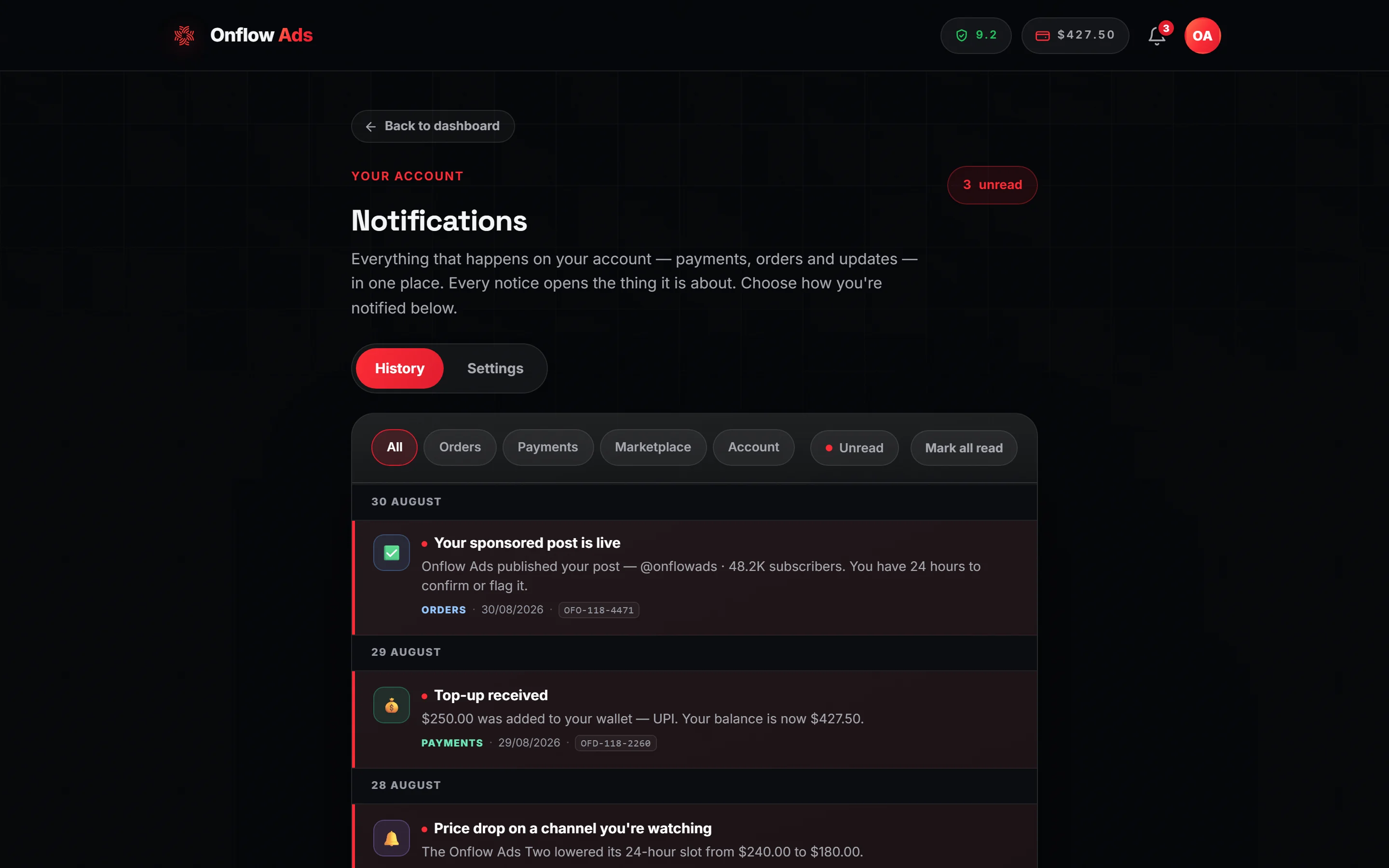
Plus plan · Advertiser. The History tab. Every kind of update lands in the same feed — the third row here is a marketplace price-drop notice, sitting between an order and a security notice.
History
Your complete feed, newest first, grouped by day — Today, Yesterday, then the day itself — with five filter chips: All, Orders, Payments, Marketplace and Account, plus an Unread toggle that narrows the view to what you have not read. An unread pill in the header states the count. Mark all read sits at the end of the toolbar and is greyed out when nothing is unread. The feed loads 20 at a time, with a Load more button when there are older items. A row you arrived at from the bell (the address ends in #n and the notice's number) is scrolled to and lit.
A row always leads somewhere: the page the notice is about, or — for a notice with no page of its own — its own entry here. There is no notice that only marks itself read.
| What you see | What it means |
|---|---|
| "No notifications yet" | Nothing has happened on the account |
| "No notifications here" | The category filter you picked is empty |
| "Nothing unread" | The Unread toggle is on and everything in the view has been read |
| "Couldn't load notifications." | The request failed; try again |
Settings
Choose how each type of update reaches you. In-app notifications — the bell — always stay on; the toggles control the extra delivery channels.
| Notify me about | What it covers | Telegram | |
|---|---|---|---|
| Orders | Requests, acceptances, delivered posts and completions | toggle | toggle |
| Payments | Top-ups, wallet charges and refunds, withdrawals and your plan | toggle | toggle |
| Marketplace | Watchlist price drops, auctions and Subscriber Exchange updates | toggle | toggle |
| System | Account, security and platform updates | toggle | toggle |
| Product news and offers | Optional marketing email | toggle | — |
Below the matrix, Pop-up alerts on the site switches the slide-in cards described above on or off.
Every delivery toggle and the pop-up alerts are on by default; Product news and offers is off unless you switch it on. Changes save on their own about a third of a second after your last click, and a ✓ Saved flashes when they land.
With no Telegram account linked, every Telegram toggle is shown unchecked and disabled, and an amber note appears above the matrix: "Want alerts on Telegram too? Connect your Telegram on your account page and you'll get every notification as a DM — at the same time as your email." Its link opens your account page, where Connect Telegram does the linking (just opening the bot links nothing). Disabled toggles are left out of the save entirely, so nothing is written for them — link the bot and your Telegram preferences come back on rather than starting from off. See Connecting your Telegram.
Email frequency: instant or digest
Below the toggles, an Email frequency selector with the line "Get each email as it happens, or batch them into one roundup so your inbox stays quiet." Three choices:
- Send each email right away — the default
- Hourly digest — one email an hour
- Daily digest — one email a day
Picking either digest reveals the note "Time-sensitive alerts — a failed payment, a refund, or your ad going live — always arrive right away, even on a digest."
| Digest detail | What it does |
|---|---|
| What is batched | Only the email leg. In-app and Telegram DMs are always immediate |
| How many updates per roundup | Up to 100; anything beyond that waits for the next one |
| What is never batched | The six urgent kinds below |
| If sending fails | The roundup is retried rather than dropped — a failed send leaves the updates flagged for the next pass |
The six updates that always email immediately
Even on a digest, these send the moment they happen, because batching them would defeat the reason you would want the email at all:
- a failed payment,
- an order declined (and refunded),
- an order delivered — your ad is live and its confirm-or-flag window is running,
- a withdrawal rejected,
- a Boost order partially delivered, with the shortfall refunded,
- an Auto-Boost subscription paused.
Two updates that deliberately never email
- A successful top-up. The PDF invoice email already tells you, so the notification is recorded in-app and sent as a Telegram DM without a second email.
- A wallet charge. These are frequent, and your wallet ledger is the permanent record, so they arrive in-app and by DM only.
Browser (push) notifications
On top of the bell, email and Telegram, Onflow Ads can reach you through your browser's own notification system, so an announcement can pop up even when the tab is not in front of you. Clicking one opens the page it is about. While one of the site's pages is on your screen, a notice about your account arrives as a pop-up alert on that page instead, so it is not shown twice. If you have switched the pop-up alerts off, or the message is an announcement to everyone, the browser notification appears as usual.
How you turn it on:
- A small, dismissible Enable notifications pill appears in the bottom-left corner a few seconds after a page loads. Clicking it opens your browser's own permission prompt.
- Onflow Ads never opens that prompt on its own — only your click does. Dismissing the pill with the × is remembered, and it will not ask again in that browser.
A few things worth knowing:
- The pill only appears where browser notifications are actually available: a browser that supports them, the feature configured on the site, and no decision already made for onflowads.com.
- Permission is per browser, per device. Allowing it on your laptop does nothing for your phone.
- To turn it off later, use your browser's site settings for onflowads.com — usually the padlock icon beside the address bar — and set Notifications to Block.
Marketing emails and unsubscribing
Two different kinds of email leave Onflow Ads, controlled in two different places.
| Kind of email | What it includes | How you control it |
|---|---|---|
| Account and order emails | Receipts, delivery updates, security notices and the categories above | The Settings toggles and the email-frequency selector on this page |
| Marketing and lifecycle emails | Product updates, offers and nudges tied to your usage. Off unless you switch them on | Product news and offers in Settings, the box at sign-up or checkout, and the unsubscribe link in the footer of any marketing email |
Every marketing email carries an unsubscribe link. Clicking it opens a small confirmation page on onflowads.com — no sign-in needed — with one Unsubscribe me button:
- The change applies to marketing emails only; account and order emails keep coming, and the page says so.
- Nothing changes until you press the button, so an email scanner that follows the link cannot unsubscribe you by accident.
- The confirmation you get afterwards includes a Resubscribe link.
Marketing consent is a real setting on your account and it is off until you say yes — with the unticked box at sign-up or at checkout, or with Product news and offers in Settings. The unsubscribe link in any marketing email turns it back off.
What you get notified about
- Orders — a new promotion request on your channel; your booking placed, accepted, declined with its refund, or delivered; a promotion completing, with the payout for owners and the wrap-up for advertisers; a Boost order delivered in full or partially delivered with the shortfall refunded; an Auto-Boost subscription pausing.
- Payments — a top-up received or failed, a wallet charge or refund with its reason, withdrawal updates, and a plan activating.
- Marketplace — watchlist price drops and auction opportunities.
- System — account, security and platform notices.
If something goes wrong
| What you see | What it means | What to do |
|---|---|---|
| No Telegram DMs | Your account is not linked to the bot, or the category's Telegram toggle is off | Open Settings; if the amber "Connect your Telegram" note is there, follow it, then check the toggles |
| The Telegram toggles are greyed out | No linked Telegram account | Link the bot; the toggles come back enabled and on |
| You chose a digest but got an instant email | One of the six urgent kinds | Working as intended — those cannot be batched |
| No email after a successful top-up | Deliberate; the invoice email covers it | Look for the invoice instead |
| No email for a wallet charge | Deliberate; the ledger is the record | Check your wallet history |
| The bell badge is stale | The live connection is unavailable | It catches up within two minutes, or immediately when you refocus the tab |
| No pop-up cards | Pop-up alerts on the site is off, or the notice is more than about ten minutes old | Switch it on in Settings; older notices are in the bell and the feed |
| "Couldn't load notifications." | The feed request failed | Refresh |
Mark all my notifications as read does exactly that after a yes; notifications reads out how many are unread and the latest ones. What the assistant can do for you has the full list and the confirmation rule.
Related
- The dashboard home — the header cluster the bell sits in
- Connecting your Telegram — how to unlock DM delivery
- Bot notifications — what the same events look like inside Telegram
- Your reliability score — one outcome that deliberately does not notify you
Next: Your reliability score — the trust number that decides what you can start.