Adding a channel
Registering a channel creates a record of it on your Onflow Ads account: its handle, title, description, avatar, subscriber count and average views, pulled from Telegram. That record is what the cross-promotion flow acts on, it is what gives a channel its OFCH- reference and its own dashboard, and it is what makes a channel appear with an avatar in My channels on your hub.
There are two ways it happens. One you go looking for; the other happens as a side effect of starting a campaign.
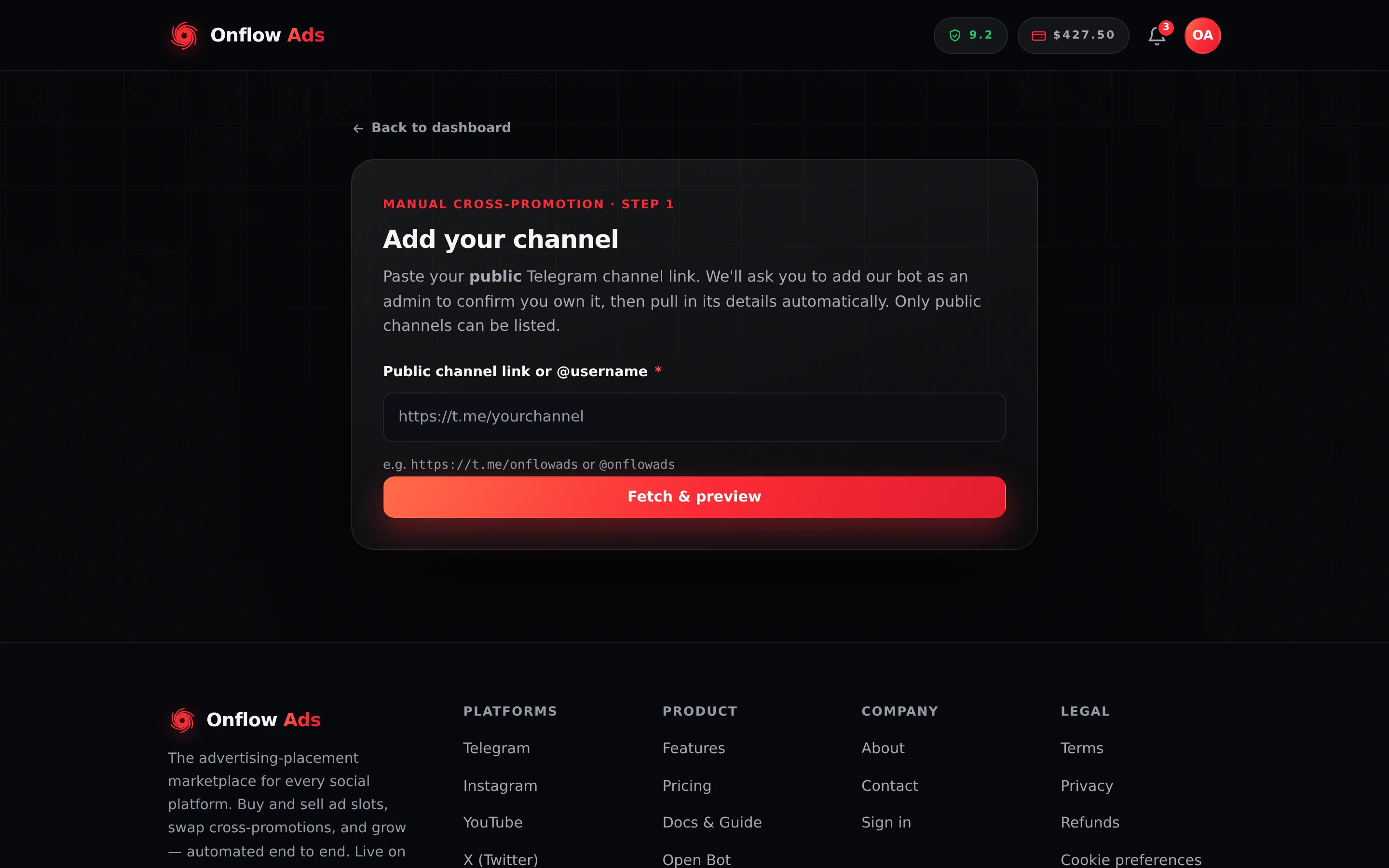
Plus plan · Advertiser. The add page. One field, one button — everything else is pulled from Telegram for you.
Before you start
- A signed-in account with a verified email, past the onboarding gate.
- A public Telegram channel — one with a
@usernameand at.melink. Private channels,+invitelinks,joinchatlinks, groups and personal accounts are all rejected. - You must be able to add an administrator to that channel, because that is how ownership is proved.
- No plan requirement, and no marketplace role requirement. Adding a channel is open to every verified account, advertiser or channel owner alike.
The hub has a visible entrance: an Add a channel link in the heading of the My channels section at /telegram/dashboard. It is always there, whether or not you have any channels yet. You can also type https://onflowads.com/telegram/dashboard/channels/new straight into your browser — same page. Its eyebrow reads Manual cross-promotion · Step 1 because this registry is what the manual cross-promotion flow reads from.
Step by step
- Press Add a channel in the My channels heading on your hub, or go to https://onflowads.com/telegram/dashboard/channels/new. A card headed Add your channel appears, with one field and a Back to dashboard link above it.
- Put your channel in the Public channel link or @username field. Every one of these is accepted, and all of them resolve to the same handle:
https://t.me/yourchannel,t.me/yourchannel,telegram.me/yourchannel,telegram.dog/yourchannel,t.me/s/yourchannel,@yourchannel, or the bareyourchannel. A handle has to start with a letter and be 5 to 32 characters of letters, digits and underscores. - Press Fetch & preview. The bot-admin check runs first, before anything is fetched.
- If our bot is not yet an administrator of the channel, the amber Add our bot to verify your channel panel appears in place of a result. Add the bot with the ➕ Add @… as admin button, then press I've done it — check again. The whole check is covered on Verifying your channel.
- Once the check passes, a preview card animates in with the channel's avatar, its title, its
@handlebeside aOFCH-reference chip, its description, Subscribers and Avg views, and a green Public channel found badge. - Press Continue to setup to open the listing wizard for that channel.
The record is written the moment the fetch succeeds, at status Draft — before you have seen the wizard, and whether or not you ever press Continue to setup. A draft you abandon still counts toward Connected channels on your hub, still appears in My channels, and already has its own dashboard. Taking it off your account again is something support does for you; see Removing a channel.
The other way in: Cross-Promotion
The other, and far more common, route into the registry is a cross-promotion campaign. When you paste a channel link into the create, join or discover flow at /telegram/dashboard/cross-promotion/create or /telegram/dashboard/cross-promotion/join, Onflow Ads looks for a matching channel on your account and, if there is none, creates exactly the same Draft record for you — same link normalisation, same bot-admin gate, same details pulled from Telegram.
This is why members find channels in My channels they do not remember adding. They are not duplicates or errors: they are the registry rows a cross-promotion created on your behalf.
The only visible difference is one error message. The add page says a channel that cannot be found "isn't public, or it doesn't exist. Only public Telegram channels can be listed." The cross-promotion flow ends the same sentence with "can be cross-promoted."
What each part of the add page does
| Element | What it is |
|---|---|
| Back to dashboard | Returns to /telegram/dashboard without adding anything |
| Eyebrow: Manual cross-promotion · Step 1 | Names the flow this registry feeds |
| Public channel link or @username | The only field, and it is required |
| Fetch & preview | Runs the bot-admin check, then pulls the channel from Telegram and creates the draft |
| The verification panel | Appears in place of a preview when the bot is not an admin yet |
| Continue to setup | Opens the three-step wizard at the new channel's own address |
Rate limits
All three limits are counted per IP address per hour, not per account, so an office or a shared network can hit them collectively.
| Action | Limit |
|---|---|
| Adding a channel | 20 per hour |
| Re-pulling a channel's details from Telegram | 20 per hour |
| Uploading a channel avatar | 30 per hour |
Going over any of them returns a generic too-many-requests error. Waiting is the only fix.
If something goes wrong
| What you see | What it means | What to do |
|---|---|---|
| "Enter your public channel link." | The field was empty when you pressed the button | Paste the link |
| "Enter a public Telegram link, e.g. https://t.me/yourchannel." | What you pasted is not a channel handle — most often a +invite or joinchat link, or a reserved path like t.me/share | Use the channel's public t.me link or its @username |
| The amber Add our bot to verify your channel panel | The bot is not an administrator of the channel yet, or is missing the Post Messages or Delete Messages right | Follow Verifying your channel, then press I've done it — check again |
| "That channel isn't public, or it doesn't exist. Only public Telegram channels can be listed." | Telegram has no public page for that handle | Check the spelling; make the channel public if it is not |
| "You've already added that channel." | The same channel is already on your account, possibly created by a cross-promotion you started | Press Open this channel under the message to go straight to it |
| "We couldn't reach Telegram from our server right now. Please try again in a moment." | A temporary connectivity problem on our side | Retry shortly. Nothing you did was wrong and nothing was saved |
| "Network error — please try again." | Your browser could not reach us | Check your connection and retry |
What happens next
The channel is saved as a Draft. Nothing about it is public: its avatar is only visible to you and to reviewers until a channel is approved, and no engine acts on a draft by itself.
From here you can complete the listing wizard and submit it for review, or leave it as a draft and use the channel in Cross-Promotion, the Subscriber Exchange, Paid Promotions or Boost — each of which has its own separate enrolment.
Related
- Verifying your channel — the bot-admin gate in full, with every failure message
- Setting up your channel listing — the three-step wizard and what review actually decides
- Managing your channels — where a registered channel shows up afterwards
- A channel's own dashboard — the page a registry record gives the channel
- Removing a channel — how to have a channel record taken off your account
Next: Verifying your channel — the bot-admin check, the exact rights to grant, and what to do when it fails.