Tracking your orders
Every boost you place appears on Orders at https://onflowads.com/telegram/dashboard/boost/orders — the page whose own heading reads Delivery console. This is where you watch delivery, request a refill, cancel, and open a support ticket about one specific order.
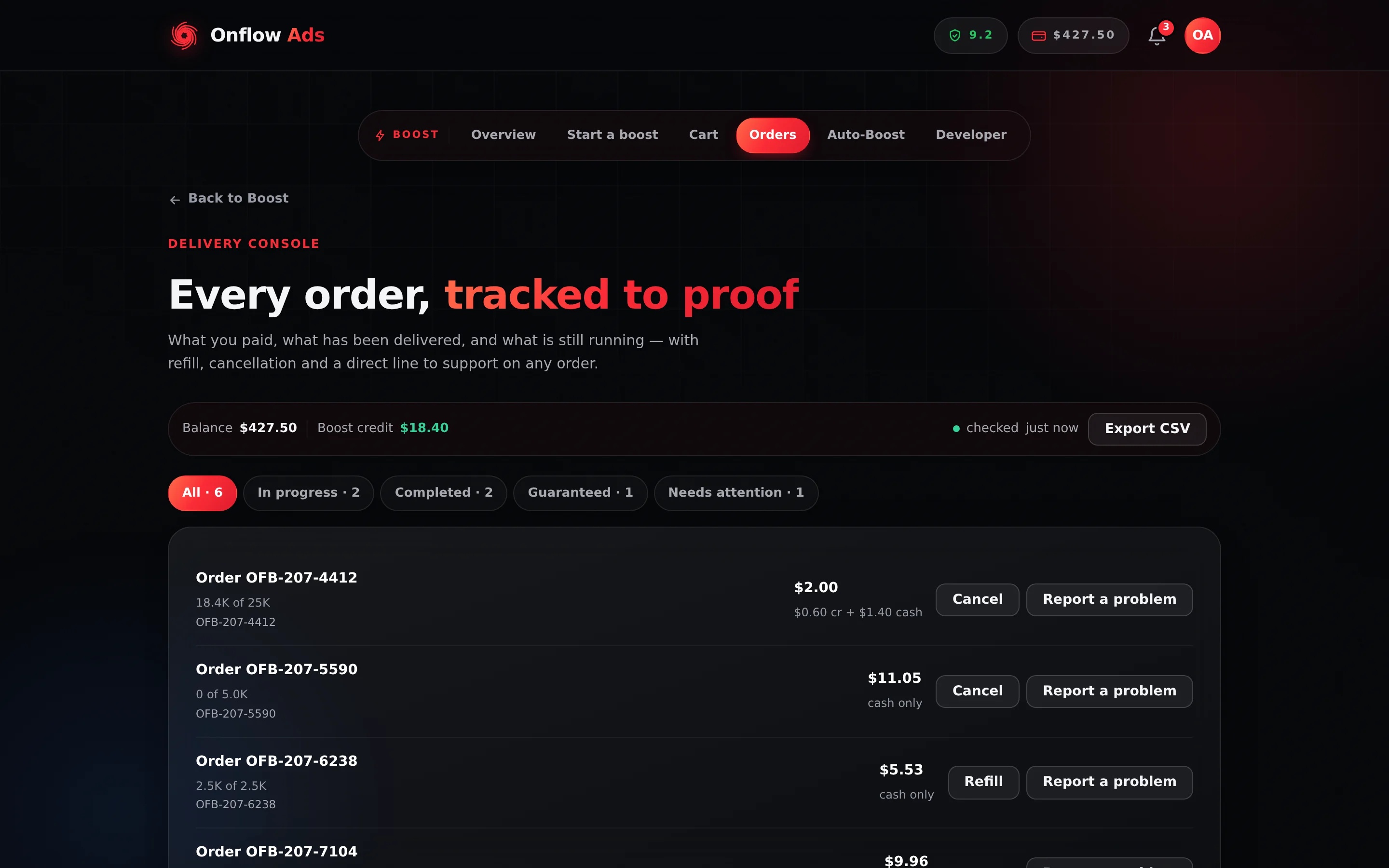
Plus plan · Advertiser. The Orders page. The four tabs are the only filter on this page, and each carries its own live count.
Before you start
- Sign in and clear the onboarding gate.
- CSV export needs a paid plan — Lite and above.
- The list is not your whole history. It shows your 40 most recent orders. Use Export CSV to see everything.
What the page shows
The five tabs
Each tab carries a live count and filters the loaded rows on your own browser.
| Tab | What it holds |
|---|---|
| All · N | Every one of the 40 loaded orders |
| In progress · N | Orders still delivering, plus anything queued or submitting |
| Completed · N | Orders that delivered in full |
| Guaranteed · N | Orders that delivery protection has actually acted on — an auto-refill was fired, or a guarantee make-good was paid |
| Needs attention · N | Orders that settled short of a full delivery: partial, refunded, cancelled or errored |
What an order row shows
| Element | What it means |
|---|---|
| Service name | What was ordered. An order whose service name is missing shows as Order OFB-… |
| Progress line | <delivered> of <ordered>, in abbreviated units. Where a percentage is shown it is delivered ÷ ordered × 100, to one decimal and capped at 100% — providers routinely over-deliver, and a bar reading 118% complete is a true number that reads as a bug |
OFB-… | The order's permanent reference, on its own line. One click selects the whole thing |
| Charge | What you paid, in bold |
| Charge sub-line | How it was paid — see the table below |
| Refill | Shown only when the order can actually be refilled |
| Cancel | Shown only when the order can actually be cancelled |
| Report a problem | Always shown |
Empty state: No orders in this view yet. Boosts you place show up here with live progress.
The charge sub-line
| Sub-line | What it means |
|---|---|
$1.20 cr + $3.80 cash | Split between boost credit and wallet cash |
$5.00 credit | Paid entirely from boost credit |
cash only | Paid entirely from wallet cash |
kept for delivered part | The order was refunded, but units had already been delivered, so the money for those is kept |
refunded to source | The order was refunded in full, each pocket back to where it came from |
Refill appears only when the service is refill-eligible and the order has finished delivering. Cancel appears only when the provider actually supports cancelling that order and it is still live. A button you cannot see is one the server has already ruled out — its absence is the answer.
After a checkout
A green banner appears above the tabs. After a cart checkout it names every id: Orders OFB-…, OFB-… placed. Quote these to support if anything looks wrong. After a single boost it is generic: Order placed. It appears below as soon as the provider accepts it.
The status lifecycle, and the guarantee behind each state
| Status | What it means | What the platform guarantees |
|---|---|---|
| Submitting | Charged and recorded; the provider is being called | The debit and the order row were written in one transaction. A row still submitting after 180 seconds is refunded in full automatically and filed for a human to check |
| Pending / Queued | A provider accepted it and it is waiting to start | Nothing to do; delivery has not begun |
| In progress / Processing | Delivering now | Progress is re-read at least every 120 seconds, or every 60 with priority delivery |
| Completed | Delivered in full | Enters delivery protection if it carries a guarantee or auto-refill |
| Partial | Stopped short | The undelivered share is refunded automatically, pro-rata, to the pockets you paid from |
| Canceled | Stopped mid-delivery | The undelivered remainder is refunded; delivered units are kept, because the provider keeps our money for them |
| Refunded | Fully refunded and closed | Also the state a failed order lands in when there is no evidence anything was delivered |
| Error | The provider accepted it and then reported failure, with some delivery evidence | The undelivered share is refunded; the label stays Error because that is what happened |
When a provider reports failure and gives us no measurable delivery — no remaining count, and no earlier peak — the platform refunds the whole charge and relabels the order Refunded rather than leaving it as a partly-charged Error. The rule is deliberate: being wrong in your favour is the correct direction.
How the page updates
The page re-reads your account roughly every 45 seconds, pausing while the browser tab is in the background and refreshing immediately when you return to it. The checked n ago indicator in the wallet strip counts up between refreshes.
If a number looks stale, click into the tab and watch the checked counter reset.
Exporting your history
Export CSV in the wallet strip downloads your whole order history — up to 10,000 rows, newest first. It is a plain download link, so pressing it starts a file download rather than opening a screen.
Every export carries these columns:
order_id, created_at, platform, service, category, link, quantity, delivered, status, charge_usd
Paid plans get more:
| Plan | Extra columns |
|---|---|
| Plus and above | list_usd, discount_usd, boost_credit_usd, wallet_usd, refunded_usd, coupon |
| Master and above | panel_service_id, tier_at_order, batch_id |
CSV export needs Lite or above. Because the control is a plain download link rather than a button that can show you a message, a Free account gets a small downloaded file containing the refusal — CSV export is a member feature. Unlocks on Lite. — rather than an on-page message. Nothing is wrong with your browser.
The file is UTF-8 with a byte-order mark, so service names with non-English characters open correctly in Excel. Exports are limited to 6 per minute.
Requesting a refill or cancelling
Both are single buttons on the row.
- Refill asks the provider to top the count back up. On success the page reloads its state; the button does not change or confirm. See Refills.
- Cancel asks first — Cancel this order? Any undelivered amount is refunded. — then requests the cancellation. The refund lands when the provider confirms it, on a later poll, not instantly. See Cancellations and refunds.
Each is limited to 20 requests per hour.
Reporting a problem
Report a problem on any row opens a real support ticket, marked high priority, pre-loaded with everything an agent needs.
- Press Report a problem. The dialog reads Tell us what went wrong with order OFB-…. This opens a support ticket.
- Describe the problem in the single What happened? box. The placeholder shows the shape of a useful report: Delivery stopped at 40% and hasn't moved for two days. Up to 4,000 characters.
- Press Send report. The dialog closes.
The ticket automatically carries the order's reference, the service, the platform, the status, the quantity, the amount paid, the target link and the date it was placed. You do not need to repeat any of that.
A ticket reference is created, but the dialog does not display it. The reference reaches you by email, at the address on your account. A closed dialog with no error means the report was filed.
The dialog is one free-text box, and every report is filed under the same general category. Lead with the nature of the problem — nothing delivered, stopped short, delivered then dropped, wrong target — so an agent sees it without reading to the end.
Reports are limited to 5 per 10 minutes, and are refused outright for accounts with a support ban.
What reaches you when an order settles
You are told once, and only once, per order.
| Where | What you get |
|---|---|
| Site notifications | Boost delivered — 10,320 delivered on <service>. Your Boost (paid growth order) is complete… |
| Site notifications | Boost partially delivered — …stopped short: 4,200 of 10,000 arrived on <service>. $5.80 for the rest is already back in your balance. |
| Site notifications | Boost couldn't be delivered — when nothing arrived and the order was refunded in full: …couldn't be delivered — none of the 10,000 arrived. $10.00 is already back in your balance. |
| Site notifications | Wallet spent and refunded notices, naming the order |
| Telegram | The same notices, sent by the Onflow Ads bot when your Telegram is connected and your notification settings allow it — for Auto-Boost orders exactly as for the ones you place |
| Your webhook endpoint | On Master and Ultimate, one signed event per settled order. See The Boost API |
Every order — including the ones an Auto-Boost rule places — is settled and announced by the website, once.
When delivery goes wrong behind the scenes
Three platform behaviours explain outcomes that otherwise look arbitrary.
- Provider failover. A service can carry alternate provider routes. When the first refuses the order, the next is tried, in priority order — which is why an order occasionally takes noticeably longer to be accepted than usual.
- The reconcile queue. If a provider takes an order but we cannot finish recording it, the order is filed for a human rather than quietly lost. You are not charged for an order that was never recorded, and you are not left holding one nobody knows about.
- Provider auto-disable. A provider failing most of its recent orders can be switched off, which removes its services from the catalogue immediately. That is why a service can disappear mid-day. Existing orders on it are unaffected; you cannot place new ones.
If something goes wrong
| What you see | What it means | What to do |
|---|---|---|
| An order is missing from In progress and Completed | It settled to a refund state | Switch to All |
| An order you placed 20 minutes ago is not on the page at all | You have more than 40 orders, and it fell off the list | Use Export CSV, or quote the OFB- to support |
| Progress has not moved in hours | Normal on slow services. The page re-reads status at most every 120 seconds, and the provider controls the pace | Wait. If it has genuinely stalled for days, use Report a problem |
| Stuck on Submitting for a couple of minutes | The provider call is still running, or was interrupted | Wait. After 180 seconds it is refunded in full automatically |
| Refill is not on a completed order | That service is not refill-eligible, or the protection window has closed | See Refills |
| Cancel is not on a live order | The provider does not support cancelling it | Use Report a problem instead |
| Couldn't start a refill. / Couldn't cancel that order. | The provider refused | Read the message; the provider's own reason is passed through |
| Export CSV downloads a tiny file that is not a spreadsheet | Free plan — see the warning above | Upgrade to Lite or above |
| Couldn't send that report. | The report was refused — most often the rate limit, or a support ban | Wait 10 minutes and retry, or contact support directly |
| The checked counter keeps climbing | The tab lost focus, so polling paused | Click into the tab |
Ask where is my boost order and the assistant answers from your live orders, as a card with each order's delivery progress and status. What the assistant can do for you has the full list and the confirmation rule.
Related
- Refills — when an order qualifies, and what protection does automatically
- Cancellations and refunds — the exact refund rule for each outcome
- Delivery proof pages — the public record of a settled order, including its full timeline
- Limits and caps — every rate limit on this page, stated exactly