The Boost dashboard
Boost is six pages that share one navigation bar and one wallet strip. This page is the map: what each of the six is for, and what every element of the Overview landing screen is telling you.
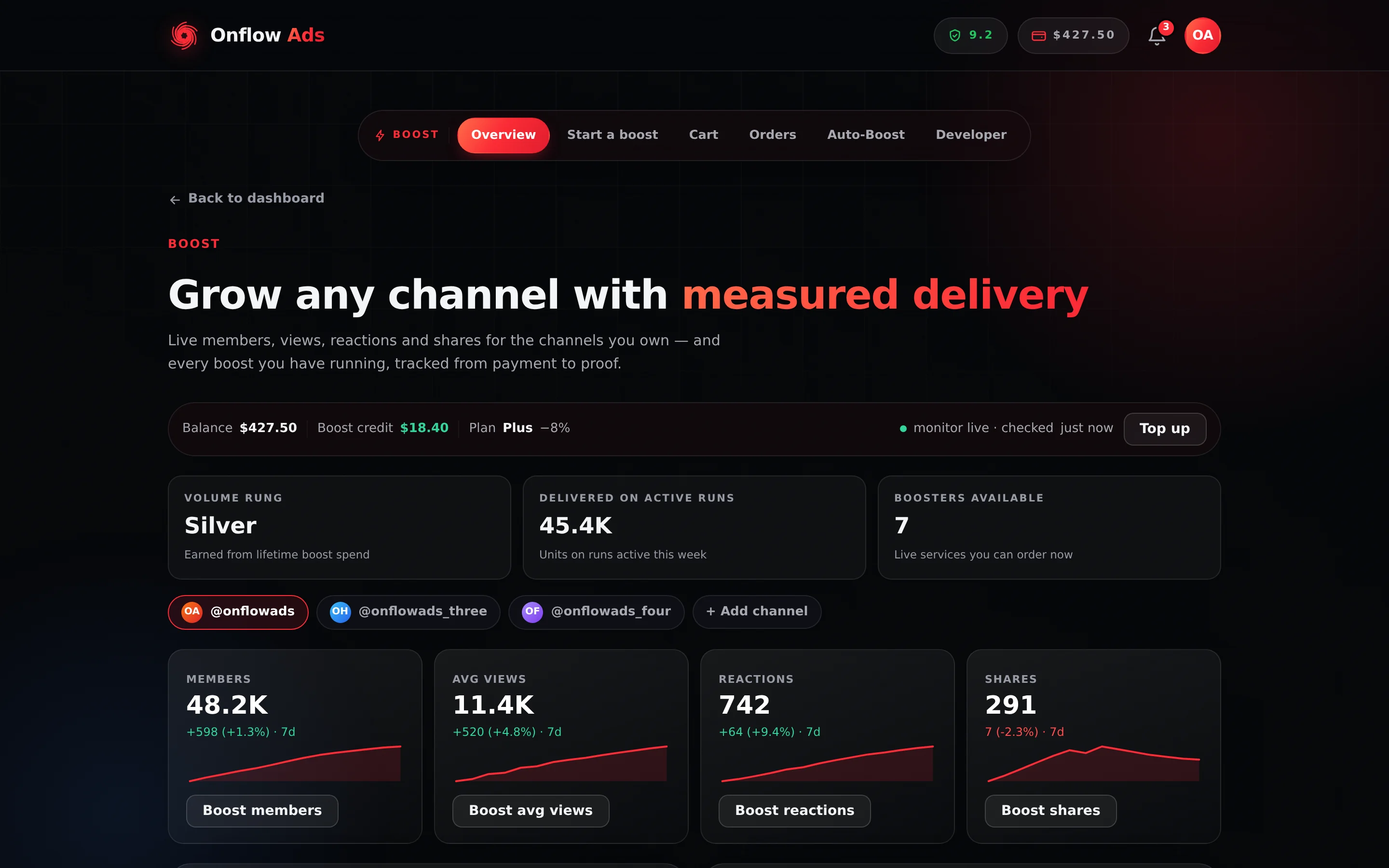
Plus plan · Advertiser. The Boost Overview page. The flow bar across the top is the whole dashboard — the same six pills appear on every Boost page. Look at the wallet strip beneath it before anything else: it is where your spendable balance and your plan's discount are stated.
Before you start
- Sign in. Every page here is behind sign-in.
- Verify your email, and link the Telegram bot. All seven signed-in Boost addresses go through one gate; an account that has not linked the bot, or is still on a placeholder Telegram email, is sent to /telegram/link before any Boost page renders.
- A plan is not required. Free accounts can order boosts. What a paid plan buys is rate, automation and scale.
- A channel is not required either. Without one you can still boost any post or channel link — you will not see the metric tiles, the growth projection, or the per-channel Boost roll-up described in Boost figures for one channel.
The flow bar
Six pills, in this order, on every Boost page:
| Pill | Address | What it is for |
|---|---|---|
| Overview | /telegram/dashboard/boost | Channels, live metrics, boosts in flight, delivery activity |
| Start a boost | /telegram/dashboard/boost/new | The catalogue and the order composer |
| Cart | /telegram/dashboard/boost/cart | Place several boosts at once; paste a mass order |
| Orders | /telegram/dashboard/boost/orders | Your recent orders, with refill, cancel and report |
| Auto-Boost | /telegram/dashboard/boost/auto | Pause, resume or cancel your standing rules |
| Developer | /telegram/dashboard/boost/developer | API keys and order webhooks |
The Cart pill grows a small count badge as soon as there is anything in your cart, so you can see from any Boost page that lines are waiting.
The Orders page is titled Delivery console in its own heading, and the button that reaches it from Overview is also labelled Delivery console. It is the same page as the Orders pill. Likewise the Start a boost page's headline reads Every service, at its real price.
Throughout the Boost pages, the composer is the order composer that opens beneath the catalogue on Start a boost — service, link, quantity, delivery options, coupon, Order summary. It is not the shared post composer that Paid Promotion, Cross-Promotion and the Subscriber Exchange use to write an ad. Boost never writes a post; it buys units against a link you already published.
The wallet strip
The same strip sits under the hero on every Boost page, and every value on it is repainted each time the page refreshes its state.
| Element | What it means |
|---|---|
| Balance | Your wallet cash, in USD. This is what pays for a boost after your boost credit runs out. |
| Boost credit | Your non-withdrawable credit balance. It is spent first on every boost. This number is the only place boost credit is shown anywhere in the interface. |
| Plan | Your plan name, followed by your standing discount as a negative percentage — for example Plus −8%. Free shows a plan name and no percentage. |
| monitor live · checked n ago | How long ago this page last re-read your account state. It counts up in real time and resets each refresh. |
| Top up | Only on Overview. Opens the wallet at /telegram/dashboard/wallet. |
The other pages put a different button in the same slot: Start a boost offers Cart, Cart offers Add another, Auto-Boost offers Start a boost, and Orders offers Export CSV.
Boost pages re-read your account roughly every 45 seconds, and pause that while the browser tab is in the background. Switching back to the tab triggers an immediate refresh, so if a number looks stale, click into the tab and watch the checked counter reset.
The Overview page, element by element
The three stat cards
| Card | What it counts |
|---|---|
| Volume rung | The spend-based rate break you have earned, by name — Bronze, Silver or Gold. Sub-line: Earned from lifetime boost spend. A dash means you have not cleared the first threshold. See Pricing and discounts. |
| Delivered on active runs | Sub-line: Units on runs active this week. Units delivered — ordered minus remaining — summed across every boost order that was created in the last 7 days or last moved in the last 7 days. |
| Boosters available | Sub-line: Live services you can order now. How many live services your plan can actually order today. |
The platform stores a cumulative delivered count per order, not a per-day figure, so there is no honest way to split one run's total across days. A run's whole delivered total is therefore attributed to the window it was last active in — which is why the tile is named for the runs rather than for the week. A long run that finished on Monday puts all of its units on this week's tile, not just the ones that arrived on Monday.
Services locked to a higher plan are left out of the number. To see the whole catalogue, including the locked entries, open Start a boost — locked cards are shown there under a Members only overlay.
The channel chips
A row of chips, one per Telegram channel on your account, each with a two-letter initials avatar, plus a + Add channel chip at the end. Selecting a chip repaints the four metric tiles for that channel.
With no channels the chips are replaced by a card headed Add your channel to see it here, with an Add channel button. Both routes open the same dialog:
- Press + Add channel (or Add channel). The Add a Telegram channel dialog opens.
- Type the public
@usernameor thet.melink into the Channel field. The helper text reads We check the bot's access and your real reach. - Press Add channel. On success the dialog closes and the page reloads real data — nothing is shown optimistically. On failure the dialog stays open and prints the reason.
The four metric tiles
Shown only when a channel is selected. One tile each for Members, Avg views, Reactions and Shares. Each carries:
- the current value, abbreviated (
12.4K,1.08M); - a delta beneath it —
+1.2K (+4.3%) · 13d, green when up and red when down, or no history yet when there is not enough recorded to compare against. The trailing number is the span the comparison actually covers, not a fixed 7: snapshots are written when you open a Boost page rather than on a timer, so the nearest reading at least a week old can be a good deal older than a week. The percentage is left off when the earlier reading was zero, because a rise from nothing has no ratio; - a 14-day sparkline;
- a button — Boost members, Boost avg views, Boost reactions or Boost shares — that opens Start a boost with the first unlocked service in that group already selected.
Nothing samples these four numbers on a schedule. One reading a day, per channel and per metric, is recorded at the moment a Boost dashboard page loads its state — so history starts accruing from your very first visit, and a gap in a sparkline is a day nobody opened Boost rather than a day Telegram went quiet. The delta and the sparkline appear once there are readings from two different days. Adding a channel and then not opening Boost for a week leaves you with no history at all.
The In flight panel
Up to three boosts currently being delivered. Each row shows the service name, a progress line such as 1.2K / 5K, the order's OFB- reference on its own line, and a status badge (QUEUED, LIVE or REFILL).
Empty state: Nothing in flight. Boosts you order appear here while they deliver.
The Delivery feed panel
The six newest events on your account, merged from three sources: order events, boost-credit movements and wallet movements. Each row carries a description, a timestamp, and — where the event belongs to an order — that order's OFB- reference.
Empty state: No delivery activity yet. Completed runs and payouts show up here.
The two choice cards and the footer
Two large cards close the page: Start a boost (Open the catalogue) and Auto-Boost (Manage rules). Below them, two small buttons: Delivery console and Developer.
Boost figures for one channel
Everything above is per account: your orders, your credit, your delivery feed. If what you want is "what has Boost done to this one channel, and what has it cost me?", that lives outside the Boost dashboard entirely — on the channel's own page.
Where: open My channels and click a registered channel. The address is https://onflowads.com/telegram/dashboard/channels/ + the channel's OFCH- reference + /overview. It is behind the same onboarding gate as the Boost pages, and it is strictly read-only — opening it never moves a number.
That page carries a Boost Metrics panel with up to five facts about this channel alone:
| Fact | What it counts |
|---|---|
| Orders | Boost orders matched to this channel |
| Units ordered | The quantities you asked for, added up |
| Units delivered | What actually arrived, measured the same way the Orders page measures it |
| Posts auto-boosted | Posts boosted by Auto-Boost rules watching this channel |
| Spent | What Boost cost on this channel, net of refunds and of any refunded boost credit |
Its activity feed also carries your recent Boost rows for the channel, labelled Completed, Partially delivered, Refunded, Cancelled, Failed or Scheduled, and one row per Auto-Boost rule reading Auto-Boost running, Auto-Boost paused, Auto-Boost ended or Auto-Boost expired. The channel's lifetime money card shows Boost as a single Boost delivery −$X line, set against what Paid Promotions paid the channel.
Four things to know before you trust the totals:
- Orders are matched to a channel by the link you pasted. Boost stores the target link, not a channel record, so an order is attached to this page only when that link resolves to the channel's public
@username—t.me/yourchannel,t.me/yourchannel/123andtelegram.me/yourchannelall match. A boost placed against a private invite link or at.me/c/…numeric link resolves to no username and simply does not appear here. It is not lost; it is on the Orders page as usual. - Auto-Boost rules are matched the other way round, on the identifier exactly as you typed it into the rule, with only a leading
@stripped.@yourchannelandyourchannelare matched; a rule you created by pastingt.me/yourchannelis not, and its posts are missing from Posts auto-boosted here. See Auto-Boost. - The page reads a bounded slice. At most your 500 most recent Boost orders and 50 most recent Auto-Boost rules are considered. A very busy account can therefore see a floor rather than a full lifetime total, and the page says so when it hits a cap.
- Auto-Boost is not counted twice. Every post a rule boosts is charged as an ordinary Boost order, and those orders are already inside Spent. The per-post cost is deliberately not added on top.
There is nothing to press here. Refills, cancels, reports and CSV export are all still on the Boost Orders page; pausing, resuming and cancelling a rule are still on Auto-Boost.
Selecting an id
Every reference in the dashboard — the OFB- on an order, the OFBS- on a rule, the OFBK- under an API key — is rendered on its own line and set to select in full on a single click. Click it once and copy; you never have to drag across it.
If something goes wrong
| What you see | What it means | What to do |
|---|---|---|
| You are sent to /telegram/link instead of a Boost page | The onboarding gate: your account has no linked Telegram bot, or is still on a placeholder Telegram-native email | Complete the link step. Every Boost page opens afterwards |
| You are sent to /signin | The session ended while the page was open | Sign in again and reopen the page |
| You are sent to /verify | Your email address is not verified | Verify it, then return |
Boosters available reads 0 and Start a boost shows No boosters available right now | The catalogue is empty right now — no service can be priced | Nothing can be ordered until services are published. Check back shortly |
| The tiles say no history yet | We hold fewer than two recorded readings for that channel and metric | Readings are written when a Boost page loads, not on a schedule, so waiting does nothing on its own. Open Boost on two different days and the delta and sparkline appear. Boosting works without either |
| The checked counter keeps climbing past a minute | The tab lost focus, so polling paused | Click into the tab; it refreshes at once |
Balance and Boost credit both read $0.00 on a funded account | The state call failed, or you are signed out in another tab | Reload the page. If both still read zero, check the wallet directly |
Related
- Placing an order — the order composer, field by field
- Tracking your orders — the Orders page and its four tabs
- Limits and caps — every rate limit and ceiling, stated exactly
- Auto-Boost — the standing rules the Overview card manages
- A channel's own dashboard — the per-channel page the Boost panel sits on, in full