Placing an order
This is the walkthrough for buying one boost. Everything happens on Start a boost at https://onflowads.com/telegram/dashboard/boost/new.
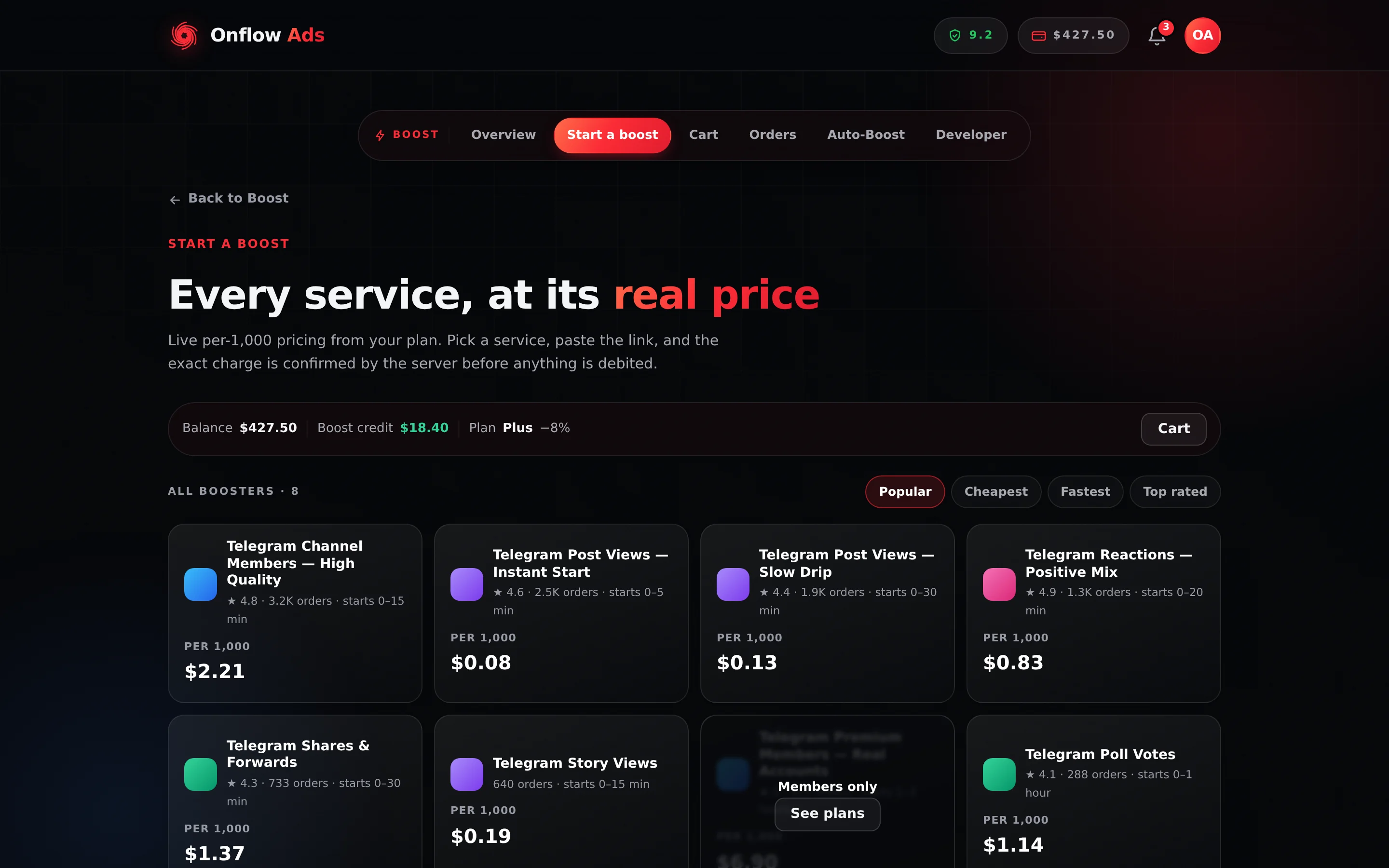
Plus plan · Advertiser. The catalogue half of the page. Selecting any card opens the composer beneath it; the Order summary card on the right is what you read before pressing Launch boost.
Before you start
- Sign in, verify your email, and clear the onboarding gate (a linked Telegram bot and a real email address). Every Boost page is behind it.
- Have the link ready. A channel link for a channel-level service, a post link for a post-level service. Never a password.
- Have money in the account. Boost credit is spent first, then wallet cash. If the two together do not cover the charge, the order is refused and nothing is created. Top up from Overview, which is the only Boost page with a Top up button.
- Know your per-order cap. Free $25, Lite $200, Plus $500, Elite $1,500, Master $5,000, Ultimate $100,000. A quote above your cap is refused with the figure named.
Step by step
- Open the catalogue. Go to Start a boost. The heading reads All boosters · N. Sort with Popular, Cheapest, Fastest or Top rated if it helps.
- Select a service. Click its card. The card sub-line already tells you the lifetime order count and how fast it starts. A card covered by a Members only overlay cannot be clicked — press See plans on it instead. Selecting a card opens the composer below and scrolls to it.
- Paste the target into Link. The hint under the field tells you which kind: Paste the link to the post. or Paste your channel link. The link is validated against the service's own pattern before any money moves, so a wrong-shaped link is refused at launch rather than after payment.
- Type the Quantity. It is a plain number field, pre-filled with 1,000 clamped into range. The hint reads Between X and Y
<unit>. There are no preset chips and no slider. - Choose the delivery options. Three toggles: Priority delivery, Refill guarantee and Drip-feed. Read the table below before flipping any of them — two of the three cost money and one of them is a trap on the higher plans.
- Set a cadence, if you turned Drip-feed on. A Cadence chip row appears with three choices —
4 × 30m,8 × 1h,12 × 2h— plus a bar preview and a line spelling it out, such as 8 runs, 60 minutes apart. - Apply a coupon, if you have one. Type it into Coupon and press Apply. The server re-quotes; on success the message reads Applied: and the discount label. See Getting a quote.
- Read the Order summary. It re-quotes on every change. The Total row is the exact charge. Beneath the buttons: The server prices every order. You are charged exactly what this summary shows.
- Press Launch boost. The button carries no amount — the amount is the Total row above it. It disables itself while the request is in flight, so a double-click cannot charge you twice.
- You land on Orders at
/telegram/dashboard/boost/orders?placed=1, with a green banner reading Order placed. It appears below as soon as the provider accepts it. Your new order'sOFB-reference is on its own row in the list.
The banner after one boost is generic. Only a cart checkout names the ids it placed. To find your new order's reference, read the OFB- line on the top row of the list — it is the newest.
What each control does
| Control | What it does | What it costs |
|---|---|---|
| Link | The target — a channel link, or a post link, according to the service | — |
| Quantity | How many units, inside the service's own minimum and maximum | Scales the price |
| Priority delivery | Puts the order in the provider's faster lane and makes us re-poll its status every 60 seconds instead of every 120 | +15% on the list price, before discounts |
| Refill guarantee | Records a 30-day protection window on the order. Shown only when your plan does not already include a window at least that long | +8% on the list price, before discounts — and nothing when your plan already includes 30 days or more |
| Drip-feed | Splits delivery into batches spread over time | Free |
| Cadence | How many batches and how far apart. Three presets; the underlying limits are 2–100 runs, 1–1,440 minutes apart | — |
| Coupon | A promotional code, applied to the already-discounted subtotal | Reduces the price |
| Add to cart | Puts this line in the cart instead of ordering it now | — |
| Launch boost | Places the order and charges you | — |
Your plan already includes a delivery guarantee on every order you place — 30 days on Elite, 60 on Master, 90 on Ultimate — at no cost. The composer's toggle only buys a 30-day window, so on those three plans it is not rendered at all: in its place the row reads Included · 30-day refill guarantee, with your own plan's number. Nothing is charged and nothing needs switching off. Pricing follows the same rule server-side — a window that is not longer than the one your plan includes is priced at zero, so the Boost API cannot bill you for it either.
Priority delivery and Drip-feed appear for every account regardless of plan, and are only refused when you press Launch boost. Priority needs Plus or above; drip-feed needs Lite or above. The refusals read Priority delivery is a premium feature. and Drip-feed is a premium feature — available on <plan>.
The Projection card
Between the composer and the Order summary, a card headed Projection · @channel sometimes appears. It shows your current figure, an arrow, the projected figure after this boost, a lift badge, and a two-tone chart: solid for the channel's real recorded history, accented for the projected tail.
Its caveat line is the important part: Estimated from this channel's last 14 days at the service's stated speed — delivery completes in about <eta>. A model, not a guarantee.
Three things decide whether you see it at all:
- It reads the first channel on your account, not the one you selected on Overview.
- That channel must have at least two real recorded readings for the metric this service moves. With fewer, the card stays hidden rather than drawing a curve out of nothing. Those readings are written one a day, when you open a Boost dashboard page — so on a newly added channel the card appears on your second day of using Boost, not after a wait.
- The projection runs at the service's stated daily speed. If the provider publishes no speed, the model falls back to completing in a single day.
The <eta> in that caveat line is the only place the composer tells you how long delivery will take. Everywhere else you get the service's start-time label and its published average time, on the card sub-line and on its public service page.
What happens after you press Launch boost
The order is written and your balance is debited in one transaction, before the provider is contacted. That is the guarantee behind "you are never charged for nothing":
- Boost credit is spent first, then wallet cash. Both debits and the order row commit together, so there is no moment where money moved and no order exists.
- The order is created with the status submitting, and we call the provider. If the service carries alternate provider routes, each is tried in turn.
- If a provider accepts it, the order becomes pending and starts delivering.
- If no provider accepts it, you are refunded in full to the pockets you paid from, and the response says so: Order OFB-… couldn't be placed — you were refunded in full. When the provider refused the order for a reason about the order itself (an invalid link, say), that reason follows couldn't be placed:.
- If the placement is interrupted and the row is still submitting after 180 seconds, an automatic sweep refunds it in full and files it for a human to check the provider for a stray order.
If something goes wrong
| What you see | What it means | What to do |
|---|---|---|
| You're $X short for this order. Top up and your order will still be here. | Boost credit plus wallet cash does not cover the charge | Top up from Overview, then return. Nothing was charged |
| Priority delivery is a premium feature. | Your plan does not include the priority lane | Turn the toggle off, or upgrade |
Drip-feed is a premium feature — available on <plan>. | Drip-feed needs Lite or above | Turn it off, or upgrade |
That service is for members only — available on <plan>. | The service is flagged members-only | Pick an unlocked service, or upgrade |
That service needs the <plan> plan. | The service carries its own minimum plan | Same |
| Quantity must be between X and Y for this service. | Outside the service's range | Read the hint under the field and adjust |
You already have N orders in progress, which is the limit for the <plan> plan. | Your live-order cap. Free 5, Lite 25, Plus 50, Elite 100, Master 250, Ultimate 1,000 | Wait for orders to settle, or upgrade |
That order is $X, above the $Y per-order limit on the <plan> plan. | Over your per-order cap | Lower the quantity, or split it across two orders |
| You just placed this exact boost — check your Orders. | The same service, link and quantity within 60 seconds — treated as a double-submit | Check Orders. If you genuinely meant to repeat it, try again in a moment |
| Order OFB-… couldn't be placed — you were refunded in full. | No provider accepted it | Nothing was charged. Try a different service, or the same one later |
| Order OFB-… took too long to place and was automatically refunded — please try again. | The placement crossed the 180-second safety line | Nothing is owed. Place it again |
| Boost isn't set up yet. Please try again later. | A platform-side problem, not an account problem | Try again shortly |
| Nothing happens when you press Launch boost | A request is already in flight; the button is deliberately single-use until it returns | Wait for it. Do not reload — check Orders first |
| The order is refused with a link error | The link does not match that service's expected shape | Read the hint under the Link field; a post-level service will not accept a channel link |
Related
- Getting a quote — the Order summary line by line, and coupons
- Cart and mass orders — several boosts in one action
- Tracking your orders — what happens after launch
- Limits and caps — every ceiling this page can refuse you against