Cart and mass orders
The Cart page places two or more boosts in a single action. You can build it one line at a time from the composer, or paste a block of rows as a mass order. Every line is priced by the server as it is placed.
This page is also where Boost's sharpest edges are. Read the whole of What a batch does not do before you rely on the cart for anything expensive.
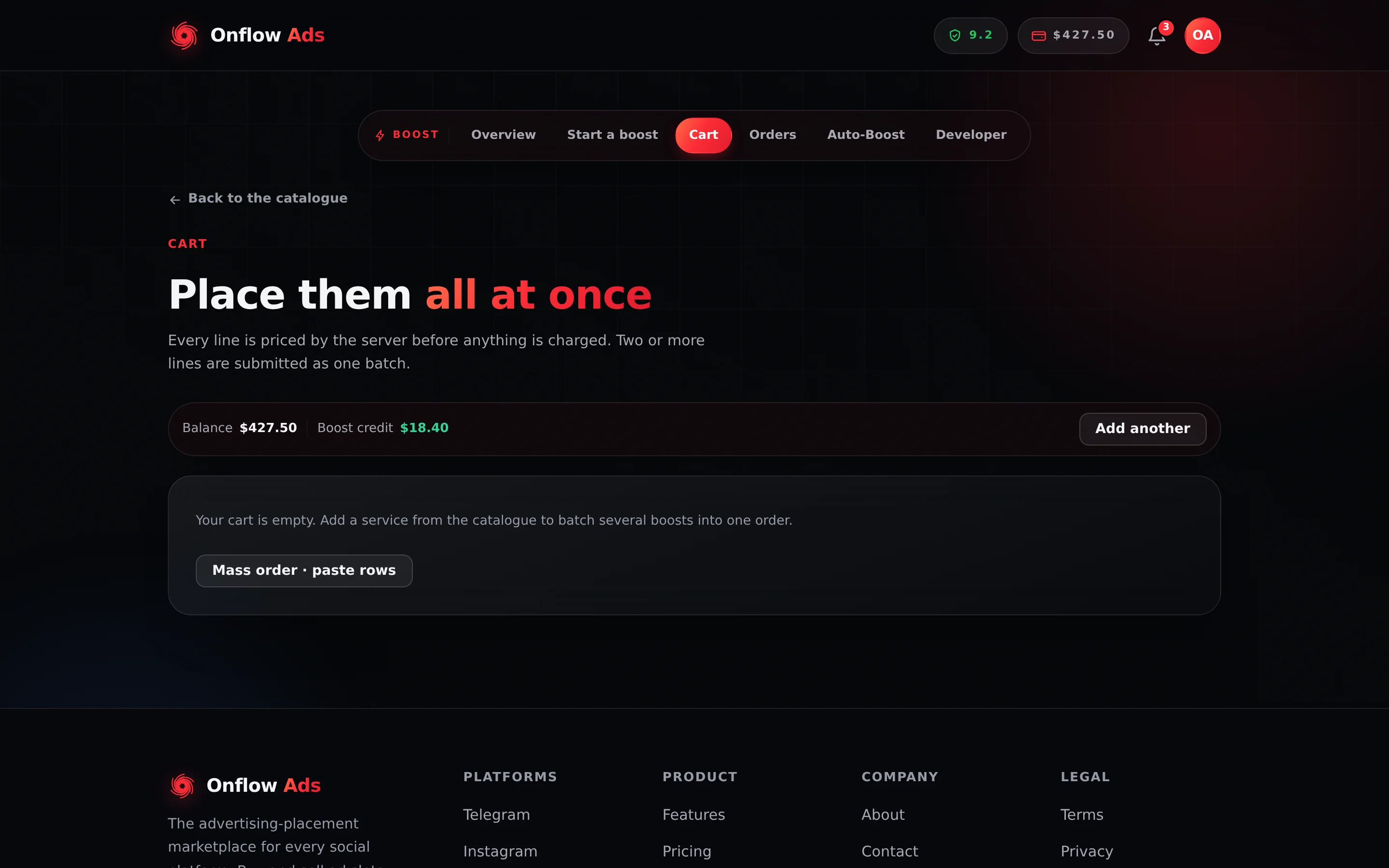
Plus plan · Advertiser. The Cart page. Each line is priced by the server as you build the cart, and an Estimated total sums them once every line has a price.
Before you start
- Sign in and clear the onboarding gate, as with every Boost page.
- Each line needs a link. Checkout refuses to run while any line is missing one.
- Know your row cap. It is checked only when you press Place all boosts, never while you are building the cart.
- Have enough balance for the whole batch. Lines are charged one at a time — see the warning below.
Building a cart
One line at a time
- Open Start a boost and select a service.
- Fill in Link, Quantity and any delivery options.
- Press Add to cart instead of Launch boost. A message reads Added to cart. and the Cart pill in the flow bar gains a count badge.
- Repeat for each boost, then open Cart.
As a pasted mass order
- Open Cart and press Mass order · paste rows. A dialog opens.
- Paste one row per order in the format
service_id | link | quantity. The dialog states the rule: One line per order:service_id | link | quantity. Bad rows are skipped, never guessed. - As you type, a live counter reports what parsed — 3 of 4 rows parse — bad rows are skipped, never guessed, or 4 rows parse clean when all of them do.
- Press Add N lines to cart. Only the rows that parsed are added; the rest are dropped silently.
A row is only good when its service id resolves against the live catalogue, the service is not locked to a higher plan, the link is non-empty and the quantity is above zero. Read a service's numeric id off its permalink: /boost/service/12-telegram-channel-members is service 12.
Open the public price list, click through to the services you want, and take the number from the start of each permalink's last path segment. There is no export of catalogue ids in the interface.
What a cart line shows
| Element | What it is |
|---|---|
| Service name | Resolved live from the catalogue. A withdrawn service reads Service no longer available |
| Sub-line | The quantity and unit, then the link — 5K views · t.me/yourchannel/12 — or · no link yet |
| Price | The server's quote for that line — your plan and volume discounts, its add-ons, and the bundle break when the cart holds two or more lines. Captioned Priced by the server |
| unavailable badge | Replaces the price on a line whose service is withdrawn or locked to a higher plan |
| Remove | Deletes that line |
Below the list: the Estimated total (and the part your boost credit covers), Mass order · paste rows, then Place all boosts and Clear cart (which asks Clear the cart? first). If any line could not be priced, no total is shown rather than a wrong one.
Empty state: Your cart is empty. Add a service from the catalogue to batch several boosts into one order.
Placing the batch
- Clear any unavailable line. While one is present, checkout is disabled and the page says Remove the unavailable line(s) before placing this order.
- Give every line a link. Without one: Every line needs a link before it can be placed.
- Press Place all boosts. The button locks while the request runs.
- When every line is placed the cart is emptied and you land on Orders with a banner naming the new ids: Orders OFB-…, OFB-… placed. Quote these to support if anything looks wrong.
- When some lines are refused, the placed ones leave the cart and the refused ones stay in it, with the reason for each: 2 placed. Still in your cart —
<service>:<reason>. When none can be placed, nothing is charged, the cart is left as it was and the first reason is shown.
The bundle discount
On Lite and above, a checkout that places two or more lines together takes the 10% bundle discount on every line, on top of your plan and volume discounts (the combined stack is still capped — see Pricing and discounts). It counts lines that will actually be placed: a line that would be refused — an unknown service, a bad link, a repeat of another line, a coupon already used by another line, or one your balance cannot cover alongside the rest — does not count towards the two.
Rows per batch, by plan
The cap is the greater of a 20-row floor and your plan's mass-order entitlement, then clamped by a platform ceiling of 1,000 rows per request.
| Plan | Rows per batch |
|---|---|
| Free | 20 |
| Lite | 25 |
| Plus | 50 |
| Elite | 150 |
| Master | 500 |
| Ultimate | 1,000 |
The platform caps any single batch request at 1,000 rows regardless of plan, and that limit bites before Ultimate's 2,000-row entitlement does. To place more than 1,000, split it into separate batches — remembering the batch endpoint allows 12 batches per hour.
The cart itself enforces no limit at all. You can add 400 lines on a Free plan and only find out at checkout: That's 400 items — the most you can order at once on the Free plan is 20.
What a batch does not do
Two behaviours here differ from what you would reasonably expect.
Lines are charged and placed one at a time, in order. If your balance runs out part-way through, the earlier lines are already placed and already paid for; only the remaining ones fail. Nothing is rolled back and there is no shortfall warning before you commit. Check your balance against your own arithmetic before pressing Place all boosts.
Priority delivery, the Refill guarantee and drip-feed all survive the cart: a line you set to drip-feed in the composer is placed with the same cadence it would have had on its own, and the cart row shows that cadence back to you before you commit.
What the cart does give you
- One action instead of many. Ten links, one press.
- Server pricing on every line. Each line is quoted and charged by the same code path as a single order, so your plan discount, volume rate-break and per-order caps all apply exactly as they would individually — plus the bundle discount when two or more lines are placed together.
- A shared batch grouping. All lines from one checkout are recorded together, so support can pull the whole group from any one of its
OFB-references. - Exemption from the per-order rate limit. Batch lines do not count against the 30-orders-per-hour limit; the batch request itself is limited to 12 per hour instead.
Where the cart lives
The cart is stored in the browser tab's own session storage. It survives navigating between Boost pages and reloading, but not closing the tab, and it does not follow you to another browser or device. Nothing about a cart is stored on your account until you check out.
If something goes wrong
| What you see | What it means | What to do |
|---|---|---|
| Remove the unavailable line(s) before placing this order. | A line references a service that is withdrawn or locked to a higher plan | Press Remove on the badged lines |
| Every line needs a link before it can be placed. | At least one line has no target | Remove it and re-add it from the composer with a link |
That's N items — the most you can order at once on the <plan> plan is X. | Over your row cap | Remove lines, or split the batch |
| Couldn't place those boosts. | The batch request itself failed. Nothing was placed | Try again. Your cart is intact in this case |
| N placed. Still in your cart — … | Some lines were refused; the reason for each is listed and those lines are still in the cart | Fix what the reason names, then press Place all boosts again |
| A line reads Service no longer available | The service has been withdrawn since you added it | Remove it. There is no way to order a withdrawn service |
| The cart is empty after you reopened the browser | Carts live only for the life of the tab | Rebuild it. For a repeatable list, keep your mass-order rows in a text file and paste them into Mass order |
| A batch is refused before any line is tried | You have used your 12 batches per hour | Wait, or place the remaining lines individually |
Related
- Placing an order — the composer, where drip-feed and the other options are set
- Getting a quote — why the cart shows no total
- Limits and caps — batch limits alongside every other ceiling
- Tracking your orders — checking what a batch actually placed