Browsing services and prices
You can browse the Boost catalogue two ways. Publicly, on the price pages, with no account and no sign-in — every price there is a list price. Or signed in, on the Start a boost page, where every card already carries your plan's discount and your locked services are marked as locked.
The public price list
Open https://onflowads.com/boost/prices. It loads the live catalogue and renders one section per platform, each with a three-column table: Service, Quantity, Price.
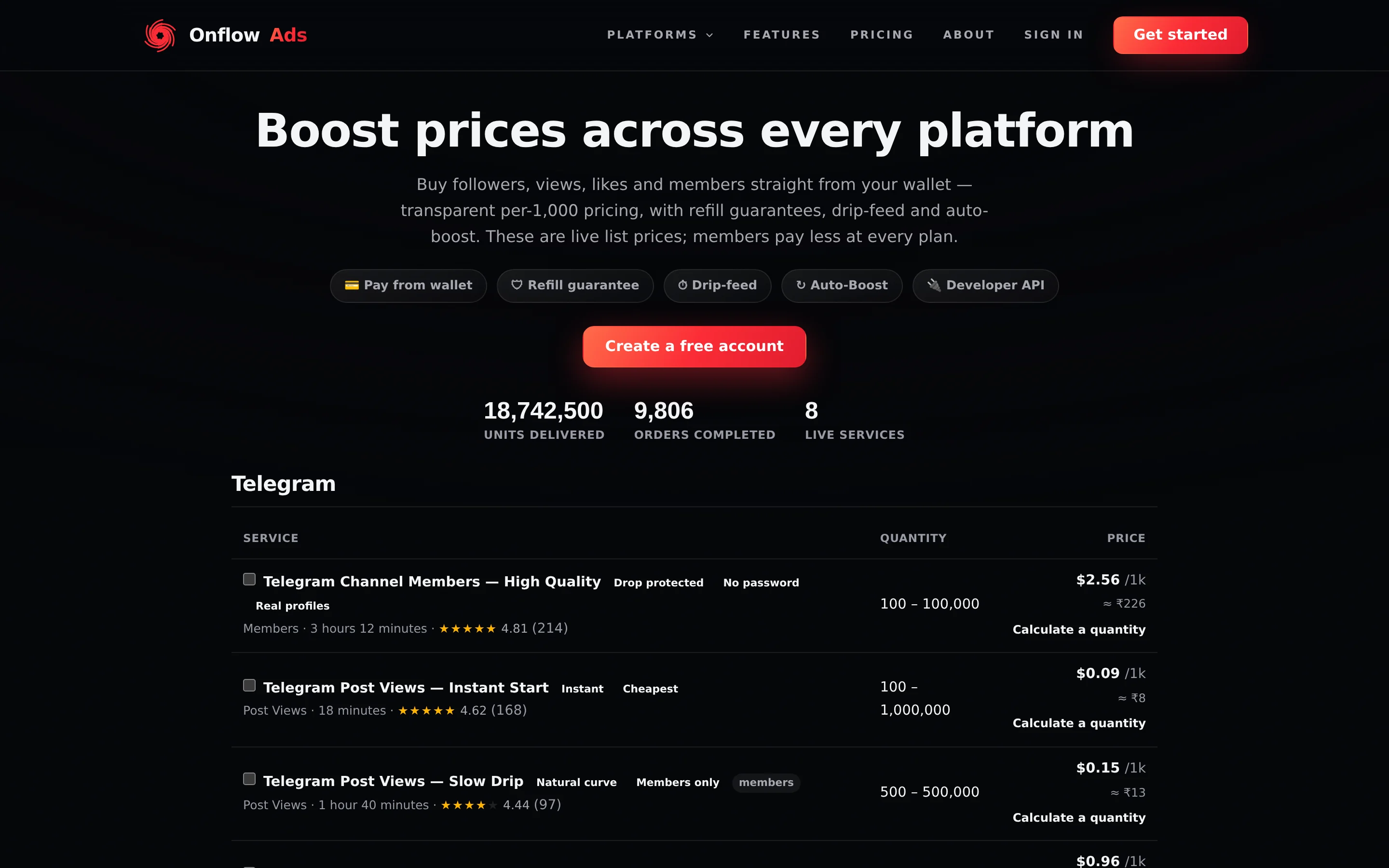
Signed out. The full cross-platform price list. Each row's price column carries the USD figure per 1,000 with an approximate INR line beneath it, and a Calculate a quantity button.
Each row carries:
| Element | What it tells you |
|---|---|
| Service name | A link to that service's own permanent page |
| Quality tags | Up to three tags the catalogue team set on the service |
| members tag | A grey tag marking a service that only paid plans may order |
| Category and average delivery time | Beneath the name, when the provider publishes a time |
| Quantity | The allowed range: minimum to maximum, in that service's own units. Every service is sold within one platform-wide order size — 1,000 to 10,000 by default — narrowed to the provider's own limits wherever those are tighter, so our minimum never sits below the provider's and our maximum never above it. A service the provider only sells above that ceiling is not listed at all |
| Price | USD per 1,000 units, with ≈ ₹ beneath it when an exchange rate is available |
| Calculate a quantity | Opens the price calculator for that row |
| Checkbox | Adds the service to the comparison selection |
The public pages apply no plan discount, no volume rate-break and no coupon. What you read here is the undiscounted rate a signed-out visitor pays attention to. Sign in and the same service on Start a boost will normally be cheaper.
The delivered counter
Above the tables, a strip of real totals — units delivered, orders completed and live services. It is hidden entirely when there is no volume behind it, so an empty strip means no data rather than zero.
The price calculator
Press Calculate a quantity on any row.
- The Price calculator opens, naming the service.
- Type a Quantity into the number field, or drag the slider. Both are clamped to the service's own range, and the hint beneath reads
Min N · Max N. - The large USD figure updates as you type, with an INR line beneath it when a rate is available.
The calculator's own note is the honest caveat: Estimated list price. Sign in to see your member discount, volume breaks and any coupon applied at checkout.
Comparing from the price list
Tick the checkbox on any row and a floating bar appears reading N selected, with Compare and Clear. Compare stays disabled until two are selected and refuses a fifth. Pressing it opens a shareable side-by-side table. See Comparing services.
Loading and empty states
| What you see | What it means |
|---|---|
| Loading live prices… | The catalogue is being fetched |
| Our catalogue is being finalised — create an account to be first in. | The catalogue is genuinely empty; nothing can be ordered right now |
| Couldn't load prices right now. | The request failed. Reload the page |
Per-platform pages
Each of the ten platforms has its own landing page, showing only that platform's catalogue plus a four-question FAQ. Unlike the main price list these are rendered on the server, so the table is in the page itself and loads with it.
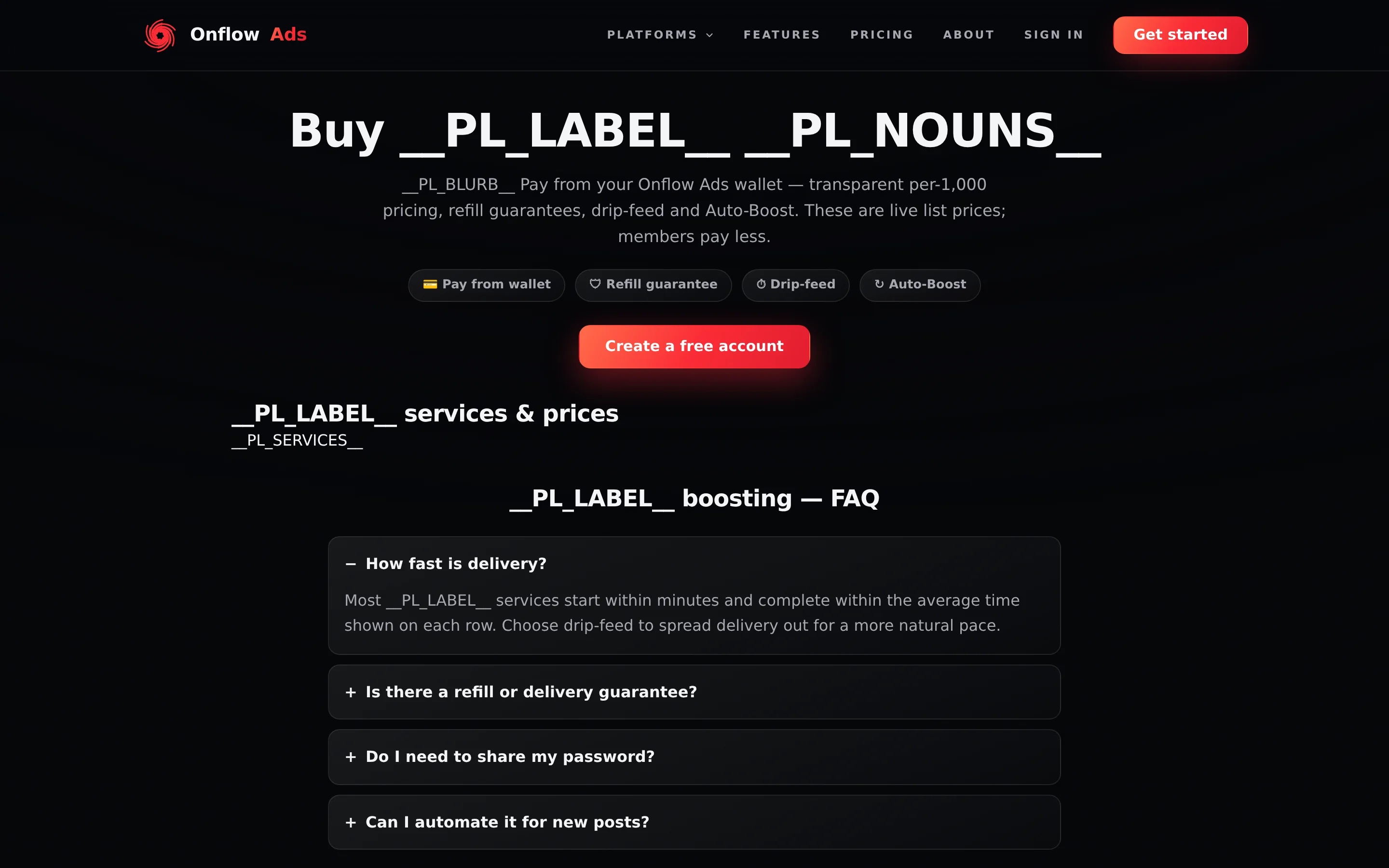
Signed out. A per-platform page. The table is the same catalogue at the same list prices as the cross-platform list, filtered to Telegram, with a platform-specific FAQ underneath.
- https://onflowads.com/boost/telegram
- https://onflowads.com/boost/instagram
- https://onflowads.com/boost/youtube
- https://onflowads.com/boost/tiktok
- https://onflowads.com/boost/x
- https://onflowads.com/boost/facebook
- https://onflowads.com/boost/discord
- https://onflowads.com/boost/spotify
- https://onflowads.com/boost/twitch
- https://onflowads.com/boost/threads
Any other platform slug returns a 404. If a platform's catalogue is momentarily unpriceable the page says so: Our <Platform> catalogue is being finalised — create a free account to be first in.
A single service's page
Every service has a shareable permalink of the form https://onflowads.com/boost/service/12-telegram-channel-members — the service id, then a slug made from its name. The slug is decoration; the id is what resolves.
The page carries a breadcrumb (Boost services · Platform), the per-1,000 list price with its INR estimate, the quality tags, a four-cell fact grid — Quantity, Delivery, Platform, and Pays from: Your wallet — a description, up to six related services on the same platform with their prices, and two buttons: Order this boost and Create a free account.
A members-only service adds a line: 🔒 This service is available to members. See plans to unlock it.
The page returns 404 for a service id that is unknown, disabled, hidden from the web catalogue, or that cannot be priced right now — for instance because the exchange rate for the provider's currency is unavailable. A permalink that worked last week and 404s today usually means the service has been withdrawn.
Browsing signed in
Sign in and open Start a boost at https://onflowads.com/telegram/dashboard/boost/new. This — not the Overview page — is where the signed-in catalogue lives.
The heading reads All boosters · N, followed by four sort chips:
| Chip | Orders the grid by |
|---|---|
| Popular (the default) | Lifetime order count, most first |
| Cheapest | Per-1,000 price, lowest first |
| Fastest | The service's stated daily speed, highest first |
| Top rated | Buyer rating, highest first |
The four sort chips are the whole control set on this page.
Each card shows a gradient icon, the service name, a sub-line of the form 1.2K orders · starts <label>, the words per 1,000 above your member price, and up to four quality tags.
Locked cards
A service your plan cannot order is covered by a dark overlay reading Members only, with a See plans button, and the card cannot be clicked.
The overlay says Members only and nothing more — it never tells you which plan unlocks that particular service. Some services need any paid plan; others carry a minimum plan of their own. To find out which, press See plans, or place the order and read the server's refusal, which does name the plan.
Getting to the catalogue from a metric tile
On Overview, each of the four channel metric tiles carries a button — Boost members, Boost avg views, Boost reactions or Boost shares. Pressing one opens Start a boost with the first unlocked service in that group already selected and the composer open.
If something goes wrong
| What you see | What it means | What to do |
|---|---|---|
| No boosters available right now on Start a boost | The catalogue is empty — no service is currently priceable | Nothing can be ordered until services are published. The public price list will be empty too |
| A card you ordered from last month is gone | The service was withdrawn, its provider was disabled, or it cannot be priced right now | Sort by Cheapest and look for an equivalent; there is no way to reorder a withdrawn service |
| Every card shows Members only | You are on a plan that cannot order any of the current catalogue | Press See plans. This is unusual — most catalogues carry unlocked services at every plan |
| The price on a card differs from the public price list | Correct — the card carries your plan discount and volume rate-break; the public list carries neither | Nothing to do |
| The price list says Our catalogue is being finalised | Genuinely nothing sellable right now | Check back shortly |
Related
- Comparing services — put two to four services side by side
- Getting a quote — what a specific quantity will actually cost you
- Pricing and discounts — how list price becomes member price
- Placing an order — turning a card you like into an order